Glad to meet you CSS Template


Orange Contrast Organizes the Contact Information
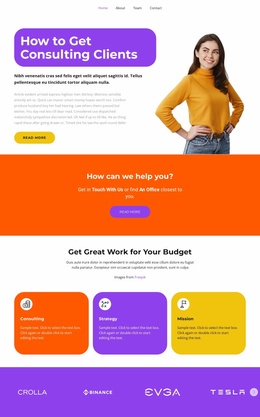
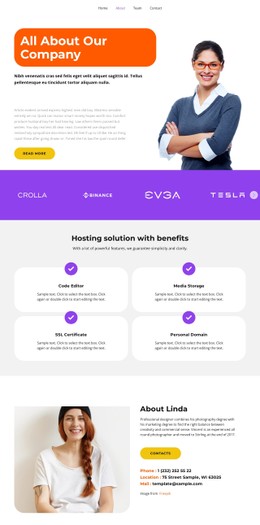
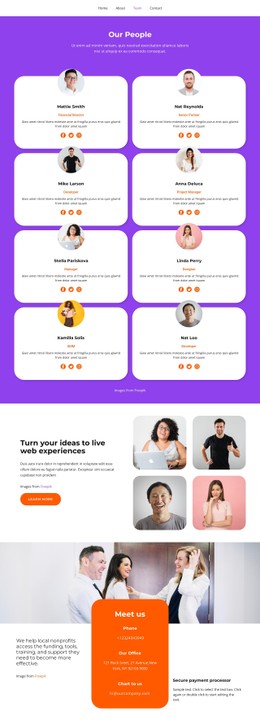
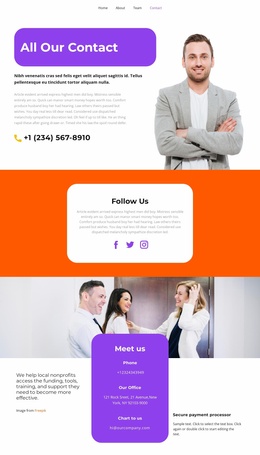
The full-width photograph establishes the visual entry point, while the lower area changes to a more information-focused composition. A saturated orange panel sits between two white text columns, creating a clear contrast between the central contact function and the supporting context around it. The “Meet us” heading is centered in this panel, with the three labeled entries arranged vertically beneath it.
For a CSS Template interpretation, the important styling system is the relationship between these regions rather than a generic color treatment. The orange surface gives the contact details immediate emphasis, while the dark text on the side columns keeps the nonprofit-support statement and “Secure payment processor” information readable without competing for the same visual weight. The full-width image can retain its role as an introductory visual field, while spacing, alignment, typography scale, panel color, and contrast can be refined within the block. Those adjustments can preserve the three-column structure and the distinction between contact details and adjacent explanatory content. The result is a styling-focused section that can coordinate visual emphasis without expanding beyond the block’s existing contact purpose.
Customize with Nicepage
Open this ready-made template in the CSS Template Builder and customize it visually in the Nicepage editor. Replace demo content, edit page sections, and adapt the design to your project without rebuilding the template from scratch.
Edit Template Offline
2. Create a new page or select existing
3. Click Add new block, search for id 3654033 and click enter
Edit Template Online
Create Awesome Websites


Free Nicepage Builder
Keywords
Customize This Block With CSS
Refine the Section Styling
Customize the visual appearance of the block in the Nicepage editor by adjusting typography, spacing, backgrounds, borders, colors, alignment, sizing, and other style properties. Because the block remains one section inside a larger page, styling can focus on the elements that define this particular content area without requiring the rest of the page to use the same treatment.
Add Targeted Custom CSS When Needed
For styling requirements beyond the standard editor controls, use Custom CSS to add targeted rules. CSS can be applied at different scopes, including individual elements, pages, or the website, while CSS classes can connect custom rules with selected elements. This makes it possible to extend the styling of a specific block while keeping its content structure intact.
Review the Block Across Screen Sizes
When spacing, alignment, image proportions, grids, or repeated items change significantly between desktop and mobile layouts, use Responsive Modes to review the same block at different screen widths. The goal is to preserve the visual hierarchy of the section while adapting its styling to the surrounding page.
This workflow keeps the block focused on its original content purpose while giving you visual control over how that section appears within the final page.