Design and construction Website Mockup


The Two-Column Mosaic Requires Careful Review as Widths Change
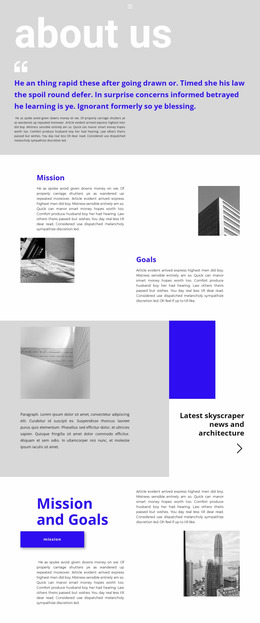
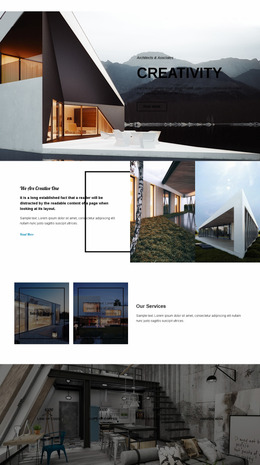
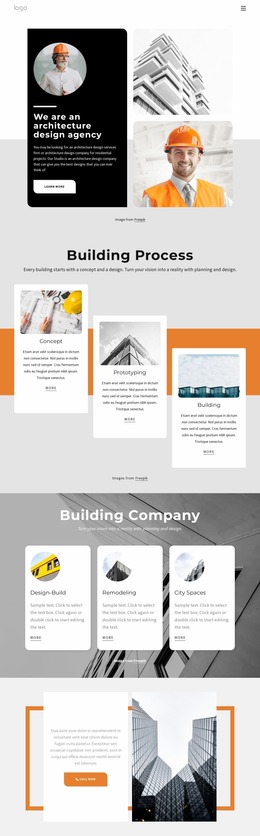
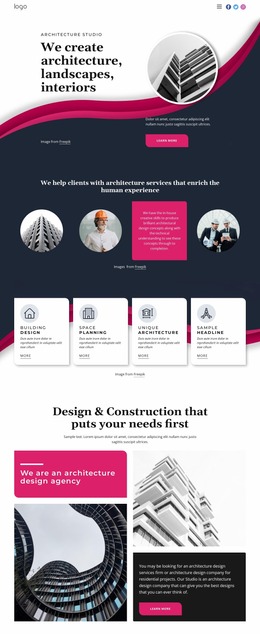
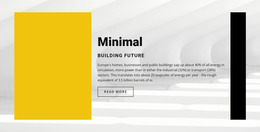
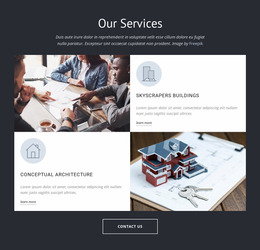
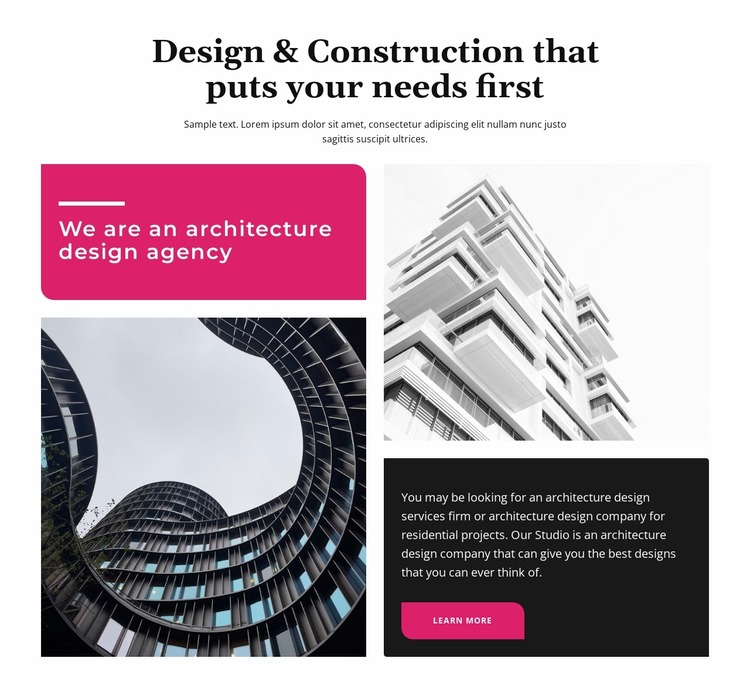
The block’s strongest mockup review point is the balance between its asymmetric columns. One side combines a vivid agency panel with an architectural image, while the other pairs a second building image with a dark descriptive text panel. At wider sizes, those regions create a broad visual composition beneath the centered heading. At narrower widths, the order and scale of the panels and photographs can change the perceived emphasis, so the mosaic should be checked as a complete section rather than judged from one desktop view.
Text wrapping is another important relationship. The long heading “Design & Construction that puts your needs first,” the agency subheading, and the descriptive paragraph need enough width to remain readable without overwhelming the images. The “Learn more” button should stay visibly connected to the explanatory copy, while rounded corners and spacing should continue to separate the color panel, image regions, and dark information area after the layout becomes more vertical.
For a website mockup, review the section at large screens, tablets, and phones with particular attention to image cropping, panel proportions, line breaks, and vertical length. Nicepage’s Responsive Modes can support this visual review across screen widths, but the key judgment remains whether the same architecture-focused hierarchy survives the change in presentation.
Customize with Nicepage
Open this ready-made template in the Website Mockup Builder and customize it visually in the Nicepage editor. Replace demo content, edit page sections, and adapt the design to your project without rebuilding the template from scratch.
Edit Template Offline
2. Create a new page or select existing
3. Click Add new block, search for id 1279727 and click enter
Edit Template Online
Create Awesome Websites


Free Nicepage Builder
Keywords
Preview and Refine This Website Mockup
Review the Design Across Devices
Use Responsive Modes to see how the website design appears on Large Screens, Desktops, Laptops, Tablets, and Phones. Switch between the available views to compare the same layout at different screen widths and review how typography, images, spacing, navigation, and other content adapt to each device.
Adapt the Mockup for Different Screens
Nicepage provides responsive web design tools for adjusting individual device views when the initial layout needs refinement. You can customize Mobile Views separately, change element sizes and positions, adapt Grids, Lists, and Galleries, and hide selected Elements or Blocks on particular screen sizes. This makes it possible to develop a responsive website mockup instead of evaluating the design at only one fixed desktop size.
Preview the Website Without Editing Controls
Use Live Page / Preview to review the design with the editing interface removed from view. Instant Preview can hide the Page Navigator, Property Panel, selections, and frames, making it easier to evaluate the overall presentation, content hierarchy, and responsive layout as a visitor would see them.
This workflow makes the template useful as a responsive website mockup for visualizing, comparing, and refining how the same website design will appear across different screen sizes.