Fun science lesson Web Page Design


The Image Row Sets the Page Rhythm
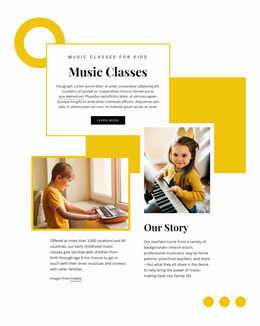
The composition begins with two portrait-oriented photographs aligned side by side, giving the upper part of the block a balanced visual presence. Below that row, the centered “Fun Science Lessons” heading creates a clear transition from imagery to subject information. The supporting paragraph remains beneath the heading in the same narrow text area, and the “Next” button completes the sequence as a distinct action at the bottom of the section. This order makes the block easy to read from visual introduction to lesson context and onward movement.
Within one webpage, the section can work as an introductory composition near the beginning of the content flow. Its centered text panel provides a compact pause after the image row, while the pale pink background separates the group from neighboring page sections. The contrast between the large dark serif heading and smaller centered sans-serif copy gives the text hierarchy without adding extra content regions. The rounded pink button acts as the visual endpoint, so surrounding sections can continue the page journey rather than competing with the block’s internal sequence. The block therefore contributes a recognizable education-focused moment to a page: imagery attracts attention, the heading names the lesson, the paragraph supplies context, and “Next” indicates where the reader can proceed. Its value lies in this deliberate spatial relationship, not in carrying the entire webpage structure.
Customize with Nicepage
Open this ready-made template in the Web Page Design Builder and customize it visually in the Nicepage editor. Replace demo content, edit page sections, and adapt the design to your project without rebuilding the template from scratch.
Edit Template Offline
2. Create a new page or select existing
3. Click Add new block, search for id 105447 and click enter
Edit Template Online
Create Awesome Websites


Free Nicepage Builder
Keywords
Design a Web Page With This Block as One Section
Place the Block in the Page Composition
Use Block Designs to combine individual sections into a complete page. The analyzed block contributes one part of that composition, while other sections can handle the introduction, services, proof, portfolio, pricing, contact, or other page-level needs.
Refine the Elements Inside the Block
Use Web Page Elements such as Text, Image, Hyperlink, Grid, Gallery, and other elements to refine the section's content. Adjust the existing elements without assuming that one block must carry the entire page structure.
Balance the Section With Neighboring Content
After the block is placed, refine its spacing, image scale, text density, alignment, and background treatment so the transition into and out of the section feels intentional. Reorder Blocks at the page level when necessary while keeping the internal composition of each section coherent.
This workflow treats the block as one compositional unit in a web page: internally designed, visually distinct, and coordinated with the sections around it.