Modern Parking Service One Page Template



Edit Template Offline
2. Create new page and search for id 6622391
Edit Template Online
Create Awesome Websites


Free Nicepage Builder
Keywords
Four Parking Categories Within One Continuous Journey
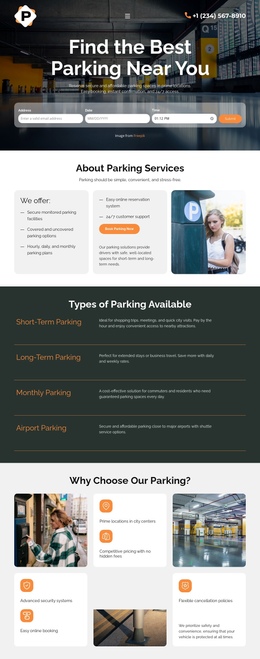
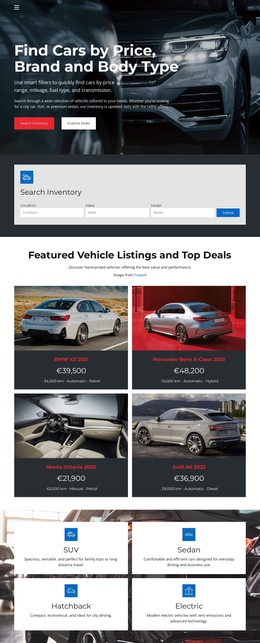
The page's sections can be understood as distinct destinations within one continuous parking document. The hero introduces the search task, while the About area explains the service beside two cards and a supporting image. The next section gives the page a useful information landmark by separating Short-Term, Long-Term, Monthly, and Airport Parking into four repeated rows. Visitors can therefore move from the initial need to the specific type of parking that interests them.
The following feature cards and wide-image process section extend the content journey rather than switching to a separate page. Benefits such as central locations, pricing, security, booking, and cancellation policies answer practical questions, and the numbered process gives the reservation sequence its own destination. The secondary booking band, testimonial, and FAQ with a monthly offer then create additional stopping points for action and clarification.
Because the closing banner repeats the Book Now invitation before the compact footer, the design can guide visitors through several information zones while keeping the experience on one URL. Nicepage's Menu For One-Page Site is an optional product bridge for connecting navigation to Blocks, but the verified design value comes first from its already distinct section sequence: search, categories, benefits, process, reassurance, questions, and booking.
Customize with Nicepage
Open this ready-made template in the One Page Template Builder and customize it visually in the Nicepage editor. Replace demo content, edit page sections, and adapt the design to your project without rebuilding the template from scratch.
Build a Navigable One-Page Website
Connect the Menu to Page Sections
Organize the website as a sequence of sections on a single page and use the Menu For One-Page Site to connect menu items with individual page Blocks. Visitors can jump directly to sections such as About, Services, Testimonials, or Contact without opening separate pages.
Keep the Website on One URL
A one-page template can combine several parts of a small website within one continuous page. Arrange the Header, introduction, services, portfolio, company information, reviews, contact details, and other relevant sections in the order that fits the project while keeping them accessible through the same page navigation.
Make Long Pages Easier to Navigate
For longer one-page websites, keep navigation labels short and connected to meaningful sections so visitors can move through the page without relying only on scrolling. You can also use the Back To Top element to provide a quick way back to the beginning after longer sections.
This workflow makes the template suitable for compact websites that need several distinct content sections while keeping the complete visitor experience on one URL.