Order pizza, pasta, sandwiches Landing Page


A Menu Direction Anchors the Restaurant Introduction
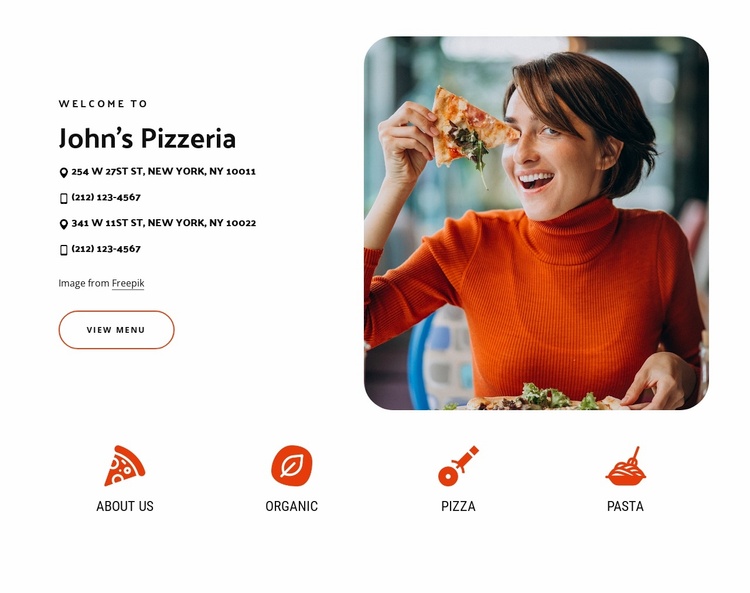
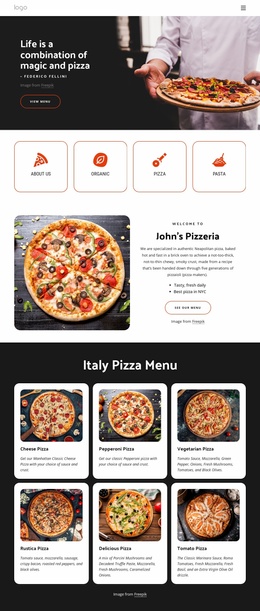
The upper split gives this section a clear supporting role in a landing-page sequence. The welcome label and restaurant heading establish the subject first, while the two displayed addresses and two displayed phone lines add practical context for visitors deciding whether to continue. The “View Menu” button then provides a specific next step toward more detailed food information. It directs attention forward without claiming that this section itself handles ordering, payment, or the final conversion action.
The rounded food photograph on the right works as visual reinforcement for the restaurant message. Its scale balances the denser contact column, so the section can introduce the offer without becoming a long block of text. Underneath, four repeated icon-and-label items—About Us, Organic, Pizza, and Pasta—provide quick supporting cues. Their horizontal arrangement lets visitors scan the restaurant’s themes before moving to the menu or a later inquiry and ordering section.
For a focused landing-page path, this block is most useful as an introduction and orientation stage: it identifies the restaurant, presents displayed contact routes, and points toward the menu. A surrounding sequence can place the primary response mechanism elsewhere, preserving one clear action while this section supplies recognition, context, and a visual reason to continue.
Customize with Nicepage
Open this ready-made template in the Landing Page Builder and customize it visually in the Nicepage editor. Replace demo content, edit page sections, and adapt the design to your project without rebuilding the template from scratch.
Edit Template Offline
2. Create a new page or select existing
3. Click Add new block, search for id 3983172 and click enter
Edit Template Online
Create Awesome Websites


Free Nicepage Builder
Keywords
Build a Landing Page Around One Conversion Goal
Focus on One Primary Action
Use the landing page to guide visitors toward one measurable response, such as requesting a quote, registering, subscribing, booking a consultation, applying for a service, or submitting an inquiry. Keep the primary call-to-action consistent across the important sections so the headline, supporting content, form, and CTA buttons work toward the same campaign goal instead of competing for attention.
Capture Leads With a Form
Use the Contact Form Element to add a contact, subscription, application, or other conversion form directly to the landing page. Customize the form fields, layout, labels, inputs, and button to collect the information required for your campaign while keeping the form focused on the action you want visitors to complete.
Nicepage also provides several form submission options. Form submissions can be sent to Email, stored as Leads, added to Google Sheets, passed to a custom URL or server endpoint, or used to populate a MailChimp mailing list. This provides practical options for collecting inquiries, registrations, subscriptions, applications, and other campaign responses.
Manage Leads and Campaign Responses
When submissions are stored as Leads, you can use Contact Form Leads to review the information collected through the landing page and use it for follow-up. Keep the form connected to the same offer and primary CTA presented throughout the page so visitors move from the campaign message to a clear conversion action.
This workflow makes the template suitable for landing pages where the offer, content, call-to-action, form, and lead collection process work together toward one defined conversion goal.

Design Set (14)
-

-
-
-
-
-
-
Free Website Builder SoftwareDownload
-
-
-
-


More from Food & Restaurant Blocks
-
-
-
-
-
-
-
-
-
-
-
Free Website Builder SoftwareDownload
-
-
-
-
-
-
-
-
-
-


More from Split Blocks
-
-
-
-
-
-
-
-
-
-
-
Free Website Builder SoftwareDownload
-
-
-
-
-
-
-
-
-
-