Product Features Side-By-Side Joomla Template


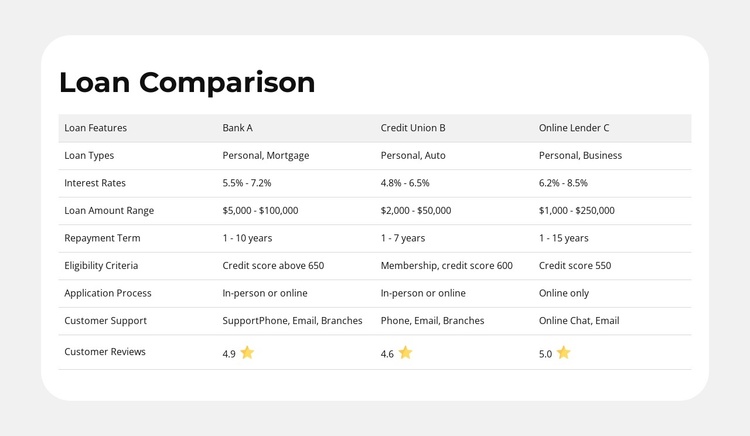
Eight comparison categories form a structured loan information region
The single heading, “Loan Comparison,” establishes a focused information area before the table presents three provider columns: Bank A, Credit Union B, and Online Lender C. A separate feature column keeps the comparison labels aligned, so each provider can be read against the same eight categories rather than as three unrelated descriptions. The rows cover loan types, interest rates, loan amount range, repayment term, eligibility criteria, application process, customer support, and customer reviews. Displayed ratings and star icons add a compact review signal to the provider columns without changing the table’s central comparison role.
In a Joomla-managed page, this block can function as a reusable structured content region for comparing financial options while the surrounding site handles broader navigation and related information. The row labels give the section an article-like organization: visitors can move from product scope and rates to terms, eligibility, process, support, and reviews. That sequence supports a clear reading path for a service-comparison section without requiring the block to contain an entire page or CMS structure.
The centered white rounded card also separates the comparison from the light gray surrounding background. This visual boundary helps a Joomla-oriented project keep the table recognizable when it appears alongside other content regions, such as explanatory text or contact information. The static layout is especially suited to content that needs consistent alignment rather than rotating or expandable presentation.
Customize with Nicepage
Open this ready-made template in the Joomla Page Builder and customize it visually in the Nicepage editor. Replace demo content, edit page sections, and adapt the design to your project without rebuilding the template from scratch.
Edit Template Offline
2. Create a new page or select existing
3. Click Add new block, search for id 6560601 and click enter
Edit Template Online
Create Awesome Websites


Free Nicepage Builder
Keywords
Work With This Template in Joomla
Customize and Install the Joomla Template
Start with this ready-made template instead of building the Joomla design from scratch. Customize its layout, content, typography, images, sections, and other design elements visually in the Nicepage application, then export and install the Joomla Template, Nicepage Extension, and supported content on your Joomla website.
Edit the Template Directly in Joomla
After installation, you can edit the Joomla Template directly in Joomla with the Nicepage Joomla Extension. Customize the Header, Footer, Colors, Fonts, typography, and Page Templates from the Joomla workflow while keeping the site design connected with your CMS content.
Edit Joomla Articles Visually
Use the Nicepage Joomla Extension to open and edit Joomla Articles visually from the Joomla Administrator. Change text, images, sections, layouts, and other page content in the Nicepage editor while continuing to manage the Articles through Joomla.
Joomla Content and Template Integration
Use the customized template together with Joomla Articles, module Positions, menus, forms, Blog Pages, and other supported CMS elements. With the Nicepage Extension used as the Site Style Source, shared design settings can be applied across Joomla Articles while Joomla continues to provide the CMS environment for managing site content.
This workflow combines a ready-made Joomla Template with visual customization, direct template editing in Joomla, and continued content management through the Nicepage Joomla Extension.