Innovate. Transform. Succeed Joomla Template


Structured Feature Records Fit a Managed Content Region
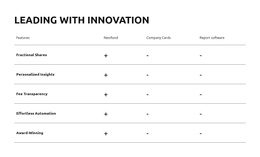
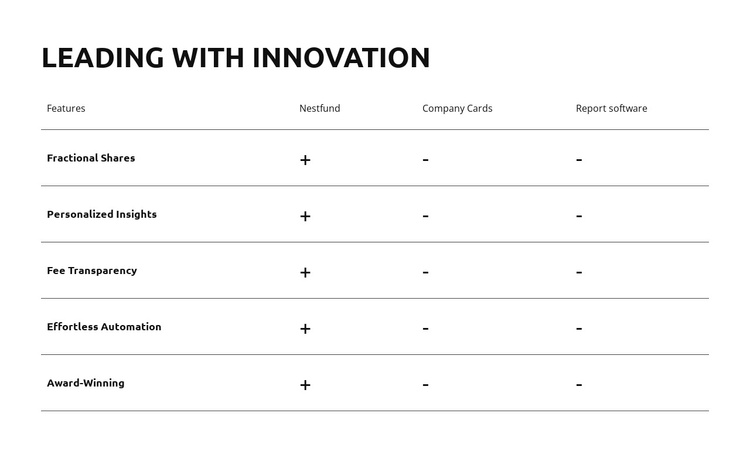
The table divides the section into a stable set of informational units: a feature label followed by three comparison results. “Nestfund,” “Company Cards,” and “Report software” identify the columns, while Fractional Shares, Personalized Insights, Fee Transparency, Effortless Automation, and Award-Winning identify the five feature records. This makes the block suitable for a structured content region where visitors need to compare named capabilities without moving through a long narrative.
The repeated indicators reinforce the organization. Nestfund has a plus for every listed feature, whereas Company Cards and Report software have minuses in each row. The result is a consistent matrix that can remain visually recognizable while the wider Joomla-managed page supplies related explanations, surrounding content, or other sections. The block’s role is therefore an informational comparison area, not a standalone CMS environment.
The white background, black typography, thin gray rules, and spacious four-column layout also give the content a defined presentation boundary. In a Joomla-oriented project, that boundary can help keep the comparison distinct from adjacent managed content while preserving the heading “Leading with Innovation” as its local introduction. The section can work alongside broader editorial or service information without requiring article, category, or module assumptions.
Customize with Nicepage
Open this ready-made template in the Joomla Page Builder and customize it visually in the Nicepage editor. Replace demo content, edit page sections, and adapt the design to your project without rebuilding the template from scratch.
Edit Template Offline
2. Create a new page or select existing
3. Click Add new block, search for id 6298140 and click enter
Edit Template Online
Create Awesome Websites


Free Nicepage Builder
Keywords
Work With This Template in Joomla
Customize and Install the Joomla Template
Start with this ready-made template instead of building the Joomla design from scratch. Customize its layout, content, typography, images, sections, and other design elements visually in the Nicepage application, then export and install the Joomla Template, Nicepage Extension, and supported content on your Joomla website.
Edit the Template Directly in Joomla
After installation, you can edit the Joomla Template directly in Joomla with the Nicepage Joomla Extension. Customize the Header, Footer, Colors, Fonts, typography, and Page Templates from the Joomla workflow while keeping the site design connected with your CMS content.
Edit Joomla Articles Visually
Use the Nicepage Joomla Extension to open and edit Joomla Articles visually from the Joomla Administrator. Change text, images, sections, layouts, and other page content in the Nicepage editor while continuing to manage the Articles through Joomla.
Joomla Content and Template Integration
Use the customized template together with Joomla Articles, module Positions, menus, forms, Blog Pages, and other supported CMS elements. With the Nicepage Extension used as the Site Style Source, shared design settings can be applied across Joomla Articles while Joomla continues to provide the CMS environment for managing site content.
This workflow combines a ready-made Joomla Template with visual customization, direct template editing in Joomla, and continued content management through the Nicepage Joomla Extension.