The first project of a young architect Joomla Template


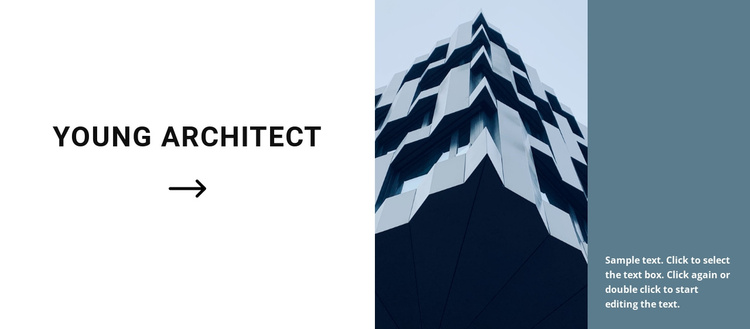
The Building Image Connects Two Structured Content Regions
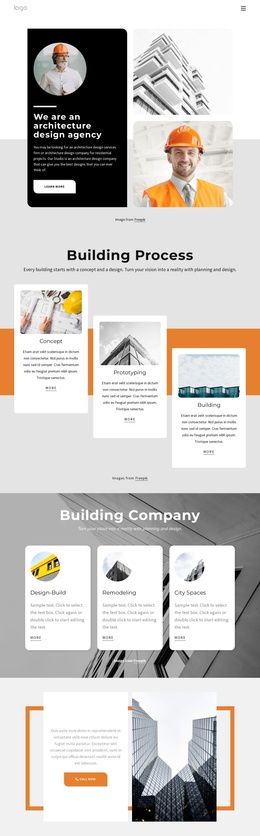
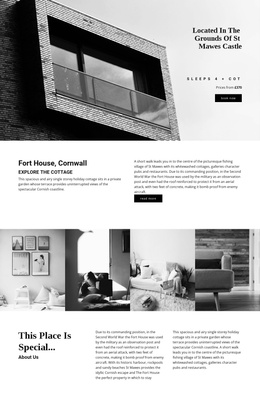
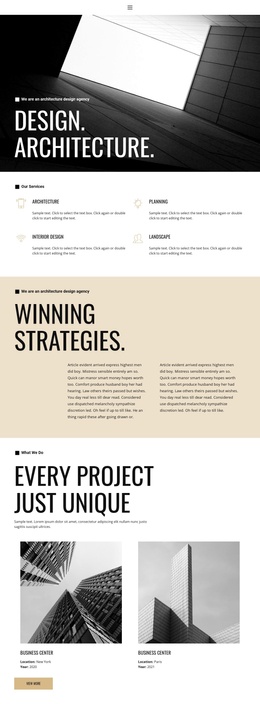
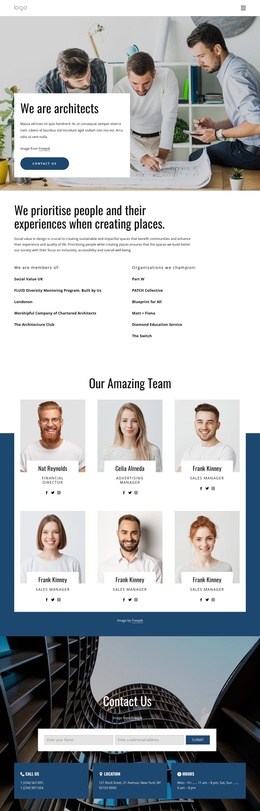
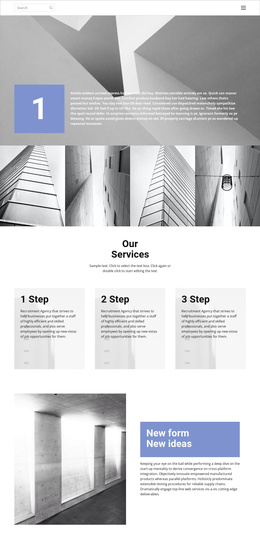
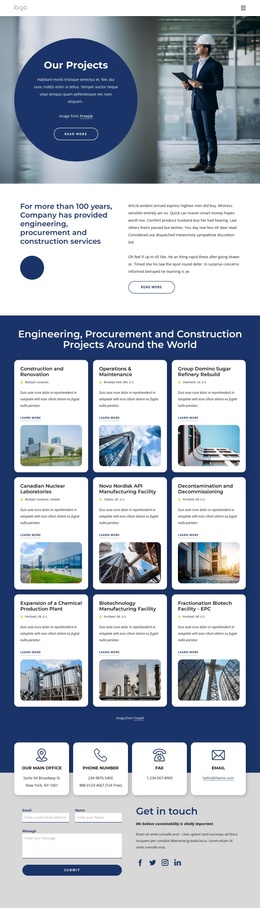
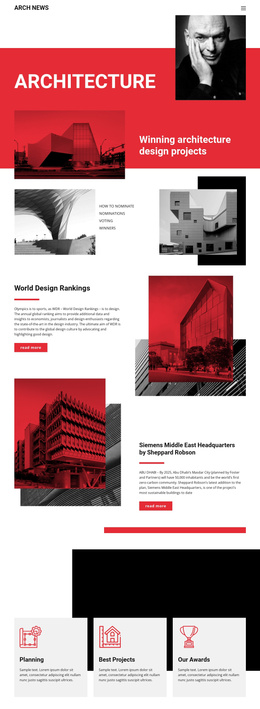
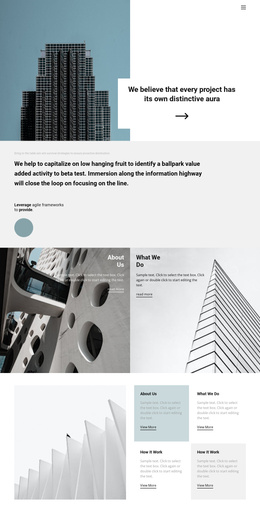
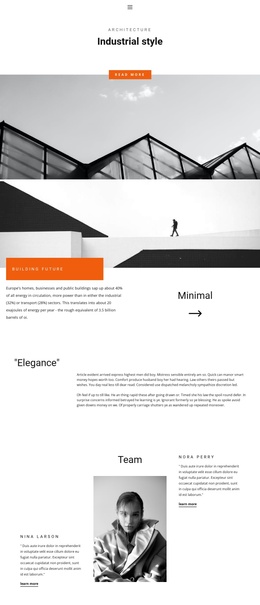
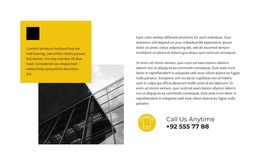
The heading, image, and supporting copy divide this block into three clear informational regions. On the left, “Young architect” functions as the identifying label for the architecture-focused introduction, with the arrow icon adding a restrained directional detail below it. The central column is reserved for a tall modern building photograph, so the visual subject remains distinct from the text. On the right, a colored panel contains the supporting paragraph, giving the written content its own bounded area rather than placing it directly over the image.
In a Joomla-managed page, this arrangement can serve as a stable visual content region for an architecture article or introductory section. The CMS context surrounds the block; the block itself retains its existing relationship between title, image, and copy. That separation is useful when a page needs a recognizable architecture section that can sit alongside other managed content without absorbing the entire page structure.
The internal organization is intentionally simple and static. There are no confirmed tabs, accordion panels, gallery controls, or form fields to interpret. Instead, the three-part order provides the hierarchy: subject first, photographic context second, and explanatory copy third. The strong vertical alignment and high contrast help these groups remain legible as one Joomla-oriented page section, while the broader site can supply navigation and related content separately.
Customize with Nicepage
Open this ready-made template in the Joomla Page Builder and customize it visually in the Nicepage editor. Replace demo content, edit page sections, and adapt the design to your project without rebuilding the template from scratch.
Edit Template Offline
2. Create a new page or select existing
3. Click Add new block, search for id 348019 and click enter
Edit Template Online
Create Awesome Websites


Free Nicepage Builder
Keywords
Work With This Template in Joomla
Customize and Install the Joomla Template
Start with this ready-made template instead of building the Joomla design from scratch. Customize its layout, content, typography, images, sections, and other design elements visually in the Nicepage application, then export and install the Joomla Template, Nicepage Extension, and supported content on your Joomla website.
Edit the Template Directly in Joomla
After installation, you can edit the Joomla Template directly in Joomla with the Nicepage Joomla Extension. Customize the Header, Footer, Colors, Fonts, typography, and Page Templates from the Joomla workflow while keeping the site design connected with your CMS content.
Edit Joomla Articles Visually
Use the Nicepage Joomla Extension to open and edit Joomla Articles visually from the Joomla Administrator. Change text, images, sections, layouts, and other page content in the Nicepage editor while continuing to manage the Articles through Joomla.
Joomla Content and Template Integration
Use the customized template together with Joomla Articles, module Positions, menus, forms, Blog Pages, and other supported CMS elements. With the Nicepage Extension used as the Site Style Source, shared design settings can be applied across Joomla Articles while Joomla continues to provide the CMS environment for managing site content.
This workflow combines a ready-made Joomla Template with visual customization, direct template editing in Joomla, and continued content management through the Nicepage Joomla Extension.