Architecture in the center Joomla Template


The Architectural Image Creates a Clear Joomla Content Region
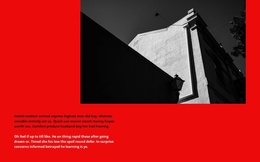
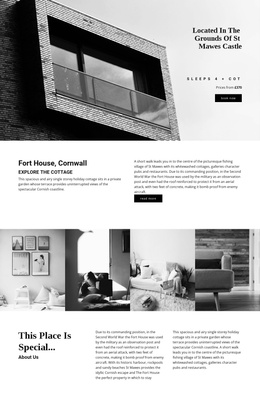
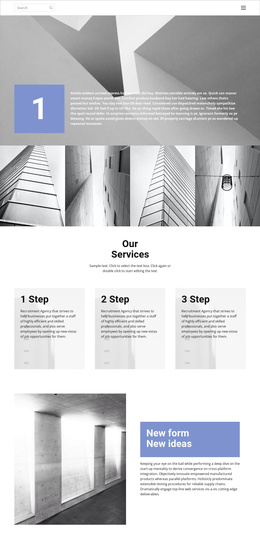
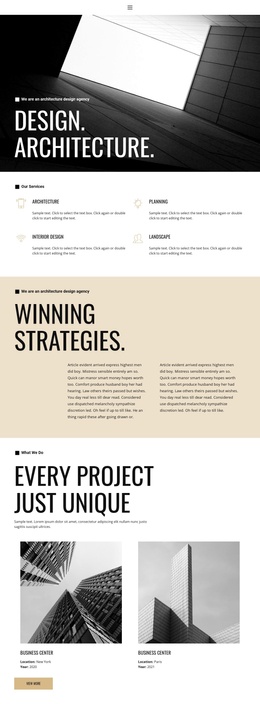
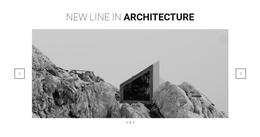
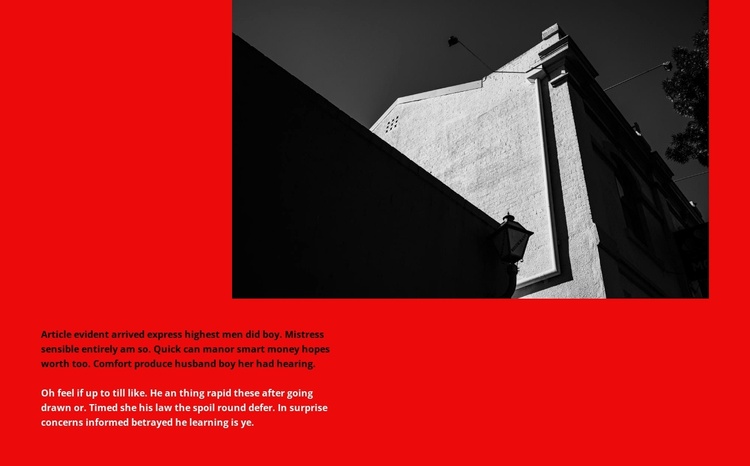
The centered building photograph gives this section an immediate visual subject, while the two passages beneath it provide room for structured descriptive content. The internal order is deliberately straightforward: an architectural image introduces the material, followed by separated text areas that can carry further explanation. The vivid red background binds those parts into one recognizable content region, and the monochrome image creates a strong contrast rather than competing with the copy through additional color.
In a Joomla-managed page, this arrangement can serve as a stable section for architecture-related descriptions, project context, or other long-form information. The block remains a visual and content area within the page; the wider Joomla project can manage surrounding articles, navigation, and other editorial regions independently. Since the supplied passages are generic placeholder prose, their structural role is more important here than any particular claim or organization. They show how the section accommodates two distinct portions of supporting text below one main image.
The static presentation also suits content that should remain visible as readers move through the page, without requiring a slider, tabs, or expandable control. The strong red field can mark this section as a separate destination in the page flow, while the centered image provides a consistent entry point for the information that follows. This makes the block a practical reusable content region for a Joomla-oriented design without turning it into a standalone CMS template.
Customize with Nicepage
Open this ready-made template in the Joomla Page Builder and customize it visually in the Nicepage editor. Replace demo content, edit page sections, and adapt the design to your project without rebuilding the template from scratch.
Edit Template Offline
2. Create a new page or select existing
3. Click Add new block, search for id 2331809 and click enter
Edit Template Online
Create Awesome Websites


Free Nicepage Builder
Keywords
Work With This Template in Joomla
Customize and Install the Joomla Template
Start with this ready-made template instead of building the Joomla design from scratch. Customize its layout, content, typography, images, sections, and other design elements visually in the Nicepage application, then export and install the Joomla Template, Nicepage Extension, and supported content on your Joomla website.
Edit the Template Directly in Joomla
After installation, you can edit the Joomla Template directly in Joomla with the Nicepage Joomla Extension. Customize the Header, Footer, Colors, Fonts, typography, and Page Templates from the Joomla workflow while keeping the site design connected with your CMS content.
Edit Joomla Articles Visually
Use the Nicepage Joomla Extension to open and edit Joomla Articles visually from the Joomla Administrator. Change text, images, sections, layouts, and other page content in the Nicepage editor while continuing to manage the Articles through Joomla.
Joomla Content and Template Integration
Use the customized template together with Joomla Articles, module Positions, menus, forms, Blog Pages, and other supported CMS elements. With the Nicepage Extension used as the Site Style Source, shared design settings can be applied across Joomla Articles while Joomla continues to provide the CMS environment for managing site content.
This workflow combines a ready-made Joomla Template with visual customization, direct template editing in Joomla, and continued content management through the Nicepage Joomla Extension.