Tall buildings Joomla Template


The Two-Column Hero Organizes Building Information Clearly
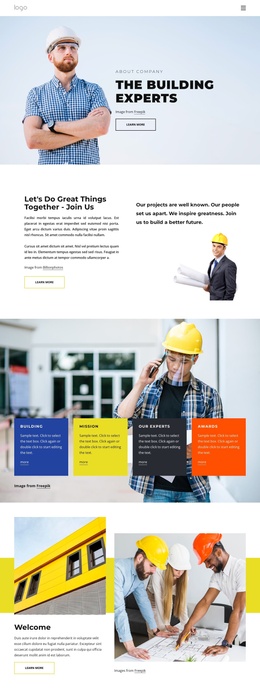
The construction image and the right-side text panel divide the block into a visual subject and a structured information area. The worker’s yellow hard hat immediately reinforces the building theme, while the “Building Company” heading and supporting paragraph give the adjacent panel a concise introductory role. The outlined “Learn more” button provides one visible path for continuing from that introduction.
In a Joomla-managed page or site, this arrangement can function as a stable content region for building-related information while other CMS-managed material surrounds it. The block does not need to carry the whole page: its focused heading, paragraph, image, and action can remain one recognizable section alongside deeper company information or additional construction content. The red and yellow rectangles help preserve a distinct visual boundary around that information without adding CMS structures.
Nicepage’s Joomla Extension can connect visual design with Joomla content in the broader project. Here, the practical interpretation is the block’s structured content relationship: construction imagery introduces the subject, the white panel makes the message readable, and the button marks the next destination. The section can remain reusable while the surrounding Joomla site manages its wider editorial organization.
Customize with Nicepage
Open this ready-made template in the Joomla Page Builder and customize it visually in the Nicepage editor. Replace demo content, edit page sections, and adapt the design to your project without rebuilding the template from scratch.
Edit Template Offline
2. Create a new page or select existing
3. Click Add new block, search for id 197191 and click enter
Edit Template Online
Create Awesome Websites


Free Nicepage Builder
Keywords
Work With This Template in Joomla
Customize and Install the Joomla Template
Start with this ready-made template instead of building the Joomla design from scratch. Customize its layout, content, typography, images, sections, and other design elements visually in the Nicepage application, then export and install the Joomla Template, Nicepage Extension, and supported content on your Joomla website.
Edit the Template Directly in Joomla
After installation, you can edit the Joomla Template directly in Joomla with the Nicepage Joomla Extension. Customize the Header, Footer, Colors, Fonts, typography, and Page Templates from the Joomla workflow while keeping the site design connected with your CMS content.
Edit Joomla Articles Visually
Use the Nicepage Joomla Extension to open and edit Joomla Articles visually from the Joomla Administrator. Change text, images, sections, layouts, and other page content in the Nicepage editor while continuing to manage the Articles through Joomla.
Joomla Content and Template Integration
Use the customized template together with Joomla Articles, module Positions, menus, forms, Blog Pages, and other supported CMS elements. With the Nicepage Extension used as the Site Style Source, shared design settings can be applied across Joomla Articles while Joomla continues to provide the CMS environment for managing site content.
This workflow combines a ready-made Joomla Template with visual customization, direct template editing in Joomla, and continued content management through the Nicepage Joomla Extension.