Subtleties of construction Joomla Template


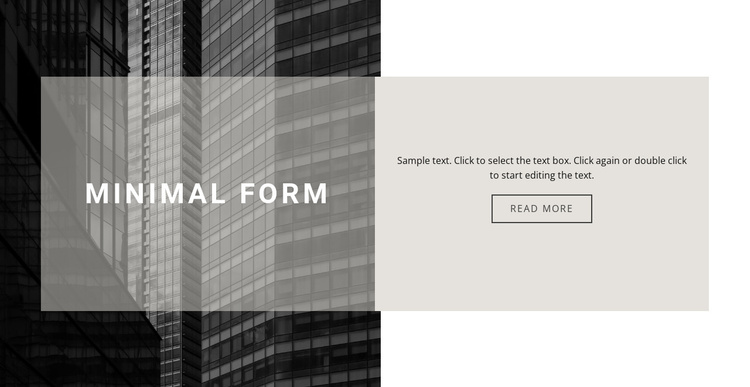
The Architectural Image and Panels Create a Structured Content Region
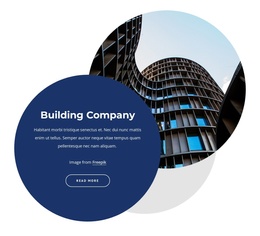
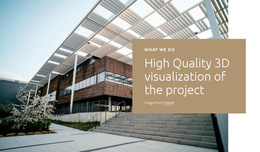
The building photograph supplies the block’s shared visual context, but the content is divided into two readable regions rather than placed directly over one undifferentiated image. The left panel combines a translucent dark treatment with the uppercase “minimal form” heading, creating a strong label for the topic. The adjoining right panel shifts to a light neutral surface and centers the supporting paragraph above an outlined “read more” button. This separation gives the text and action their own organized area while preserving the connection to the architectural image.
Within a Joomla-managed page or site, the arrangement can function as a stable visual content region for an architecture or design topic. The heading, explanatory paragraph, and button can represent structured introductory information, while surrounding CMS-managed content handles longer articles, related projects, or other sections. The block itself remains focused on one visual message: an image-led presentation supported by a short text area and a clear destination link.
Its value in this context comes from the relationship between the two panels. The darker left side establishes emphasis and identity; the lighter right side creates a practical reading zone. That internal organization makes the section reusable when similar introductory content needs to retain a consistent visual boundary without expanding into a full site or template structure.
Customize with Nicepage
Open this ready-made template in the Joomla Page Builder and customize it visually in the Nicepage editor. Replace demo content, edit page sections, and adapt the design to your project without rebuilding the template from scratch.
Edit Template Offline
2. Create a new page or select existing
3. Click Add new block, search for id 196619 and click enter
Edit Template Online
Create Awesome Websites


Free Nicepage Builder
Keywords
Work With This Template in Joomla
Customize and Install the Joomla Template
Start with this ready-made template instead of building the Joomla design from scratch. Customize its layout, content, typography, images, sections, and other design elements visually in the Nicepage application, then export and install the Joomla Template, Nicepage Extension, and supported content on your Joomla website.
Edit the Template Directly in Joomla
After installation, you can edit the Joomla Template directly in Joomla with the Nicepage Joomla Extension. Customize the Header, Footer, Colors, Fonts, typography, and Page Templates from the Joomla workflow while keeping the site design connected with your CMS content.
Edit Joomla Articles Visually
Use the Nicepage Joomla Extension to open and edit Joomla Articles visually from the Joomla Administrator. Change text, images, sections, layouts, and other page content in the Nicepage editor while continuing to manage the Articles through Joomla.
Joomla Content and Template Integration
Use the customized template together with Joomla Articles, module Positions, menus, forms, Blog Pages, and other supported CMS elements. With the Nicepage Extension used as the Site Style Source, shared design settings can be applied across Joomla Articles while Joomla continues to provide the CMS environment for managing site content.
This workflow combines a ready-made Joomla Template with visual customization, direct template editing in Joomla, and continued content management through the Nicepage Joomla Extension.