Fly Agency Html Code Example


Edit Template Offline
2. Create new page and search for id 12820
Edit Template Online
Create Awesome Websites


Free Nicepage Builder
Keywords
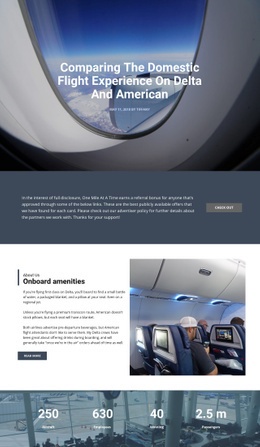
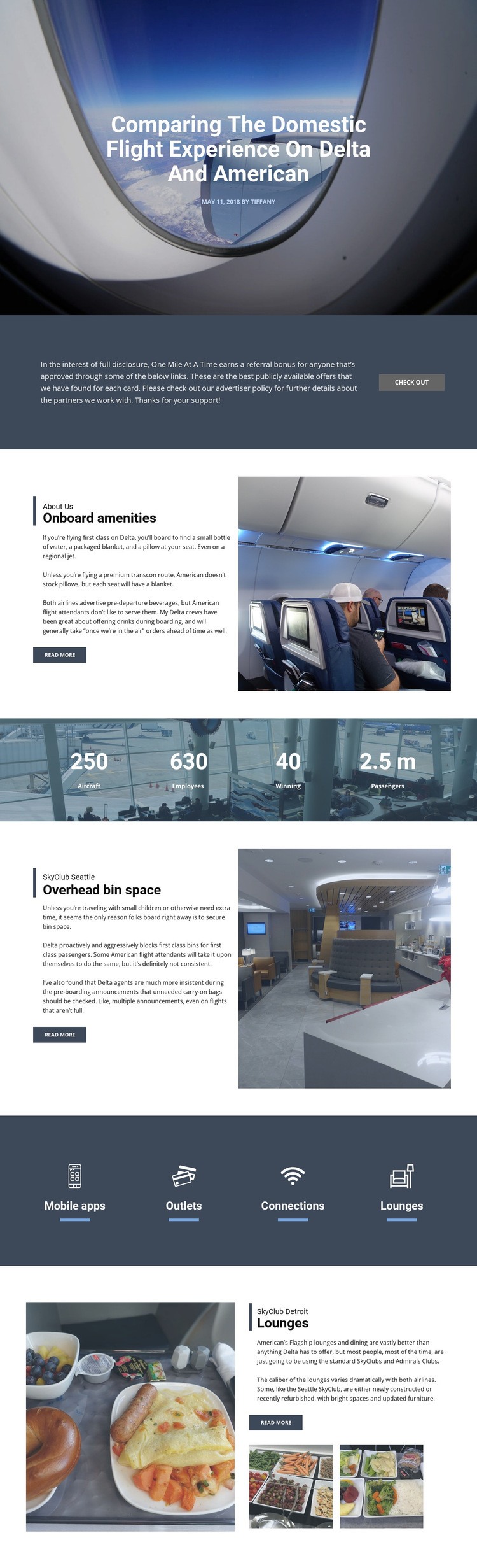
The Disclosure, Feature Row, and Lounge Gallery Create Clear Extension Zones
The referral disclosure near the beginning is a distinct content zone: wide explanatory text sits beside a compact “Check out” action on a dark background. That separation gives a project a clear place to consider an additional notice, tracking element, or external action without disturbing the opening article image. The comparison sections provide different kinds of extension points. Text beside the cabin photograph explains onboard amenities, while the overhead-bin section pairs another editorial passage with an airport or aircraft interior image.
The four-item feature row creates a second kind of boundary. Mobile apps, outlets, connections, and lounges are presented as equal categories, so a project-specific component could be associated with one category or placed alongside the repeated group while retaining the row’s visual rhythm. The four metric pairs likewise form a self-contained band that could remain visually separate from the article copy if additional data display were required.
The final lounge section is particularly suitable for an external media or content addition because it already combines a large photograph, supporting thumbnails, a label, comparison text, and a “Read more” action. Custom HTML could complement that existing presentation with a project-specific widget or integration, but the verified design itself does not establish that custom code is already present. Its value lies in the clear relationship between existing content areas and possible extensions.
Customize with Nicepage
Open this ready-made template in the HTML Code Generator and customize it visually in the Nicepage editor. Replace demo content, edit page sections, and adapt the design to your project without rebuilding the template from scratch.
Extend This Page With Custom HTML Code
Insert Code With the HTML Element
Use the HTML Element to add custom code directly to a Block in the Nicepage editor. Enter the required markup in the Code field when the page needs content or functionality that is not available through the standard page elements.
Place the HTML Element in the Layout
Treat the HTML Element as part of the visual page composition. Adjust its position, width, height, alignment, and margins to place the custom content where it belongs alongside text, images, buttons, and other elements. This makes it possible to combine visually edited sections with project-specific code without separating the custom element from the rest of the layout.
Add HTML, CSS, JavaScript, and External Components
The HTML Element supports HTML, CSS, and JavaScript, allowing you to extend the page with custom markup and interactive functionality. It can also be used to embed custom code and third-party components, such as social feeds, advertising code, widgets, or other external functionality required by the project.
This workflow makes the template useful for projects that need a visual page editor together with custom HTML code, JavaScript, embedded components, and functionality beyond the standard page elements.

More from Cars & Transportation Html Code Examples
-
Customize Any TemplateDownload