Personal nutrition consultation Template


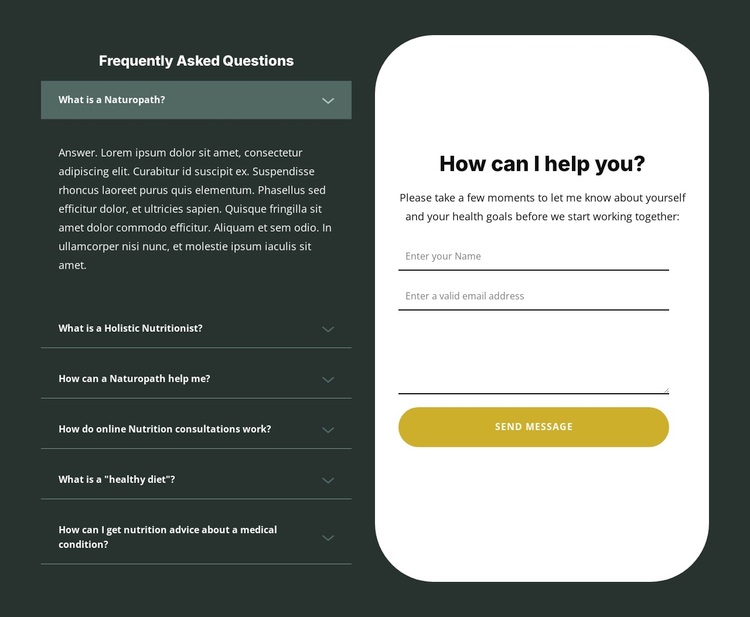
Six Expandable Questions Meet a Focused Consultation Inquiry
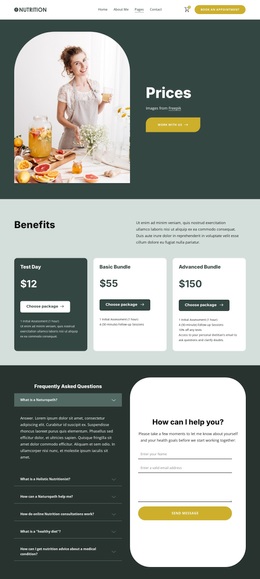
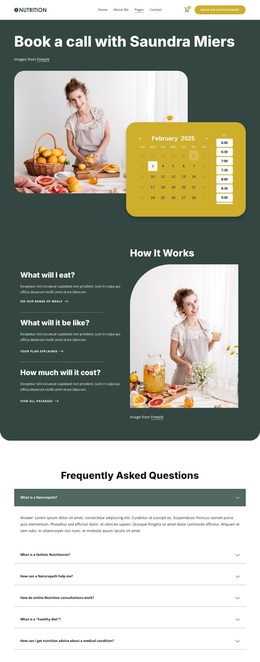
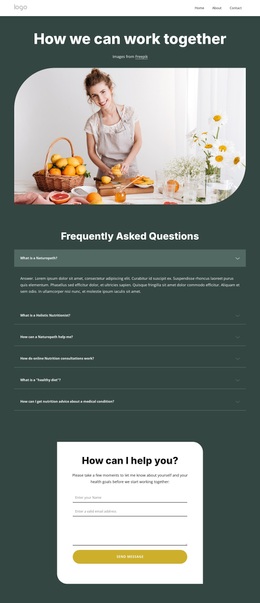
This design is distinguished by the way it joins explanation and response without reducing either to a simple text column or an isolated form. The left side uses six FAQ questions to address recurring concerns around naturopathy, holistic nutrition, online consultations, healthy diets, and nutrition advice for medical conditions. The accordion keeps those topics organized, and the expanded first answer demonstrates the intended interaction.
The right side turns that context into an approachable inquiry area. A centered heading and supporting paragraph introduce a vertical contact form, while the white rounded panel stands out against the dark green section background. Name, email, and message inputs give visitors a direct way to describe a health goal, and the gold Send Message control provides a clear next step. This makes the block a useful choice when a page needs both reassurance through accessible questions and a visible route to an initial consultation inquiry. Its two-column composition also avoids forcing the FAQ content and form into one undifferentiated stack on desktop, giving each function a recognizable place within the same reusable section. The design is especially suited to projects that need answers and an inquiry path to appear together without merging their visual roles.
Customize with Nicepage
Open this ready-made template in the Template Builder and customize it visually in the Nicepage editor. Replace demo content, edit page sections, and adapt the design to your project without rebuilding the template from scratch.
Edit Template Offline
2. Create a new page or select existing
3. Click Add new block, search for id 6423512 and click enter
Edit Template Online
Create Awesome Websites


Free Nicepage Builder
Keywords
Start With a Ready-Made Template
Choose a Design for a New Page
Use a ready-made template as a starting point instead of creating every page from a blank canvas. When adding a new page in Nicepage, browse available designs, compare different layouts, and choose an option that already fits the general purpose and visual direction of your project.
Browse Different Page Designs
Explore Page Designs using search, thematic categories, Design Sets, and full-page previews. The collection includes layouts for different subjects and page purposes, making it easier to compare alternatives before selecting a design to customize.
Customize the Selected Template
After choosing a design, create the page and continue editing it visually in Nicepage. Replace the demo content, adjust images, typography, colors, sections, and other elements, and adapt the ready-made layout to your own content instead of rebuilding the design from the beginning.
Explore More Design Directions
If the first option does not match your project closely enough, return to the design collection and compare other templates before committing to a layout. This makes the template library useful not only for faster page creation, but also for exploring different visual approaches and finding a suitable starting point for a new project.
This workflow gives you access to a broad collection of ready-made designs that can be selected, compared, and customized according to the needs of each new page or project.

Design Set (30)
-

-
-
-
-
-
-
-
-
-
-
Free Website Builder SoftwareDownload
-
-
-
-
-
-
-
-
-
-