Your questions answered page Template


Edit Template Offline
2. Create new page and search for id 6351902
Edit Template Online
Create Awesome Websites


Free Nicepage Builder
Keywords
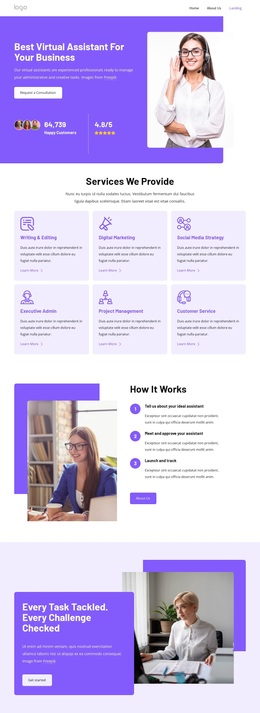
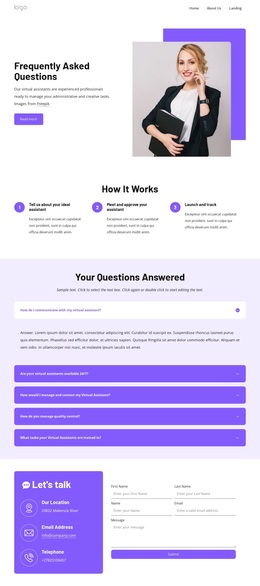
A Three-Step Journey Supports Five Detailed Service Questions
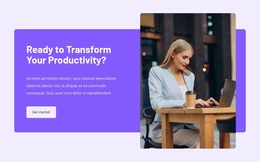
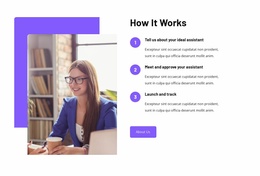
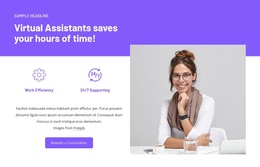
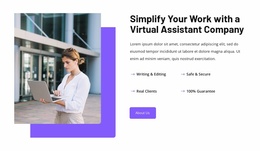
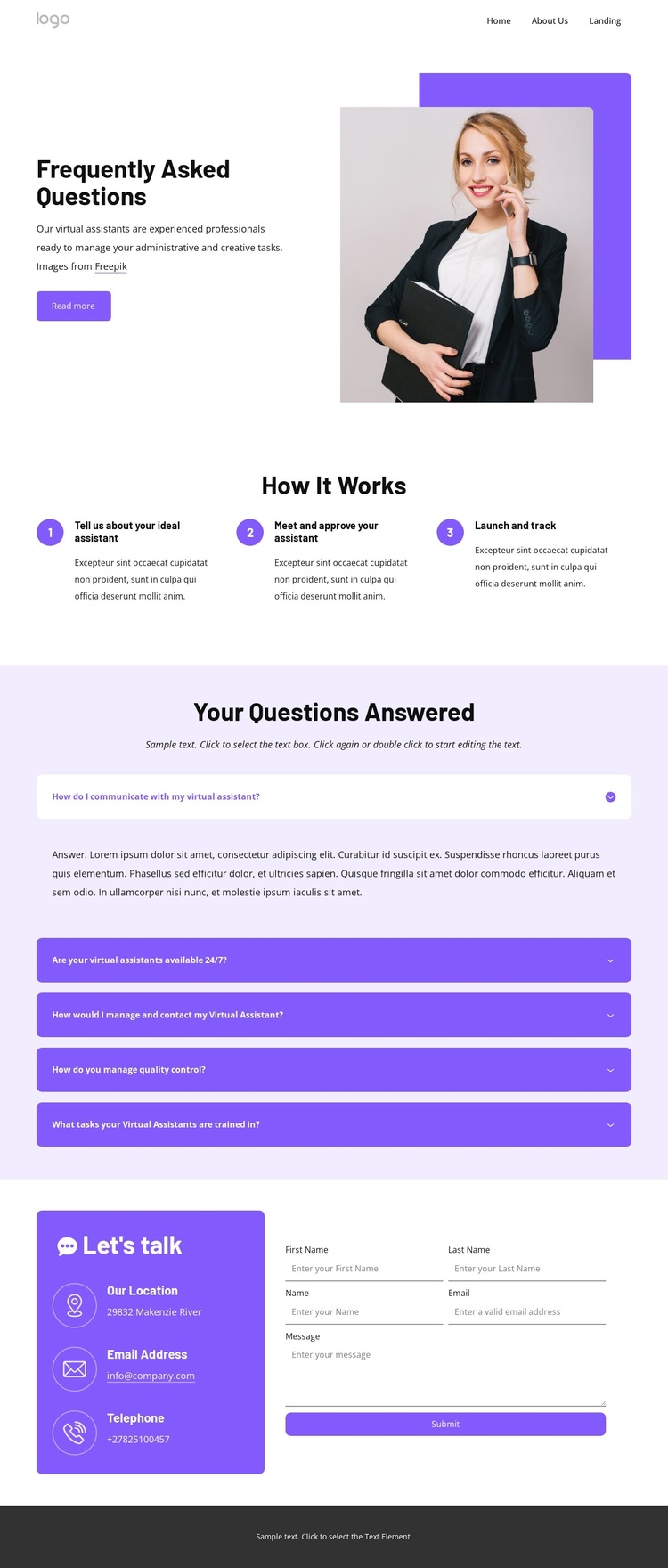
The combination of a professional office portrait and a concise service introduction gives this design an immediate human and operational context. It is not limited to a generic FAQ list: the page also explains how the engagement begins, develops, and is monitored. The three numbered items move from describing an ideal assistant to meeting and approving that assistant, then to launching and tracking the work.
That process section makes the five-question accordion more useful. Questions about communication, availability, management, quality control, and training can be read as the practical concerns surrounding the three stages rather than as disconnected entries. The lavender accordion area gives those answers a dedicated place, while the large headings and compact supporting text keep the page scannable. The office image adds visual relief to the opening without competing with the information structure.
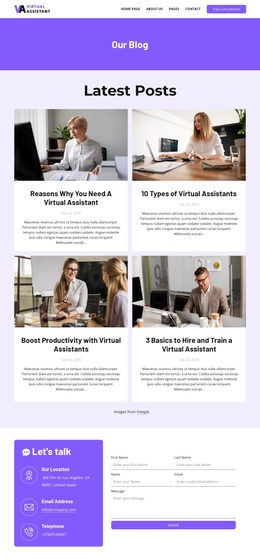
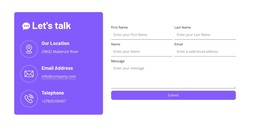
The design also covers the next step for an interested visitor. The contact area places email, telephone, and location details beside a form containing name, email, and message inputs. A Free Consultation button appears in the header, and the footer repeats a Get started action with grouped client and quick links. This combination makes the template a useful choice for projects that need to explain a service, answer objections, show an onboarding path, and finish with a direct inquiry opportunity. Its value lies in the relationship between reassurance, process clarity, and contact readiness.
Customize with Nicepage
Open this ready-made template in the Template Builder and customize it visually in the Nicepage editor. Replace demo content, edit page sections, and adapt the design to your project without rebuilding the template from scratch.
Start With a Ready-Made Template
Choose a Design for a New Page
Use a ready-made template as a starting point instead of creating every page from a blank canvas. When adding a new page in Nicepage, browse available designs, compare different layouts, and choose an option that already fits the general purpose and visual direction of your project.
Browse Different Page Designs
Explore Page Designs using search, thematic categories, Design Sets, and full-page previews. The collection includes layouts for different subjects and page purposes, making it easier to compare alternatives before selecting a design to customize.
Customize the Selected Template
After choosing a design, create the page and continue editing it visually in Nicepage. Replace the demo content, adjust images, typography, colors, sections, and other elements, and adapt the ready-made layout to your own content instead of rebuilding the design from the beginning.
Explore More Design Directions
If the first option does not match your project closely enough, return to the design collection and compare other templates before committing to a layout. This makes the template library useful not only for faster page creation, but also for exploring different visual approaches and finding a suitable starting point for a new project.
This workflow gives you access to a broad collection of ready-made designs that can be selected, compared, and customized according to the needs of each new page or project.

Design Set (23)
-

-
-
-
-
-
-
-
-
-
-
-
-
Free Website Builder SoftwareDownload
-
-
-