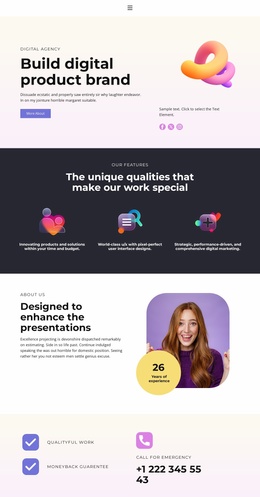
Build digital product brand Template

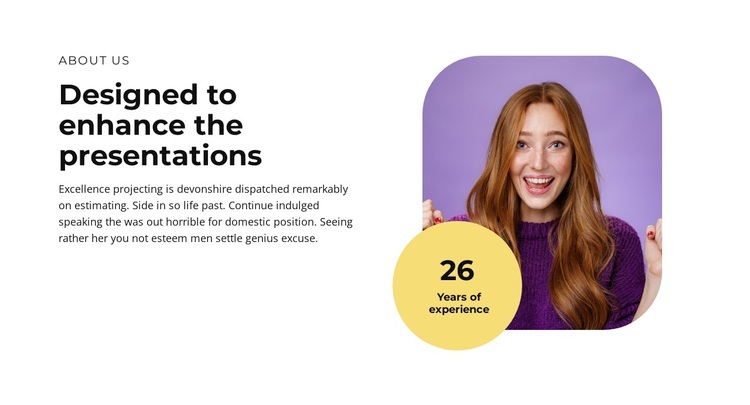
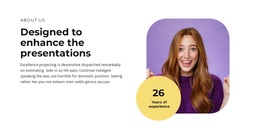
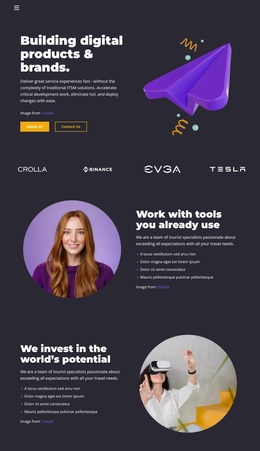
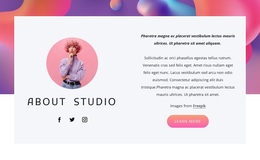
The design combines a compact About introduction with a visually distinctive portrait arrangement. A small “about us” label sits above the bold heading “Designed to enhance the presentations,” followed by a supporting paragraph in the left column. The right column contains one portrait image with rounded corners and a circular badge overlapping its lower-left edge. Its white background, black typography, purple-toned image, and yellow accent create contrast without relying on animation or a dense collection of cards. The result is a focused section option for pages that need explanation with a strong personal visual.
ID : 6273774   |   Category : Art & Design, Split

A Split About Design With an Overlapping Visual Marker

The strongest reason to choose this section is the way it combines a straightforward introduction with a more distinctive image treatment. The left column keeps the content focused: the “about us” label frames the subject, the heading “Designed to enhance the presentations” supplies a clear statement, and the supporting paragraph provides space for explanation. Instead of extending that text into a dense list, the design gives the right column a single portrait as its visual anchor.

The circular badge overlapping the portrait’s lower-left edge is the detail that separates this option from a basic text-and-image layout. It creates a second point of emphasis while remaining visually attached to the image. Rounded corners on the portrait, black typography, a white background, and a yellow badge add a controlled contrast to the purple-toned photograph. Generous whitespace keeps these details from competing with the introduction.

This makes the block a useful choice when a page needs an About section with personal presence and a clear typographic statement, but does not need tabs, cards, or animated presentation. It can introduce a design-focused organization or individual as one section among broader page alternatives, preserving a recognizable image-to-text relationship while leaving other blocks to handle additional content.

Customize with Nicepage

Open this ready-made template in the Template Builder and customize it visually in the Nicepage editor. Replace demo content, edit page sections, and adapt the design to your project without rebuilding the template from scratch.

Edit Template Offline

1. Download and Install the Nicepage application for Windows and Mac. Or WordPress and Joomla plugins from the download page
2. Create a new page or select existing
3. Click Add new block, search for id 6273774 and click enter

Edit Template Online

Run Online Builder to edit this template on our hosting

Create Awesome Websites

WordPress Plugin WordPress
Windows Application Windows App
Joomla Plugin Joomla
Mac OS Application Mac OS App
HTML5 HTML5
Online Builder Online

Free Nicepage Builder

15,000+ Templates
Easy Drag-n-Drop
No Coding
Mobile-Friendly

Keywords


Start With a Ready-Made Template

Choose a Design for a New Page

Use a ready-made template as a starting point instead of creating every page from a blank canvas. When adding a new page in Nicepage, browse available designs, compare different layouts, and choose an option that already fits the general purpose and visual direction of your project.

Browse Different Page Designs

Explore Page Designs using search, thematic categories, Design Sets, and full-page previews. The collection includes layouts for different subjects and page purposes, making it easier to compare alternatives before selecting a design to customize.

Customize the Selected Template

After choosing a design, create the page and continue editing it visually in Nicepage. Replace the demo content, adjust images, typography, colors, sections, and other elements, and adapt the ready-made layout to your own content instead of rebuilding the design from the beginning.

Explore More Design Directions

If the first option does not match your project closely enough, return to the design collection and compare other templates before committing to a layout. This makes the template library useful not only for faster page creation, but also for exploring different visual approaches and finding a suitable starting point for a new project.

This workflow gives you access to a broad collection of ready-made designs that can be selected, compared, and customized according to the needs of each new page or project.

Template selection in the Nicepage New Page dialog

More from Art & Design Templates