Branding Template


Edit Template Offline
2. Create new page and search for id 6169219
Edit Template Online
Create Awesome Websites


Free Nicepage Builder
Keywords
Packaging Imagery and Related Work Give This Portfolio a Clear Focus
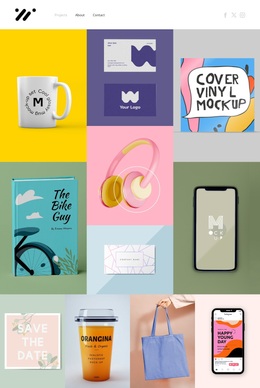
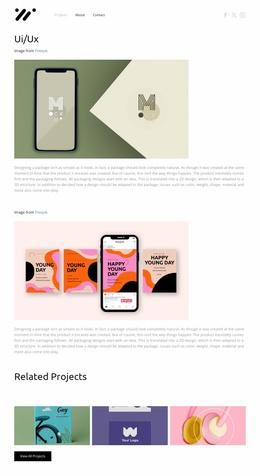
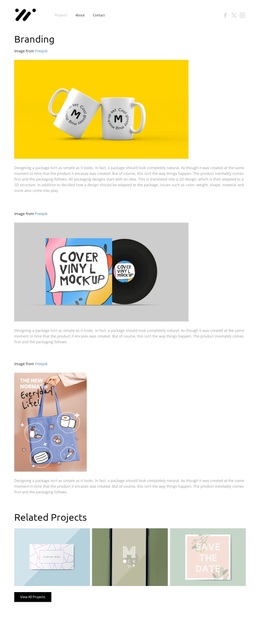
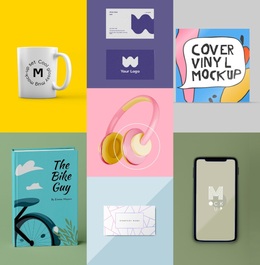
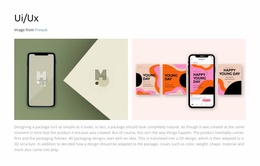
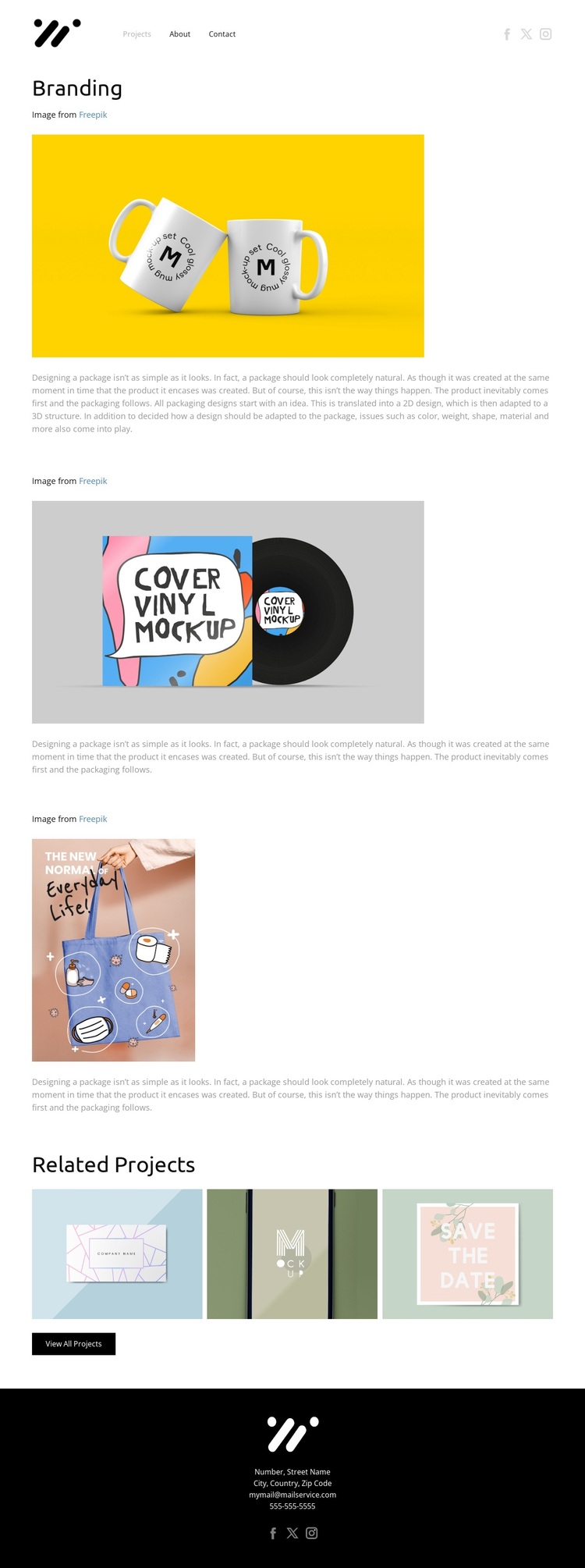
The three featured project presentations make this design a distinctive choice for a portfolio that needs to show branding work through images and short explanations. The bright yellow packaging image creates the strongest opening visual, while the vinyl-cover mockup and portrait-oriented packaging presentation add variation to the sequence. Their different image formats prevent the page from feeling like a single repeated case-study panel, yet the packaging subject keeps the overall selection coherent.
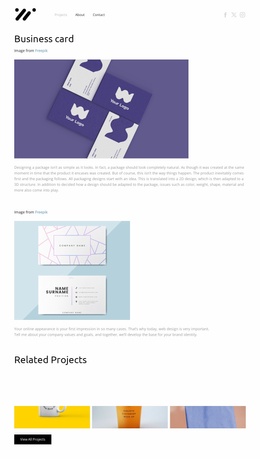
The page also covers the practical content areas expected in a focused project portfolio. Projects, About, and Contact navigation establishes an immediate route through the site, while Facebook, Twitter, and Instagram links appear in both the header and footer. The Related Projects section then shifts the visitor from the main branding presentation toward three additional visual items, with View All Projects providing a direct continuation. This combination makes the template useful when the design itself should carry much of the communication: the imagery attracts attention, the packaging description adds explanation, and the related-project area supports further discovery. The restrained white layout and dark footer keep those visual assets central without introducing unnecessary content density.
Customize with Nicepage
Open this ready-made template in the Template Builder and customize it visually in the Nicepage editor. Replace demo content, edit page sections, and adapt the design to your project without rebuilding the template from scratch.
Start With a Ready-Made Template
Choose a Design for a New Page
Use a ready-made template as a starting point instead of creating every page from a blank canvas. When adding a new page in Nicepage, browse available designs, compare different layouts, and choose an option that already fits the general purpose and visual direction of your project.
Browse Different Page Designs
Explore Page Designs using search, thematic categories, Design Sets, and full-page previews. The collection includes layouts for different subjects and page purposes, making it easier to compare alternatives before selecting a design to customize.
Customize the Selected Template
After choosing a design, create the page and continue editing it visually in Nicepage. Replace the demo content, adjust images, typography, colors, sections, and other elements, and adapt the ready-made layout to your own content instead of rebuilding the design from the beginning.
Explore More Design Directions
If the first option does not match your project closely enough, return to the design collection and compare other templates before committing to a layout. This makes the template library useful not only for faster page creation, but also for exploring different visual approaches and finding a suitable starting point for a new project.
This workflow gives you access to a broad collection of ready-made designs that can be selected, compared, and customized according to the needs of each new page or project.