Office Search Template


Edit Template Offline
2. Create new page and search for id 4804037
Edit Template Online
Create Awesome Websites


Free Nicepage Builder
Keywords
A Newsletter-First Layout With Practical Contact Coverage
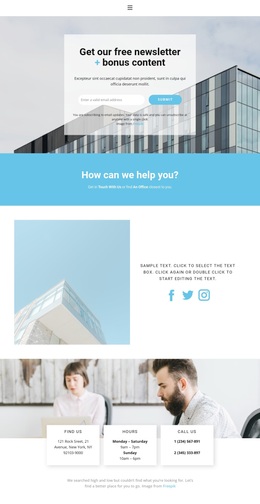
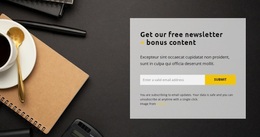
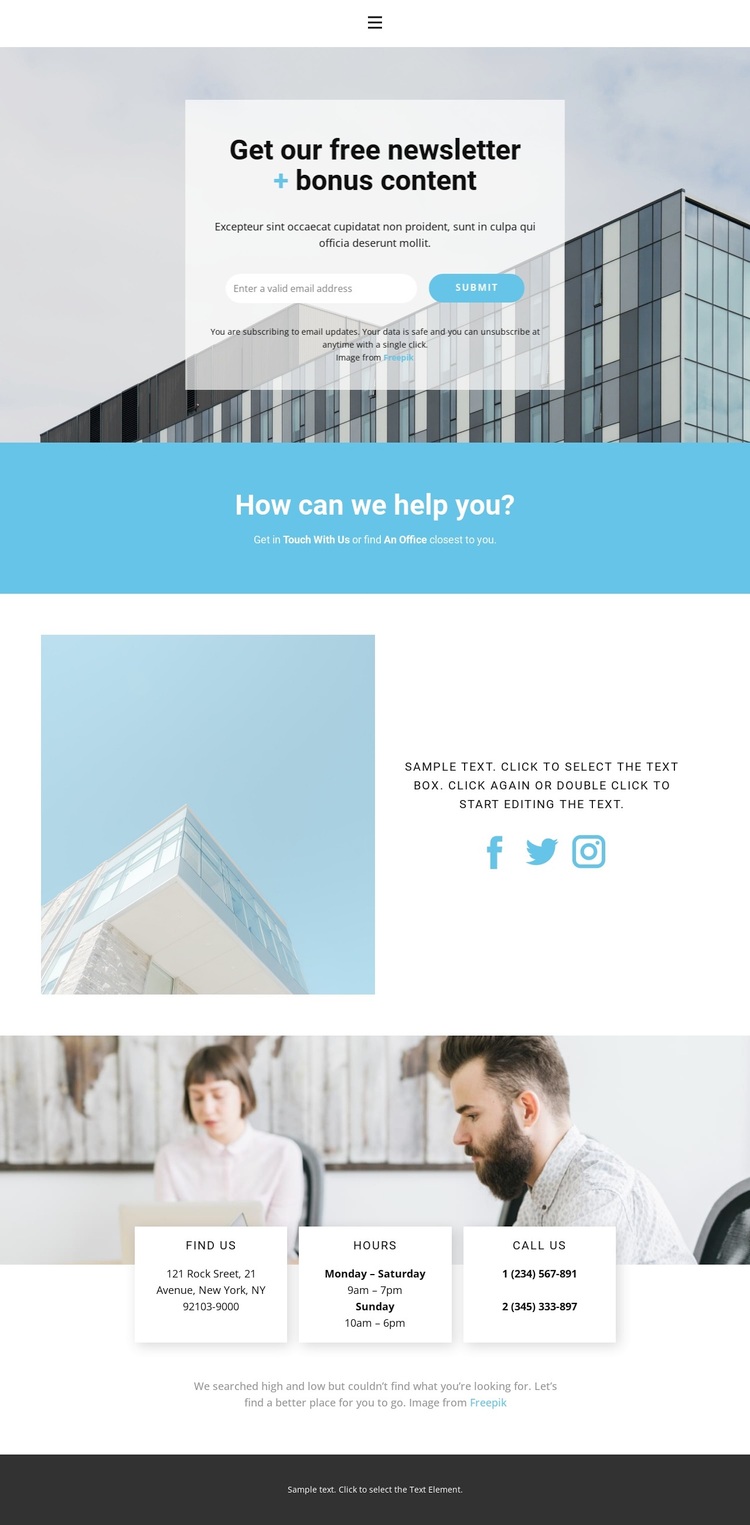
The page combines several communication needs without letting the contact material become a disconnected list. Its strongest distinguishing feature is the opening newsletter offer: a centered translucent card places the headline, bonus-content message, email field, Submit action, and privacy note over a building photograph. That image-led arrangement suits projects where subscription content should make the first impression while remaining connected to a broader contact page.
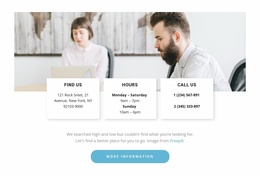
The blue help band adds a clear change of emphasis, inviting visitors to get in touch or find an office. Below it, the split social section brings Facebook, Twitter, and Instagram links into a balanced image-and-text composition rather than placing them only in the footer. The final office-information area is equally distinctive in its use of three overlapping white cards for location, hours, and phone details over a large photograph. Together, these choices give the design coverage for newsletter signup, direct contact, social connection, and practical office guidance. It is a useful option when a project needs more than a simple form but does not require dense service or product content. The page offers a recognizable visual direction through pale blue accents, centered type, photographic backgrounds, and a dark closing footer.
Customize with Nicepage
Open this ready-made template in the Template Builder and customize it visually in the Nicepage editor. Replace demo content, edit page sections, and adapt the design to your project without rebuilding the template from scratch.
Start With a Ready-Made Template
Choose a Design for a New Page
Use a ready-made template as a starting point instead of creating every page from a blank canvas. When adding a new page in Nicepage, browse available designs, compare different layouts, and choose an option that already fits the general purpose and visual direction of your project.
Browse Different Page Designs
Explore Page Designs using search, thematic categories, Design Sets, and full-page previews. The collection includes layouts for different subjects and page purposes, making it easier to compare alternatives before selecting a design to customize.
Customize the Selected Template
After choosing a design, create the page and continue editing it visually in Nicepage. Replace the demo content, adjust images, typography, colors, sections, and other elements, and adapt the ready-made layout to your own content instead of rebuilding the design from the beginning.
Explore More Design Directions
If the first option does not match your project closely enough, return to the design collection and compare other templates before committing to a layout. This makes the template library useful not only for faster page creation, but also for exploring different visual approaches and finding a suitable starting point for a new project.
This workflow gives you access to a broad collection of ready-made designs that can be selected, compared, and customized according to the needs of each new page or project.