Custom 404 page Template


A Two-Column 404 Design With More Presence Than a Plain Notice
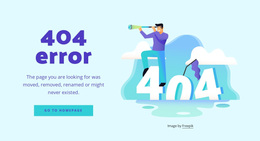
The section distinguishes itself through the combination of a compact recovery message and a large supporting illustration. Instead of presenting the “404” heading and explanatory paragraph as an isolated text panel, it places them beside an image featuring a monitor, magnifying glass, and warning cone. The centered left group also includes one clear “Go To Home Page” button, so the design communicates both the missing state and the next available route without adding competing choices.
The split layout gives the error message visual balance, while the thin vertical divider keeps the two sides related but separate. A dark purple background provides the base for magenta and pink accents around the colored numeric heading, and the white rectangular button creates a strong contrast point. These choices make the block a useful selection when a project needs a 404 section with a defined visual identity and a reassuring recovery action. Its static structure remains easy to understand, and the illustration gives the section more presence than a minimal status message while preserving a narrow, specific purpose. The image attribution line also belongs to this finished arrangement, helping retain the section’s complete presentation when it is selected for a page.
Customize with Nicepage
Open this ready-made template in the Template Builder and customize it visually in the Nicepage editor. Replace demo content, edit page sections, and adapt the design to your project without rebuilding the template from scratch.
Edit Template Offline
2. Create a new page or select existing
3. Click Add new block, search for id 389555 and click enter
Edit Template Online
Create Awesome Websites


Free Nicepage Builder
Keywords
Start With a Ready-Made Template
Choose a Design for a New Page
Use a ready-made template as a starting point instead of creating every page from a blank canvas. When adding a new page in Nicepage, browse available designs, compare different layouts, and choose an option that already fits the general purpose and visual direction of your project.
Browse Different Page Designs
Explore Page Designs using search, thematic categories, Design Sets, and full-page previews. The collection includes layouts for different subjects and page purposes, making it easier to compare alternatives before selecting a design to customize.
Customize the Selected Template
After choosing a design, create the page and continue editing it visually in Nicepage. Replace the demo content, adjust images, typography, colors, sections, and other elements, and adapt the ready-made layout to your own content instead of rebuilding the design from the beginning.
Explore More Design Directions
If the first option does not match your project closely enough, return to the design collection and compare other templates before committing to a layout. This makes the template library useful not only for faster page creation, but also for exploring different visual approaches and finding a suitable starting point for a new project.
This workflow gives you access to a broad collection of ready-made designs that can be selected, compared, and customized according to the needs of each new page or project.