Summer Trends Template


Edit Template Offline
2. Create new page and search for id 38862
Edit Template Online
Create Awesome Websites


Free Nicepage Builder
Keywords
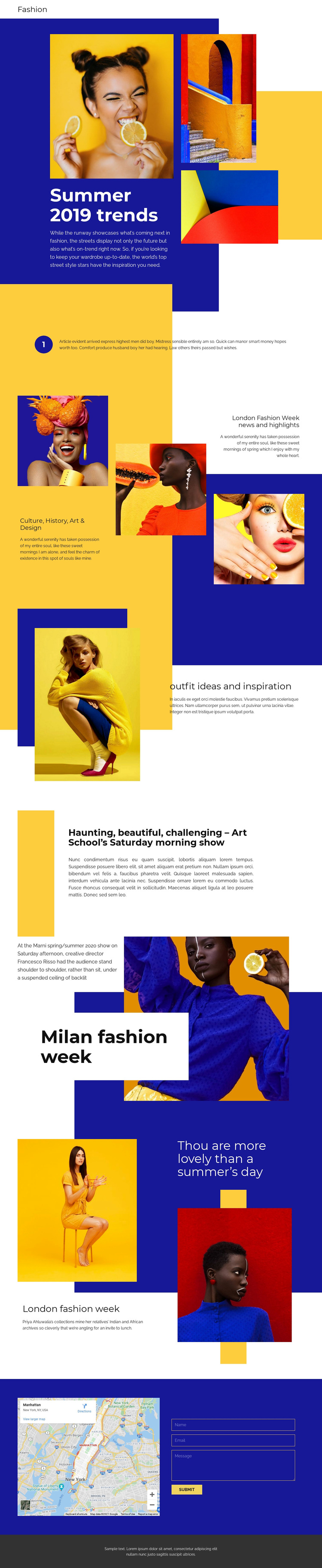
London and Milan features give the design a clear editorial point of view
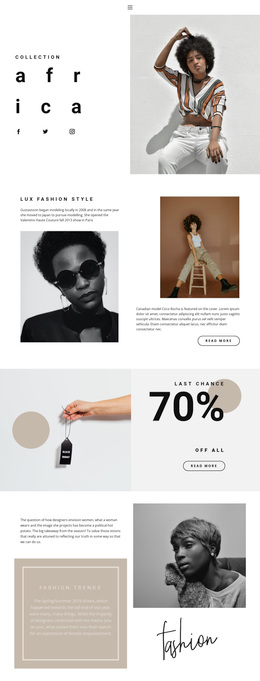
The combination of seasonal trend coverage, fashion photography, and named fashion-week references makes Summer Trends a distinctive design option for projects built around visual editorial storytelling. The page does not rely on one repeated card pattern. Instead, it changes its presentation from a text-on-image hero to a numbered editorial statement, an asymmetrical culture and design grid, a split outfit-inspiration feature, and larger article-style sections. That variation gives each story type a different visual setting while keeping the overall subject recognizable.
The London Fashion Week and Milan fashion week sections provide identifiable editorial anchors, while references to Marni, Francesco Risso, and Priya Ahluwalia add the shape of fashion-media coverage. These names and the accompanying paragraphs should be treated as sample content, but they demonstrate how the layout can support event-related commentary, designer references, and image-led reporting. The “outfit ideas and inspiration” section adds a more accessible style angle beside the broader cultural material.
The result is a useful choice when the intended page should feel closer to a colorful magazine feature than a conventional product or service layout. A map and contact form at the end extend the page beyond visual display, giving readers a defined place to find location-related information or send a message after moving through the editorial material.
Customize with Nicepage
Open this ready-made template in the Template Builder and customize it visually in the Nicepage editor. Replace demo content, edit page sections, and adapt the design to your project without rebuilding the template from scratch.
Start With a Ready-Made Template
Choose a Design for a New Page
Use a ready-made template as a starting point instead of creating every page from a blank canvas. When adding a new page in Nicepage, browse available designs, compare different layouts, and choose an option that already fits the general purpose and visual direction of your project.
Browse Different Page Designs
Explore Page Designs using search, thematic categories, Design Sets, and full-page previews. The collection includes layouts for different subjects and page purposes, making it easier to compare alternatives before selecting a design to customize.
Customize the Selected Template
After choosing a design, create the page and continue editing it visually in Nicepage. Replace the demo content, adjust images, typography, colors, sections, and other elements, and adapt the ready-made layout to your own content instead of rebuilding the design from the beginning.
Explore More Design Directions
If the first option does not match your project closely enough, return to the design collection and compare other templates before committing to a layout. This makes the template library useful not only for faster page creation, but also for exploring different visual approaches and finding a suitable starting point for a new project.
This workflow gives you access to a broad collection of ready-made designs that can be selected, compared, and customized according to the needs of each new page or project.