Insurance and investment Template


Three Audience Cards Give the Section a Distinctive Direction
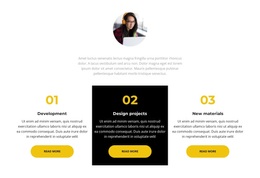
The centered heading and supporting paragraph establish one broad insurance and investing theme, while the three equal-width cards divide it into family, business, and future concerns. This combination is a useful design choice when a page needs to explain several related offerings without presenting them as an undifferentiated list. The family card covers vehicles, property, pets, and events; the business card addresses employees, company property, and vehicles; and the future card brings investments, retirements, and financial dreams into the same visual sequence.
Each card follows a recognizable pattern of circular icon, audience-oriented heading, description, and Read More link. That repeated hierarchy makes the content easy to compare, but the different subject matter gives every column a clear reason to exist. The centered introduction also provides more context than a standalone row of generic service cards, helping visitors understand why the three categories belong together.
The restrained visual treatment strengthens the section's selection value. Blue circular icons add a consistent accent to the white background, black headings establish emphasis, muted gray descriptions control density, and outlined pill-shaped buttons finish each card with a shared action cue. This is a strong option when the desired section should feel organized and approachable while still giving three audience groups room for specific information.
Customize with Nicepage
Open this ready-made template in the Template Builder and customize it visually in the Nicepage editor. Replace demo content, edit page sections, and adapt the design to your project without rebuilding the template from scratch.
Edit Template Offline
2. Create a new page or select existing
3. Click Add new block, search for id 319925 and click enter
Edit Template Online
Create Awesome Websites


Free Nicepage Builder
Keywords
Start With a Ready-Made Template
Choose a Design for a New Page
Use a ready-made template as a starting point instead of creating every page from a blank canvas. When adding a new page in Nicepage, browse available designs, compare different layouts, and choose an option that already fits the general purpose and visual direction of your project.
Browse Different Page Designs
Explore Page Designs using search, thematic categories, Design Sets, and full-page previews. The collection includes layouts for different subjects and page purposes, making it easier to compare alternatives before selecting a design to customize.
Customize the Selected Template
After choosing a design, create the page and continue editing it visually in Nicepage. Replace the demo content, adjust images, typography, colors, sections, and other elements, and adapt the ready-made layout to your own content instead of rebuilding the design from the beginning.
Explore More Design Directions
If the first option does not match your project closely enough, return to the design collection and compare other templates before committing to a layout. This makes the template library useful not only for faster page creation, but also for exploring different visual approaches and finding a suitable starting point for a new project.
This workflow gives you access to a broad collection of ready-made designs that can be selected, compared, and customized according to the needs of each new page or project.