Choosing a convenient tariff Template


A Portrait-Led Alternative to a Plain Pricing Grid
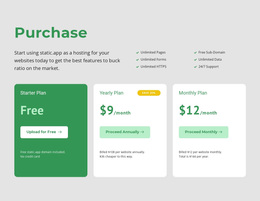
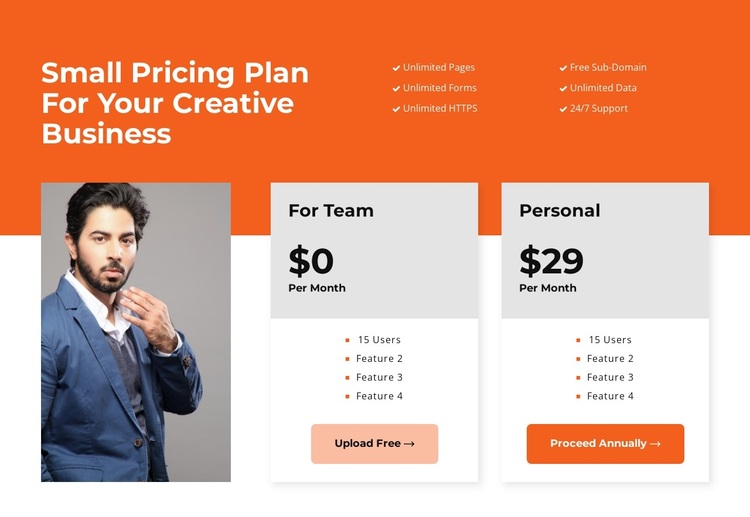
The section combines several concrete choices that distinguish it from a basic row of identical pricing cards. A wide orange band introduces the heading “Small Pricing Plan For Your Creative Business” and places six shared benefits above the detailed comparison. Those labels include Unlimited Pages, Unlimited Forms, Unlimited HTTPS, Free Sub-Domain, Unlimited Data, and 24/7 Support, so the design communicates common value before asking visitors to inspect individual plans.
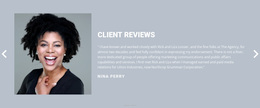
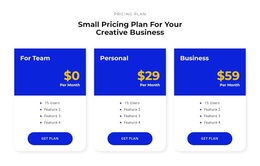
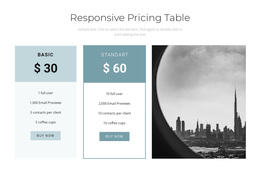
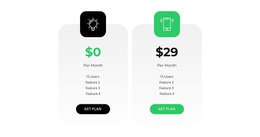
Below, a tall portrait occupies the first position in the horizontal row rather than leaving the entire width to a conventional card grid. The two pricing cards then provide the decision detail: For Team is displayed at $0 per month and Personal at $29 per month. Their four feature rows create a consistent comparison pattern, while Upload Free and Proceed Annually give each option a distinct action. This combination balances editorial imagery with practical plan information.
As a ready-made block choice, the design is useful when a page needs pricing content that feels visually composed rather than purely tabular. The orange, white, and light-gray color relationships create clear zones; bold black figures make the prices prominent; and rounded corners with subtle shadows separate the cards from the surrounding layout. The static structure keeps the comparison direct, while the portrait adds a visual anchor that can make this option more distinctive among alternative pricing sections.
Customize with Nicepage
Open this ready-made template in the Template Builder and customize it visually in the Nicepage editor. Replace demo content, edit page sections, and adapt the design to your project without rebuilding the template from scratch.
Edit Template Offline
2. Create a new page or select existing
3. Click Add new block, search for id 2519122 and click enter
Edit Template Online
Create Awesome Websites


Free Nicepage Builder
Keywords
Start With a Ready-Made Template
Choose a Design for a New Page
Use a ready-made template as a starting point instead of creating every page from a blank canvas. When adding a new page in Nicepage, browse available designs, compare different layouts, and choose an option that already fits the general purpose and visual direction of your project.
Browse Different Page Designs
Explore Page Designs using search, thematic categories, Design Sets, and full-page previews. The collection includes layouts for different subjects and page purposes, making it easier to compare alternatives before selecting a design to customize.
Customize the Selected Template
After choosing a design, create the page and continue editing it visually in Nicepage. Replace the demo content, adjust images, typography, colors, sections, and other elements, and adapt the ready-made layout to your own content instead of rebuilding the design from the beginning.
Explore More Design Directions
If the first option does not match your project closely enough, return to the design collection and compare other templates before committing to a layout. This makes the template library useful not only for faster page creation, but also for exploring different visual approaches and finding a suitable starting point for a new project.
This workflow gives you access to a broad collection of ready-made designs that can be selected, compared, and customized according to the needs of each new page or project.