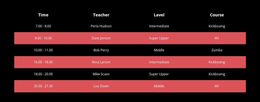
Dark table with colored cells Template


A Four-Column Alternative to Simple Pricing Cards
The section combines a centered “Promotion Plans” heading with a dense comparison table rather than separating each offer into independent cards. One feature column defines the criteria, while Starter, Advance, and Enterprise appear as parallel plan columns. That arrangement makes the design useful when visitors need to compare first-month management cost, following-month cost, delivery timeframe, Support 24/7, and Certificate availability across the same six rows.
The repeated buy-now buttons add a practical distinction. Each action sits beneath its associated plan, preserving the connection between the selected offer and the information above it. Dark charcoal framing creates a strong base, colored headers distinguish the alternatives, and thin borders make the horizontal comparisons visible even though the table contains a relatively dense amount of data.
As a ready-made block choice, this design suits a project that needs explicit side-by-side evaluation rather than a broad promotional statement. It offers one compact section with recognizable content coverage, a clear comparison method, and three repeated response points. Other page sections can provide context or proof around it, while this block remains focused on helping visitors examine plan differences and choose among the available options.
Customize with Nicepage
Open this ready-made template in the Template Builder and customize it visually in the Nicepage editor. Replace demo content, edit page sections, and adapt the design to your project without rebuilding the template from scratch.
Edit Template Offline
2. Create a new page or select existing
3. Click Add new block, search for id 247619 and click enter
Edit Template Online
Create Awesome Websites


Free Nicepage Builder
Keywords
Start With a Ready-Made Template
Choose a Design for a New Page
Use a ready-made template as a starting point instead of creating every page from a blank canvas. When adding a new page in Nicepage, browse available designs, compare different layouts, and choose an option that already fits the general purpose and visual direction of your project.
Browse Different Page Designs
Explore Page Designs using search, thematic categories, Design Sets, and full-page previews. The collection includes layouts for different subjects and page purposes, making it easier to compare alternatives before selecting a design to customize.
Customize the Selected Template
After choosing a design, create the page and continue editing it visually in Nicepage. Replace the demo content, adjust images, typography, colors, sections, and other elements, and adapt the ready-made layout to your own content instead of rebuilding the design from the beginning.
Explore More Design Directions
If the first option does not match your project closely enough, return to the design collection and compare other templates before committing to a layout. This makes the template library useful not only for faster page creation, but also for exploring different visual approaches and finding a suitable starting point for a new project.
This workflow gives you access to a broad collection of ready-made designs that can be selected, compared, and customized according to the needs of each new page or project.