Art Studio Template


Edit Template Offline
2. Create new page and search for id 14090
Edit Template Online
Create Awesome Websites


Free Nicepage Builder
Keywords
Portraits, Color Fields, and Gallery Strips Define the Choice
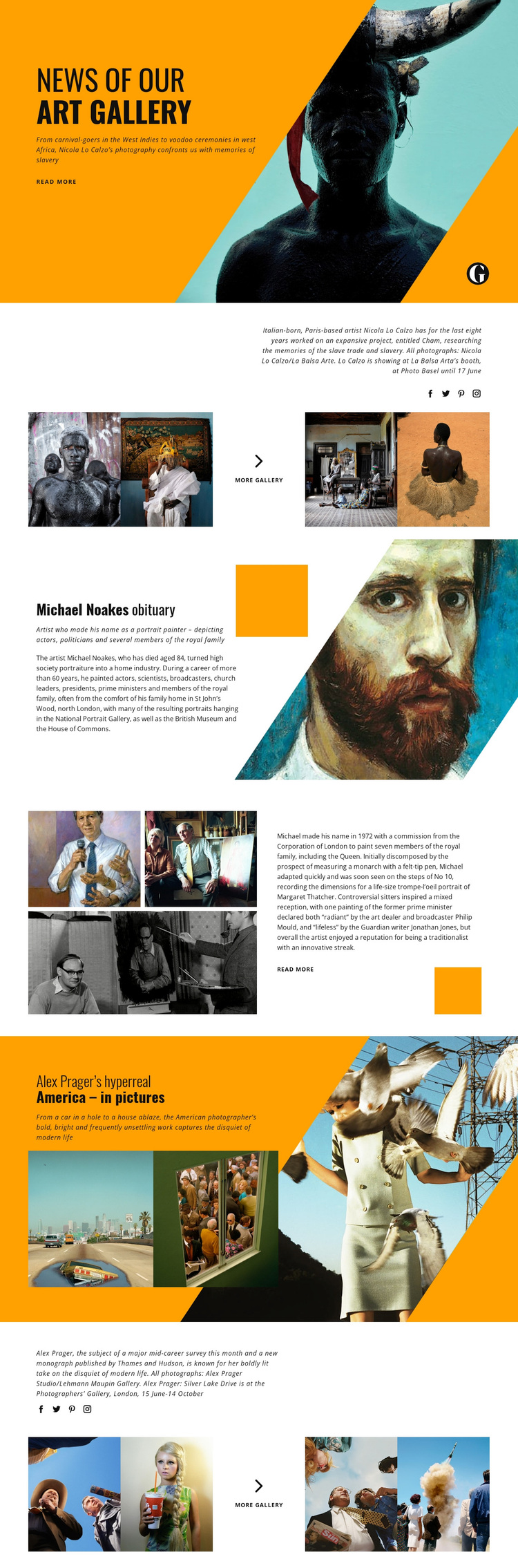
Large photographic subjects carry much of the page’s identity. The opening portrait sits beside the “News of Our Art Gallery” headline and a short feature teaser, immediately establishing an editorial rather than corporate direction. That choice continues in the Nicola Lo Calzo section, where a caption is followed by four photographs and a centered gallery action. The design is especially suitable for projects that want images to introduce a story before readers encounter longer explanation.
Its content coverage also gives the layout range without losing a recognizable pattern. The Michael Noakes obituary uses a portrait-oriented image, orange geometric accent, headline, and biographical copy, then shifts into a split collage with three photographs and a longer excerpt. The Alex Prager feature adds another photography-led subject, pairing a concise summary with two images before returning to a four-image gallery strip. These changes create variation between article emphasis, collage, and gallery presentation while keeping the page within one magazine-style visual language.
The combination of high-contrast black text, vivid orange and teal fields, white space, and angled compositions separates Art Studio from layouts built around uniform cards, pricing tables, or dense business sections. It is a strong option when a project needs a ready-made design for art news, cultural commentary, artist profiles, or photography storytelling, with each visual feature given enough space to remain memorable.
Customize with Nicepage
Open this ready-made template in the Template Builder and customize it visually in the Nicepage editor. Replace demo content, edit page sections, and adapt the design to your project without rebuilding the template from scratch.
Start With a Ready-Made Template
Choose a Design for a New Page
Use a ready-made template as a starting point instead of creating every page from a blank canvas. When adding a new page in Nicepage, browse available designs, compare different layouts, and choose an option that already fits the general purpose and visual direction of your project.
Browse Different Page Designs
Explore Page Designs using search, thematic categories, Design Sets, and full-page previews. The collection includes layouts for different subjects and page purposes, making it easier to compare alternatives before selecting a design to customize.
Customize the Selected Template
After choosing a design, create the page and continue editing it visually in Nicepage. Replace the demo content, adjust images, typography, colors, sections, and other elements, and adapt the ready-made layout to your own content instead of rebuilding the design from the beginning.
Explore More Design Directions
If the first option does not match your project closely enough, return to the design collection and compare other templates before committing to a layout. This makes the template library useful not only for faster page creation, but also for exploring different visual approaches and finding a suitable starting point for a new project.
This workflow gives you access to a broad collection of ready-made designs that can be selected, compared, and customized according to the needs of each new page or project.