Find Parking Near You Website Template


Edit Template Offline
2. Create new page and search for id 6547908
Edit Template Online
Create Awesome Websites


Free Nicepage Builder
Keywords
Reservation, Benefits, and Support Define a Broader Site Foundation
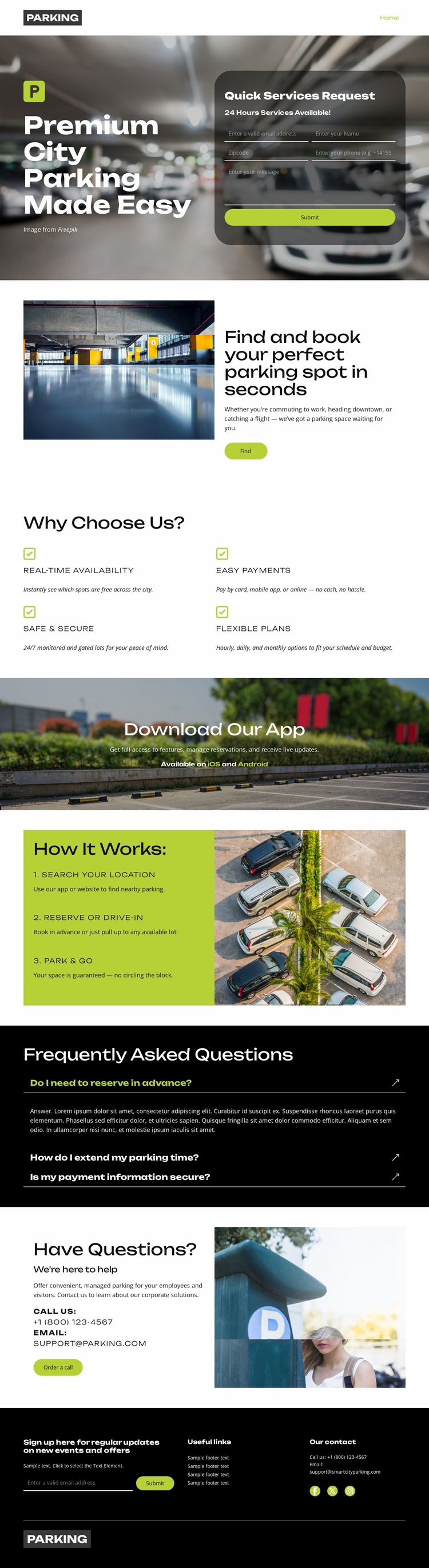
The design already identifies several major content areas that a larger parking services project would need. The hero establishes the core service—finding and reserving parking—and places a Quick Services Request form beside that message. This gives the project a clear starting information structure rather than only a decorative homepage. A second section can hold the explanatory search-and-book content, separating the service introduction from more detailed guidance.
The four benefit items create a reusable category of service information: real-time availability, easy payments, safe and secure parking, and flexible plans. These themes could support related pages or expanded sections without changing the visual direction. The dedicated app promotion adds another project area focused on mobile access, while the three-step “How It Works” block provides process content that can remain useful as the service grows. Together, these blocks distinguish the operational story from the promotional opening.
FAQ and customer support establish further site-level needs. The FAQ section gives reservation and payment questions a defined content region, and the support block groups phone, email, and a Get in touch action. Navigation and the dark footer already provide places for useful links, contact details, and social connections. The template does not claim to include multiple completed pages, but its confirmed sections supply a practical foundation for expanding a parking website with additional service, location, reservation, app, or help content while keeping the same black, white, image-led, and lime-accented design language.
Customize with Nicepage
Open this ready-made template in the Website Template Builder and customize it visually in the Nicepage editor. Replace demo content, edit page sections, and adapt the design to your project without rebuilding the template from scratch.
Build a Complete Website From This Template
Customize the Website Visually
Use this ready-made website template as a starting point for your project and adapt its pages visually in Nicepage. Change content, images, typography, navigation, sections, and other design elements while keeping the website together as a single editable project.
Manage Website Pages in One Project
Use the Pages panel to open, add, duplicate, and manage the pages of your website. Work on individual pages while keeping navigation and the overall site structure accessible from the same project, making it easier to develop a complete website instead of managing separate page files.
Expand the Website With Matching Designs
When you need additional pages or sections, use Page Design Sets to find Page and Block Designs created in the same visual style. Design Sets group matching designs together, making it easier to expand the website with new content while maintaining a consistent look across its pages and sections.
Organize Larger Multi-Page Websites
As the website grows, use Page Folders to organize related pages and keep larger multi-page projects easier to navigate in the editor. This is especially useful for websites with separate service pages, company information, contacts, landing pages, and other content areas.
This workflow makes the template a practical foundation for building and expanding a complete website while managing its pages, content, and visual design within one Nicepage project.