Exercise programs Website Template


Edit Template Offline
2. Create new page and search for id 6211134
Edit Template Online
Create Awesome Websites


Free Nicepage Builder
Keywords
Membership, Training Services, and Club Features Establish the Site Foundation
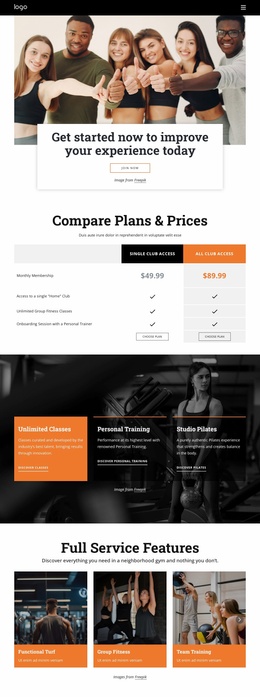
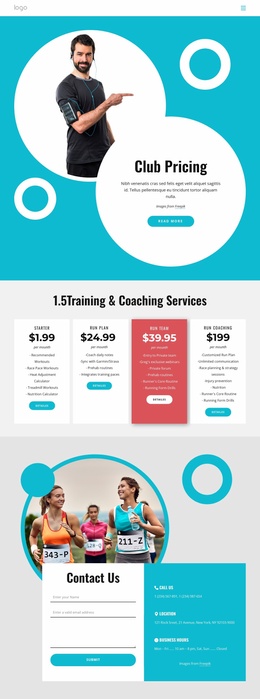
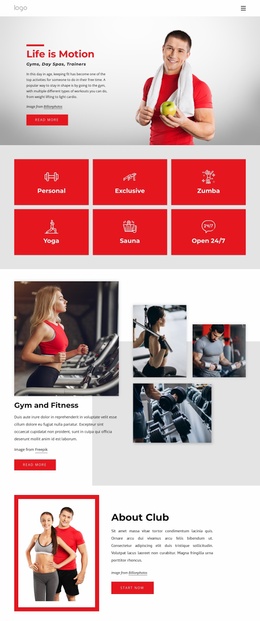
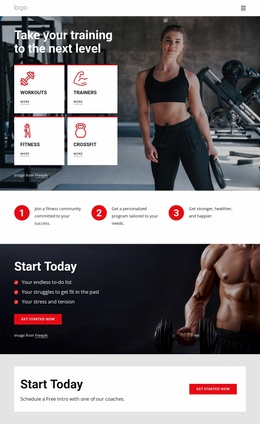
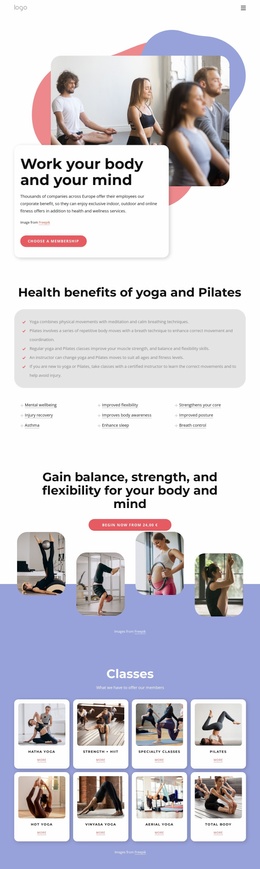
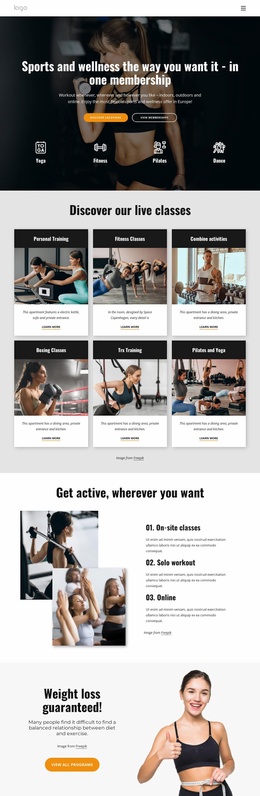
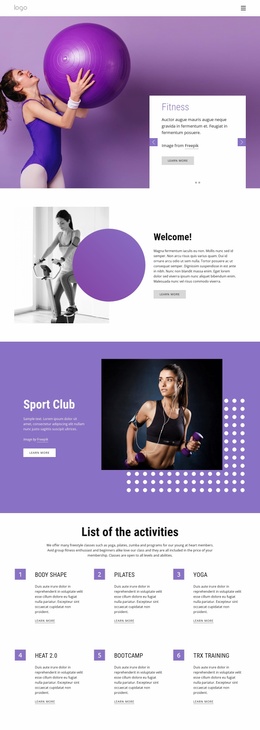
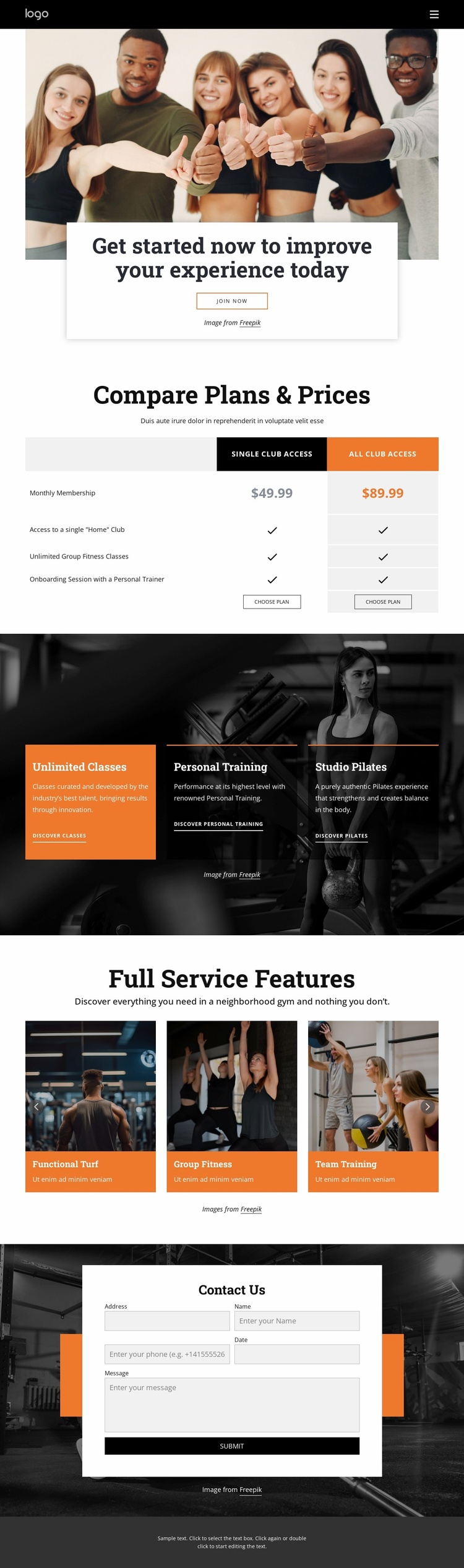
The design already divides a fitness project into several meaningful content areas. The hero introduces the club and its membership-oriented message, while the two-column comparison section gives access plans, prices, benefits, and plan-selection actions a dedicated place. This creates a useful foundation for a site whose central content must explain both the general offer and the differences between membership options.
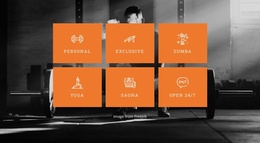
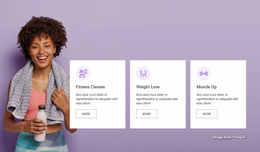
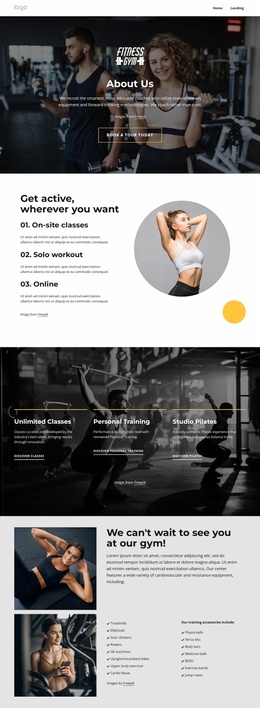
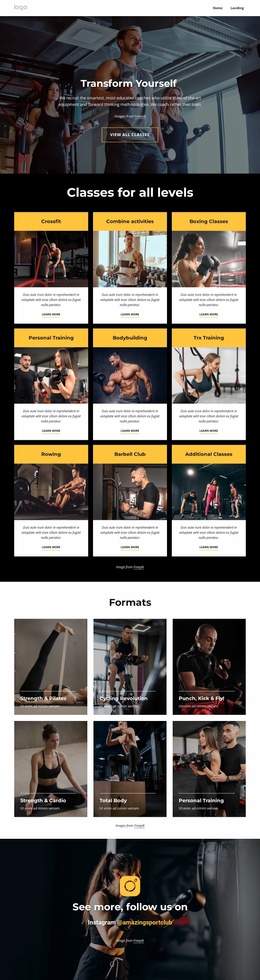
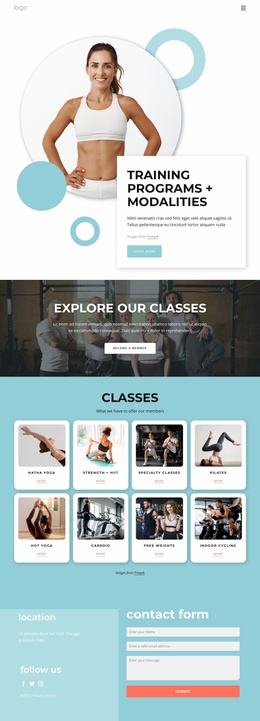
The three highlighted services broaden that foundation beyond access alone. Unlimited Classes, Personal Training, and Studio Pilates can remain central service categories, each with its own promotional card and discovery path. The six-card feature showcase adds a second layer of club information by presenting Functional Turf, Group Fitness, Team Training, Strength & Cardio, Total Body, and Personal Training through a navigable image sequence. These areas could support more detailed service or facility content as the broader project develops, without claiming that additional pages already exist in the template.
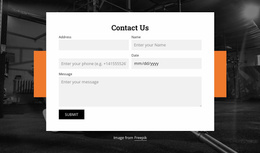
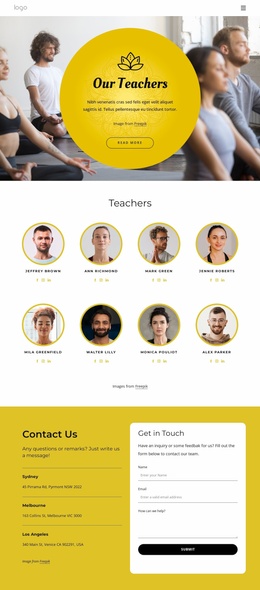
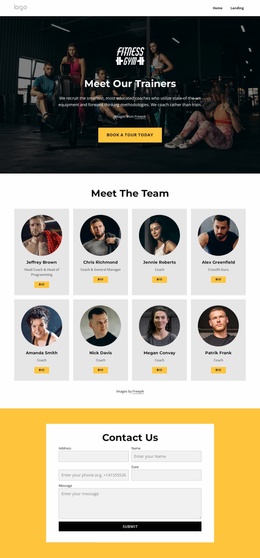
Navigation and mobile-navigation elements provide the shared route between content areas, while the closing Contact Us section gives the project a defined inquiry destination. Because its form requests name, email, phone, date, and message information, it can support questions that require more context than a simple button click. Together, the page establishes a visual and informational base for a wider fitness website while keeping the verified design centered on one coherent membership and services presentation.
Customize with Nicepage
Open this ready-made template in the Website Template Builder and customize it visually in the Nicepage editor. Replace demo content, edit page sections, and adapt the design to your project without rebuilding the template from scratch.
Build a Complete Website From This Template
Customize the Website Visually
Use this ready-made website template as a starting point for your project and adapt its pages visually in Nicepage. Change content, images, typography, navigation, sections, and other design elements while keeping the website together as a single editable project.
Manage Website Pages in One Project
Use the Pages panel to open, add, duplicate, and manage the pages of your website. Work on individual pages while keeping navigation and the overall site structure accessible from the same project, making it easier to develop a complete website instead of managing separate page files.
Expand the Website With Matching Designs
When you need additional pages or sections, use Page Design Sets to find Page and Block Designs created in the same visual style. Design Sets group matching designs together, making it easier to expand the website with new content while maintaining a consistent look across its pages and sections.
Organize Larger Multi-Page Websites
As the website grows, use Page Folders to organize related pages and keep larger multi-page projects easier to navigate in the editor. This is especially useful for websites with separate service pages, company information, contacts, landing pages, and other content areas.
This workflow makes the template a practical foundation for building and expanding a complete website while managing its pages, content, and visual design within one Nicepage project.