A contact us page Website Template


Edit Template Offline
2. Create new page and search for id 6098855
Edit Template Online
Create Awesome Websites


Free Nicepage Builder
Keywords
Navigation, Offices, and Inquiry Content Establish a Site Foundation
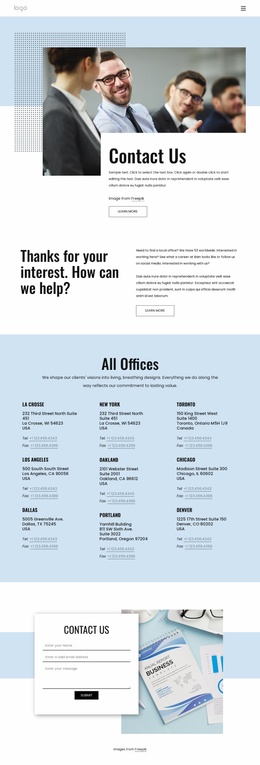
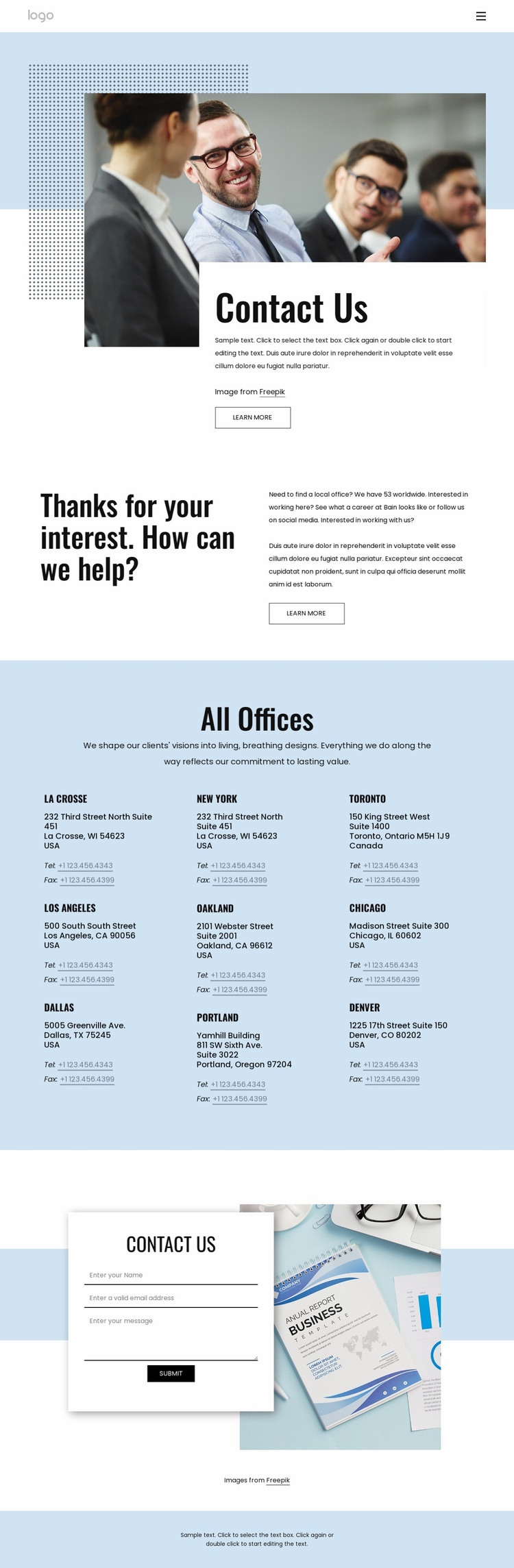
The navigation links for Home, About Us, Blog, and Contact Us give this design an initial site-level framework rather than leaving the contact page isolated. Within that framework, the hero introduces the organization through a large photograph, an overlapping white Contact Us panel, and a Learn more action. The following split section adds explanatory guidance, creating a separate content area that could support the wider relationship between general information and direct contact.
The All Offices directory supplies a substantial reusable content category. Nine location listings are arranged in three columns, and each listing combines an office name with address and telephone or fax links. As a website foundation, this repeated structure can anchor location-related content while remaining distinct from the page’s introductory and explanatory sections. The sample names, addresses, and numbers should be replaced with verified project information; their confirmed role here is to demonstrate how multiple office entries are organized.
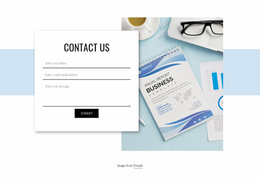
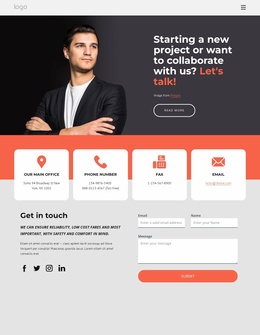
The final contact form creates another major site content area, focused on submitted inquiries rather than published office details. Its centered card overlays a wide image and groups name, email, message, and Submit controls into a dedicated response section. Together with the guidance block, directory, navigation, and blue footer, these areas define a practical starting information architecture. Additional pages could extend the same visual direction, but the verified template itself establishes one contact page rather than proving a complete multi-page set.
Customize with Nicepage
Open this ready-made template in the Website Template Builder and customize it visually in the Nicepage editor. Replace demo content, edit page sections, and adapt the design to your project without rebuilding the template from scratch.
Build a Complete Website From This Template
Customize the Website Visually
Use this ready-made website template as a starting point for your project and adapt its pages visually in Nicepage. Change content, images, typography, navigation, sections, and other design elements while keeping the website together as a single editable project.
Manage Website Pages in One Project
Use the Pages panel to open, add, duplicate, and manage the pages of your website. Work on individual pages while keeping navigation and the overall site structure accessible from the same project, making it easier to develop a complete website instead of managing separate page files.
Expand the Website With Matching Designs
When you need additional pages or sections, use Page Design Sets to find Page and Block Designs created in the same visual style. Design Sets group matching designs together, making it easier to expand the website with new content while maintaining a consistent look across its pages and sections.
Organize Larger Multi-Page Websites
As the website grows, use Page Folders to organize related pages and keep larger multi-page projects easier to navigate in the editor. This is especially useful for websites with separate service pages, company information, contacts, landing pages, and other content areas.
This workflow makes the template a practical foundation for building and expanding a complete website while managing its pages, content, and visual design within one Nicepage project.