First woman on Mars Website Template


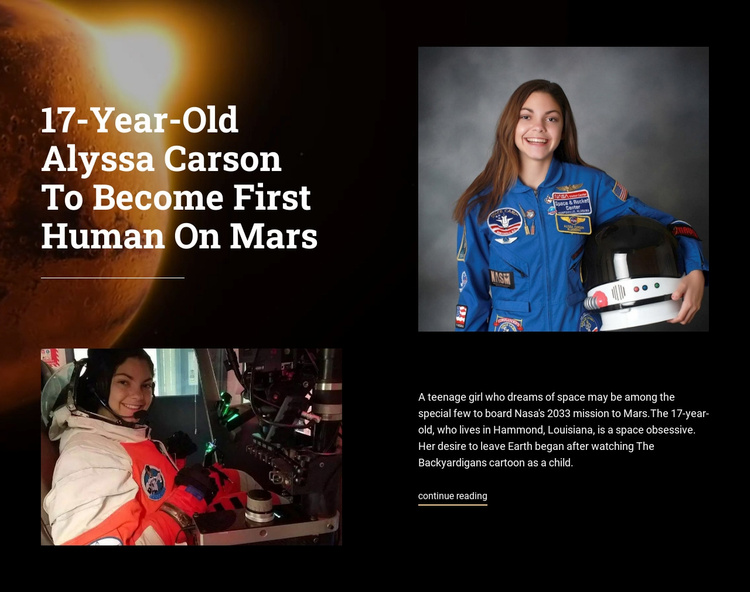
An Asymmetric Editorial Section for a Broader Website Project
The block contributes a clearly bounded content role: one featured space-exploration story presented with enough imagery and text to stand apart from a simple text strip. The left column gives visual priority to the headline and a lower supporting photograph. Across from it, the portrait occupies the upper-right area and the article excerpt sits beneath it, producing an editorial rhythm based on offset image and text groups rather than a repeated card grid.
In a broader website project, this structure can be reused as a featured article, news highlight, or themed editorial section while other blocks handle introductions, collections, services, or contact information. The displayed excerpt describes a teenage girl aspiring to join NASA’s 2033 Mars mission and identifies Alyssa Carson as living in Hammond, Louisiana. A continue-reading link then keeps the block’s role focused: it introduces the story and points toward deeper content without requiring the section to contain the full article.
The black space-themed background, warm Mars image, white high-contrast type, generous spacing, and thin divider can also help this section coordinate with related content. Its visual identity is specific enough to mark an editorial moment, yet its internal arrangement remains reusable when the surrounding website needs a prominent story area with strong image-to-text contrast.
Customize with Nicepage
Open this ready-made template in the Website Template Builder and customize it visually in the Nicepage editor. Replace demo content, edit page sections, and adapt the design to your project without rebuilding the template from scratch.
Edit Template Offline
2. Create a new page or select existing
3. Click Add new block, search for id 45837 and click enter
Edit Template Online
Create Awesome Websites


Free Nicepage Builder
Keywords
Build a Complete Website From This Template
Customize the Website Visually
Use this ready-made website template as a starting point for your project and adapt its pages visually in Nicepage. Change content, images, typography, navigation, sections, and other design elements while keeping the website together as a single editable project.
Manage Website Pages in One Project
Use the Pages panel to open, add, duplicate, and manage the pages of your website. Work on individual pages while keeping navigation and the overall site structure accessible from the same project, making it easier to develop a complete website instead of managing separate page files.
Expand the Website With Matching Designs
When you need additional pages or sections, use Page Design Sets to find Page and Block Designs created in the same visual style. Design Sets group matching designs together, making it easier to expand the website with new content while maintaining a consistent look across its pages and sections.
Organize Larger Multi-Page Websites
As the website grows, use Page Folders to organize related pages and keep larger multi-page projects easier to navigate in the editor. This is especially useful for websites with separate service pages, company information, contacts, landing pages, and other content areas.
This workflow makes the template a practical foundation for building and expanding a complete website while managing its pages, content, and visual design within one Nicepage project.