Cat stories, tips and tricks Website Template



Edit Template Offline
2. Create new page and search for id 3444245
Edit Template Online
Create Awesome Websites


Free Nicepage Builder
Keywords
Editorial Categories Give a Cat Site Room to Expand
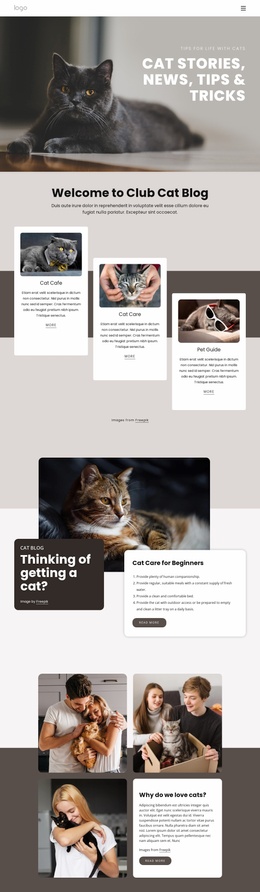
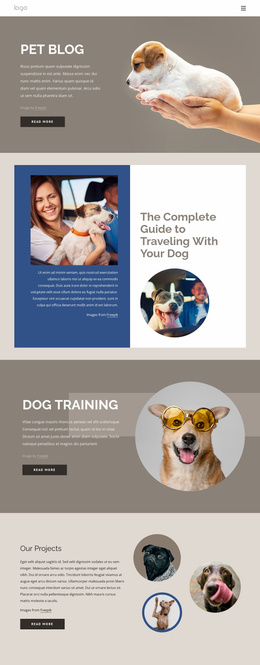
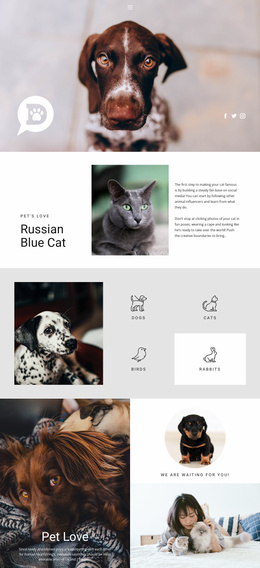
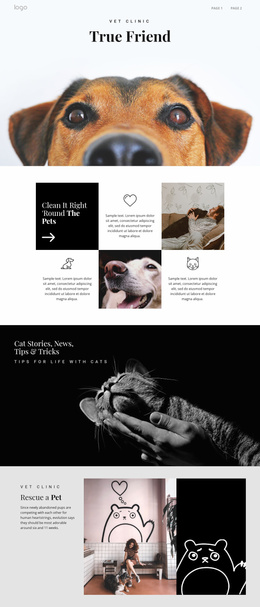
The homepage already defines several content areas that could support a wider website structure. The hero establishes the cat-story direction, while the three introductory cards—Cat of the Week, Cat Care, and Pet Guide—separate the main editorial subjects. Those divisions can serve as a starting information architecture for related pages or recurring content areas, without implying that those additional pages are included in the current template.
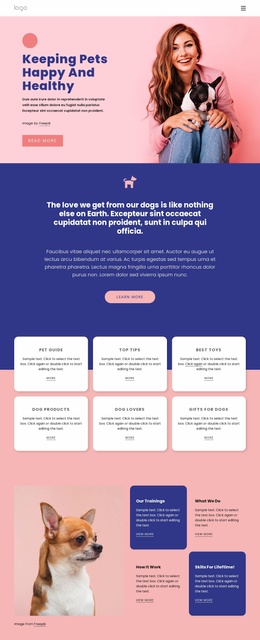
The featured article sections add more specific project paths. “Thinking of getting a cat?” can represent a beginner or adoption-oriented content area, and “Cat Care for Beginners” provides a practical advice direction supported by multiple photographs. The six-card topic group then broadens the possible structure with Pet Types, Top Tips, Best Toys, Cat Products, Cat Lovers, and Guides for Cats. Because these subjects are already named and visually grouped, they offer clearer expansion points than a homepage made only from generic promotional blocks.
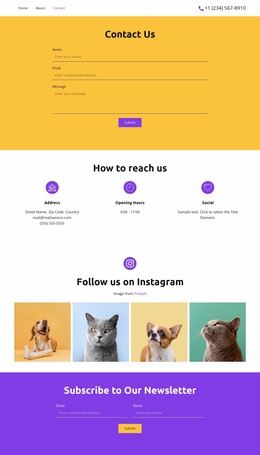
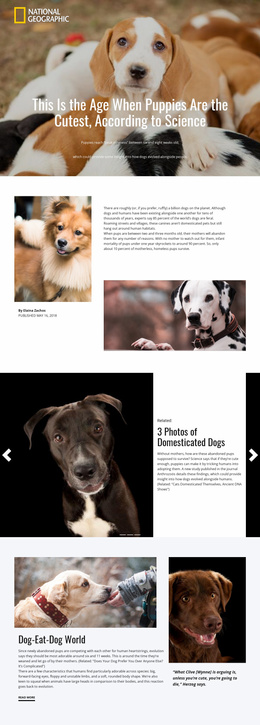
The newsletter and help/contact sections provide the relationship layer of the project. The subscription area can support returning readers, while the Need Help panel and social icons create a place for assistance and community connection. The existing navigation, shared dark footer treatment, and repeated rounded cards can help additional pages remain visually related as the site grows. Nicepage’s Pages panel is relevant when managing such an expanded project, but the template’s value first comes from the content structure it already establishes.
Customize with Nicepage
Open this ready-made template in the Website Template Builder and customize it visually in the Nicepage editor. Replace demo content, edit page sections, and adapt the design to your project without rebuilding the template from scratch.
Build a Complete Website From This Template
Customize the Website Visually
Use this ready-made website template as a starting point for your project and adapt its pages visually in Nicepage. Change content, images, typography, navigation, sections, and other design elements while keeping the website together as a single editable project.
Manage Website Pages in One Project
Use the Pages panel to open, add, duplicate, and manage the pages of your website. Work on individual pages while keeping navigation and the overall site structure accessible from the same project, making it easier to develop a complete website instead of managing separate page files.
Expand the Website With Matching Designs
When you need additional pages or sections, use Page Design Sets to find Page and Block Designs created in the same visual style. Design Sets group matching designs together, making it easier to expand the website with new content while maintaining a consistent look across its pages and sections.
Organize Larger Multi-Page Websites
As the website grows, use Page Folders to organize related pages and keep larger multi-page projects easier to navigate in the editor. This is especially useful for websites with separate service pages, company information, contacts, landing pages, and other content areas.
This workflow makes the template a practical foundation for building and expanding a complete website while managing its pages, content, and visual design within one Nicepage project.