Dentist and prosthodontics Website Template



Edit Template Offline
2. Create new page and search for id 324353
Edit Template Online
Create Awesome Websites


Free Nicepage Builder
Keywords
Services, expertise, mission, and contact establish a clinic project foundation
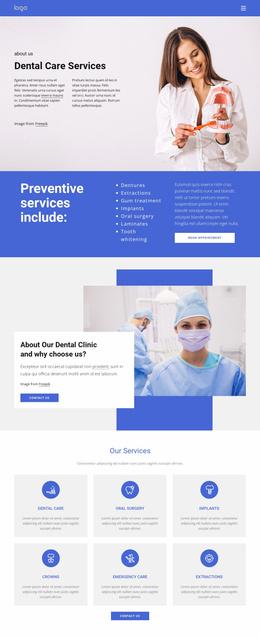
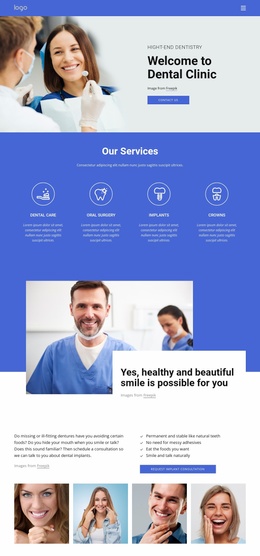
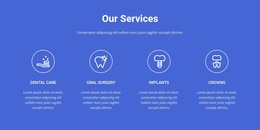
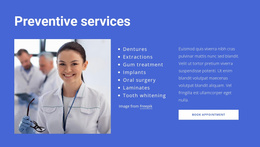
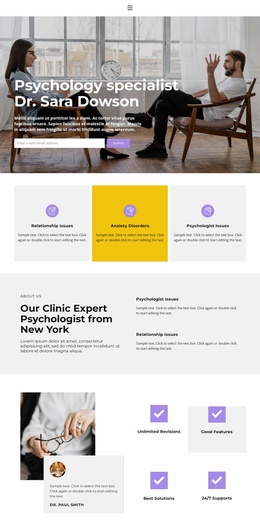
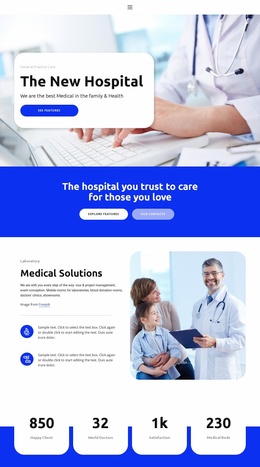
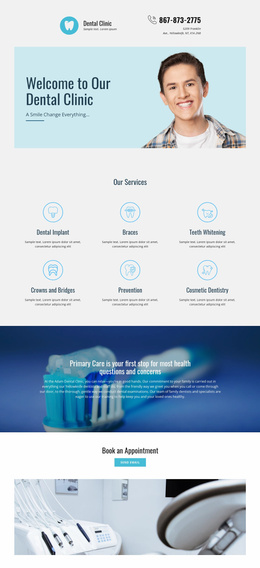
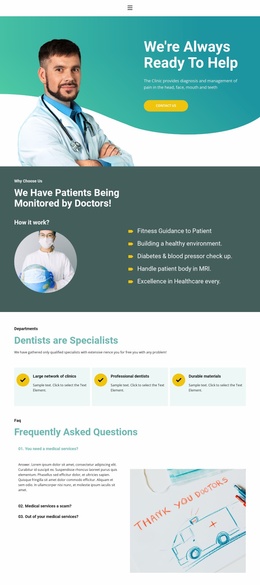
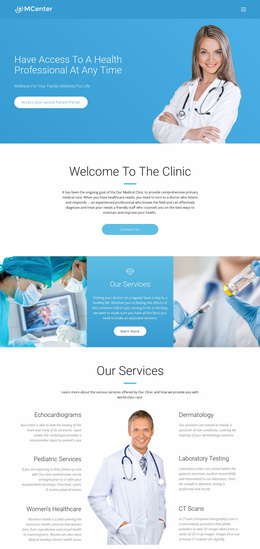
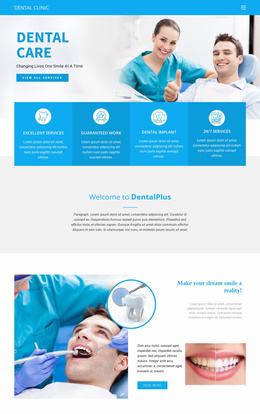
The design already defines several major content categories that a broader dental website could build around. The opening dental-care section can serve as the main introduction, while the preventive-services area gives the project a focused place for care information and an appointment action. The six-card services catalog adds a distinct treatment category, covering dental care, oral surgery, implants, crowns, emergency care, and extractions without requiring those subjects to be compressed into one paragraph.
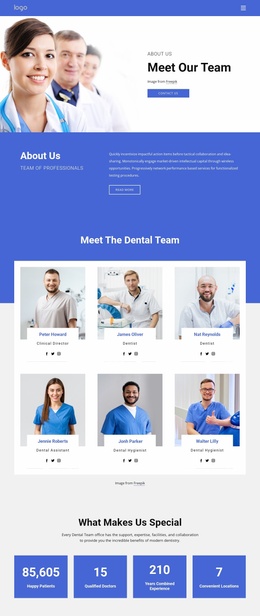
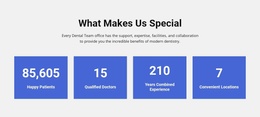
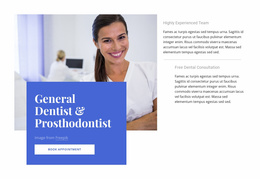
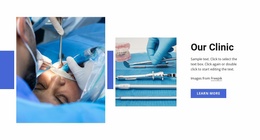
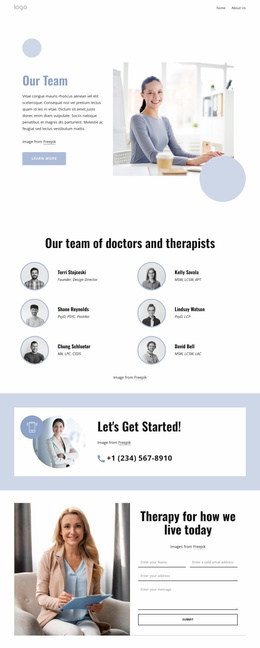
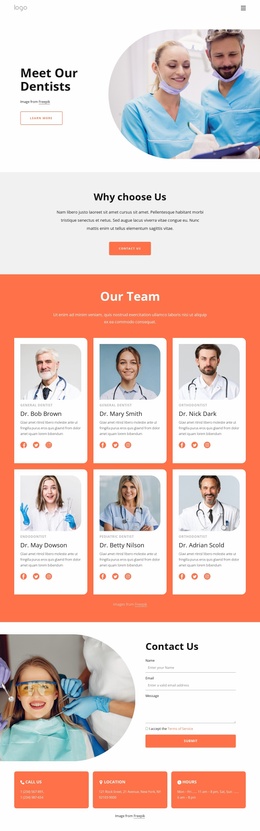
Other sections provide content areas for the clinic story and professional positioning. The overlapping clinic block introduces the organization, the expertise section presents team experience, free consultation, and the General Dentist & Prosthodontist focus, and the mission-and-values block supplies purpose-oriented information. The treatment-quality section adds another focused message supported by photography and a booking action. Together, these regions give a future site a clear informational base for considering additional pages or related content areas, without claiming that those additional pages already exist.
The final contact form, social links, phone details, and shared navigation complete the starting structure. The design therefore works as a website-template foundation because it identifies the clinic’s service, expertise, values, and communication categories in a coordinated visual system. Nicepage’s Pages panel could later help manage an expanded project, but the primary value here is the verified content architecture already present in this design.
Customize with Nicepage
Open this ready-made template in the Website Template Builder and customize it visually in the Nicepage editor. Replace demo content, edit page sections, and adapt the design to your project without rebuilding the template from scratch.
Build a Complete Website From This Template
Customize the Website Visually
Use this ready-made website template as a starting point for your project and adapt its pages visually in Nicepage. Change content, images, typography, navigation, sections, and other design elements while keeping the website together as a single editable project.
Manage Website Pages in One Project
Use the Pages panel to open, add, duplicate, and manage the pages of your website. Work on individual pages while keeping navigation and the overall site structure accessible from the same project, making it easier to develop a complete website instead of managing separate page files.
Expand the Website With Matching Designs
When you need additional pages or sections, use Page Design Sets to find Page and Block Designs created in the same visual style. Design Sets group matching designs together, making it easier to expand the website with new content while maintaining a consistent look across its pages and sections.
Organize Larger Multi-Page Websites
As the website grows, use Page Folders to organize related pages and keep larger multi-page projects easier to navigate in the editor. This is especially useful for websites with separate service pages, company information, contacts, landing pages, and other content areas.
This workflow makes the template a practical foundation for building and expanding a complete website while managing its pages, content, and visual design within one Nicepage project.