Welcome to dental studios Website Template


Edit Template Offline
2. Create new page and search for id 6216588
Edit Template Online
Create Awesome Websites


Free Nicepage Builder
Keywords
Services, Patient Content, and Contact Areas Establish a Site Foundation
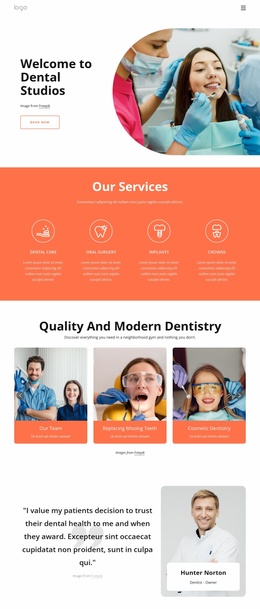
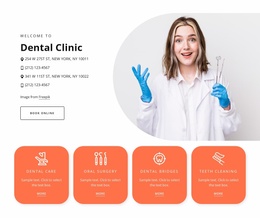
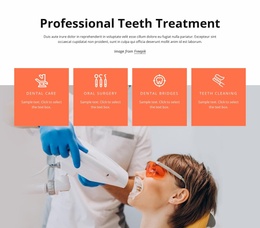
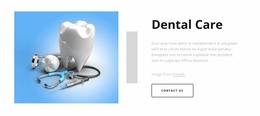
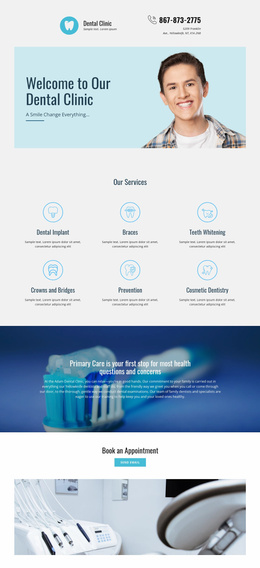
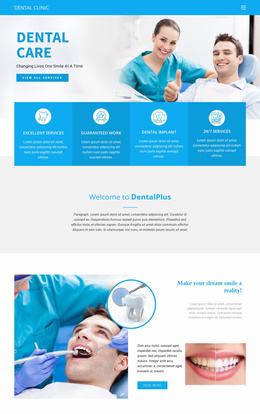
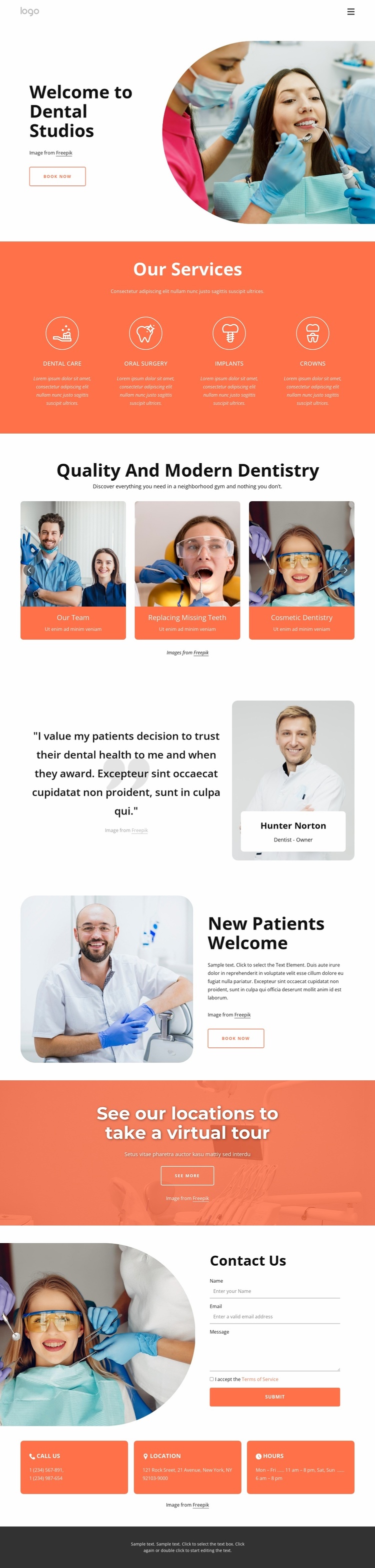
The design begins with the core content areas a dental website needs to explain its subject. The welcome hero introduces Dental Studios and places a “Book Now” action beside a large image. The following coral block divides the offering into four service cards—dental care, oral surgery, implants, and crowns—creating a clear basis for treatment-focused page content rather than leaving the site with only a general introduction.
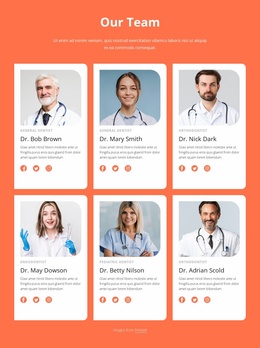
The six-category gallery broadens that foundation. Our Team, Replacing Missing Teeth, Cosmetic Dentistry, Orthodontics, Family Friendly, and Teeth Implants provide distinct subjects that could guide additional informational content as a project develops. The testimonial-style dentist profile adds a personal care perspective, while the New Patients Welcome section supplies a separate audience-oriented message. These areas give the design more than a single promotional theme; they suggest several related content directions within the same visual language.
The location banner and final contact region complete the project structure. The “See our locations to take a virtual tour” section introduces a location-focused area, and Contact Us combines a form with telephone, location, and opening-hours channels. Together with the shared navigation and footer, these sections define a useful starting information architecture for a broader dental website. Additional pages could build on the service, team, treatment-category, location, or patient-information themes without changing the foundation established by this design.
Customize with Nicepage
Open this ready-made template in the Website Template Builder and customize it visually in the Nicepage editor. Replace demo content, edit page sections, and adapt the design to your project without rebuilding the template from scratch.
Build a Complete Website From This Template
Customize the Website Visually
Use this ready-made website template as a starting point for your project and adapt its pages visually in Nicepage. Change content, images, typography, navigation, sections, and other design elements while keeping the website together as a single editable project.
Manage Website Pages in One Project
Use the Pages panel to open, add, duplicate, and manage the pages of your website. Work on individual pages while keeping navigation and the overall site structure accessible from the same project, making it easier to develop a complete website instead of managing separate page files.
Expand the Website With Matching Designs
When you need additional pages or sections, use Page Design Sets to find Page and Block Designs created in the same visual style. Design Sets group matching designs together, making it easier to expand the website with new content while maintaining a consistent look across its pages and sections.
Organize Larger Multi-Page Websites
As the website grows, use Page Folders to organize related pages and keep larger multi-page projects easier to navigate in the editor. This is especially useful for websites with separate service pages, company information, contacts, landing pages, and other content areas.
This workflow makes the template a practical foundation for building and expanding a complete website while managing its pages, content, and visual design within one Nicepage project.