Quality haircuts and hairstyles Website Template



Edit Template Offline
2. Create new page and search for id 18682
Edit Template Online
Create Awesome Websites


Free Nicepage Builder
Keywords
Services, Team, and Shop Information Create a Broader Site Foundation
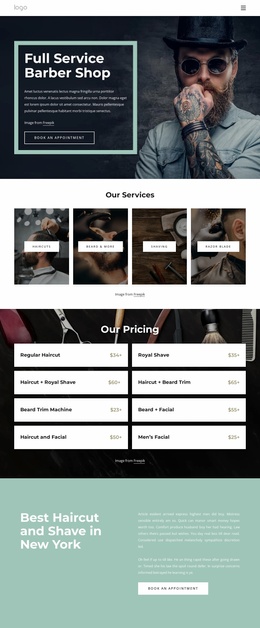
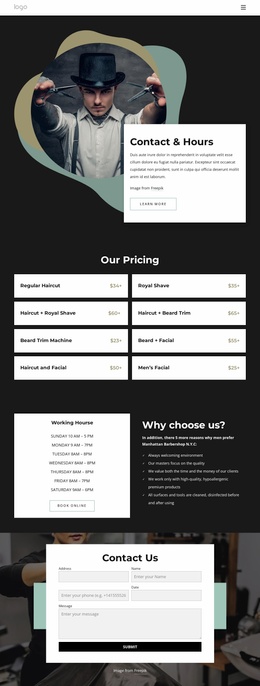
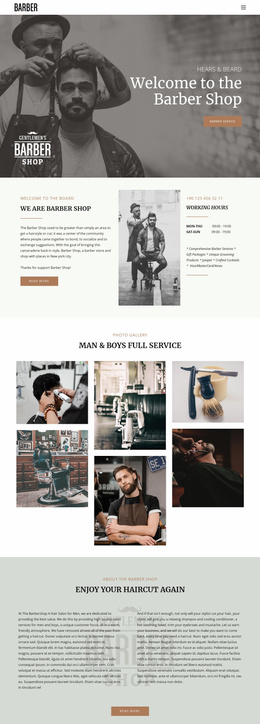
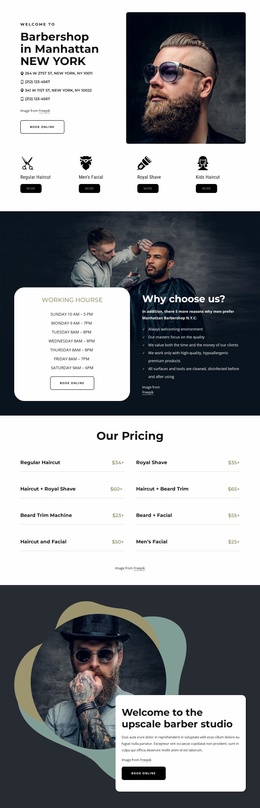
The template establishes several major content categories rather than presenting only a decorative home screen. The opening hero introduces the barber shop and its service direction, while the following information area combines shop copy, working hours, contact details, and grooming offerings. These elements can serve as the central informational foundation for a broader project because they explain both what the shop provides and how visitors can understand its operation.
The six-image gallery supplies a separate visual content area for barbering and shop scenes. It can support the project’s atmosphere while the hot-shave and traditional-haircut sections give individual services more room for explanation. The two-column haircut-experience section adds another reusable content relationship between shop values and action, without requiring the existing design to claim multiple completed pages.
The three barber profile cards create a team category, and the testimonial panel offers a compact customer-feedback category. Working hours and the social footer add practical and shared site information. Together, these areas give a larger barber website a starting information architecture: services, shop details, visual work, people, customer context, and contact-oriented content are already represented. Additional pages could grow from these categories while preserving the muted editorial visual direction.
Customize with Nicepage
Open this ready-made template in the Website Template Builder and customize it visually in the Nicepage editor. Replace demo content, edit page sections, and adapt the design to your project without rebuilding the template from scratch.
Build a Complete Website From This Template
Customize the Website Visually
Use this ready-made website template as a starting point for your project and adapt its pages visually in Nicepage. Change content, images, typography, navigation, sections, and other design elements while keeping the website together as a single editable project.
Manage Website Pages in One Project
Use the Pages panel to open, add, duplicate, and manage the pages of your website. Work on individual pages while keeping navigation and the overall site structure accessible from the same project, making it easier to develop a complete website instead of managing separate page files.
Expand the Website With Matching Designs
When you need additional pages or sections, use Page Design Sets to find Page and Block Designs created in the same visual style. Design Sets group matching designs together, making it easier to expand the website with new content while maintaining a consistent look across its pages and sections.
Organize Larger Multi-Page Websites
As the website grows, use Page Folders to organize related pages and keep larger multi-page projects easier to navigate in the editor. This is especially useful for websites with separate service pages, company information, contacts, landing pages, and other content areas.
This workflow makes the template a practical foundation for building and expanding a complete website while managing its pages, content, and visual design within one Nicepage project.