A full-term pregnancy Website Template


A Reusable Pregnancy Information Section With Two Complementary Content Roles
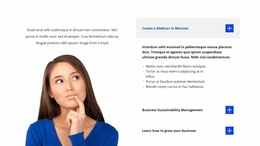
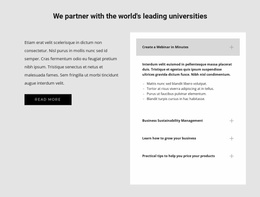
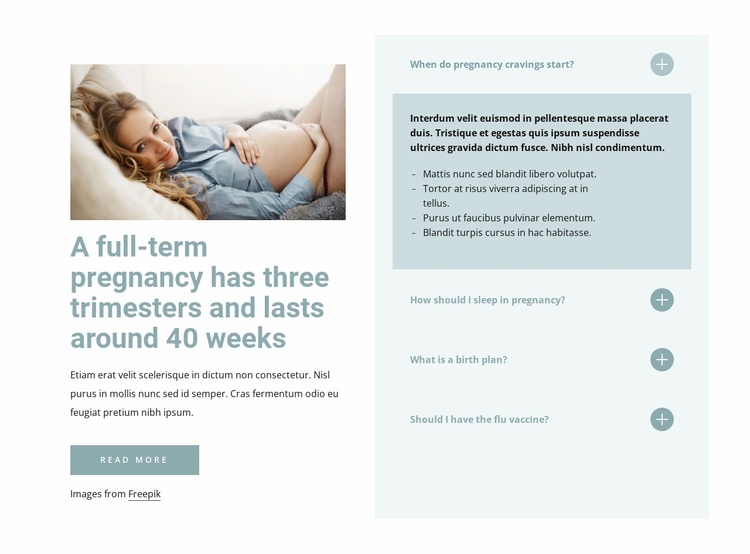
The block already establishes a stable section pattern for pregnancy-related information. Its left column introduces the subject through one photograph, a prominent heading about three trimesters and approximately 40 weeks, supporting copy, a Read more button, and a credit line. Its right column handles related questions through four accordion rows covering cravings, sleep, birth plans, and flu vaccination. These two regions work together without duplicating one another: the left side provides broad context, while the right side organizes narrower topics.
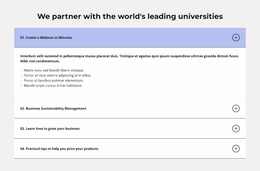
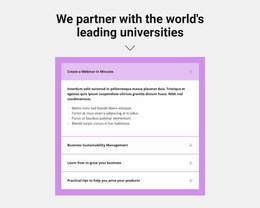
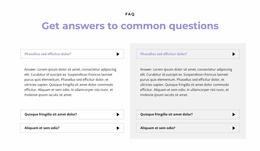
The accordion state also gives the section a repeatable content behavior. The first question is expanded and shows an answer with four bullet points, while the other three questions stay closed. That arrangement can be retained when the block is reused as an educational information area, with the open item providing an immediate example of the available detail and the closed rows keeping the overall section compact. Pale blue and teal styling, circular plus icons, and spacious alignment help the section maintain a recognizable visual pattern.
Inside a broader website template project, this block can coordinate with neighboring sections that handle introductions, services, resources, contact details, or other content areas. It does not supply those surrounding functions itself. Instead, its value is the self-contained combination of image, pregnancy article context, Read more action, and expandable FAQ topics. Reusing that combination can help maintain a consistent information architecture wherever a focused pregnancy guidance section is needed.
Customize with Nicepage
Open this ready-made template in the Website Template Builder and customize it visually in the Nicepage editor. Replace demo content, edit page sections, and adapt the design to your project without rebuilding the template from scratch.
Edit Template Offline
2. Create a new page or select existing
3. Click Add new block, search for id 1563964 and click enter
Edit Template Online
Create Awesome Websites


Free Nicepage Builder
Keywords
Build a Complete Website From This Template
Customize the Website Visually
Use this ready-made website template as a starting point for your project and adapt its pages visually in Nicepage. Change content, images, typography, navigation, sections, and other design elements while keeping the website together as a single editable project.
Manage Website Pages in One Project
Use the Pages panel to open, add, duplicate, and manage the pages of your website. Work on individual pages while keeping navigation and the overall site structure accessible from the same project, making it easier to develop a complete website instead of managing separate page files.
Expand the Website With Matching Designs
When you need additional pages or sections, use Page Design Sets to find Page and Block Designs created in the same visual style. Design Sets group matching designs together, making it easier to expand the website with new content while maintaining a consistent look across its pages and sections.
Organize Larger Multi-Page Websites
As the website grows, use Page Folders to organize related pages and keep larger multi-page projects easier to navigate in the editor. This is especially useful for websites with separate service pages, company information, contacts, landing pages, and other content areas.
This workflow makes the template a practical foundation for building and expanding a complete website while managing its pages, content, and visual design within one Nicepage project.