Contact us on vector illustration Website Template


A Two-Column Contact Area for Broader Site Planning
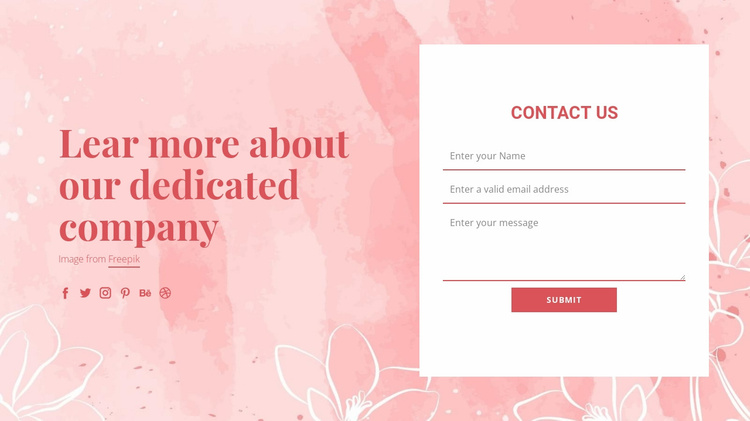
The block defines one stable content area for a broader website project: company-oriented information paired with contact collection. On the left, the heading “Lear more about our dedicated company” and its attribution line introduce the informational context, while six social media links give that column a secondary connection point. The right side concentrates visitor response in a white panel headed “Contact Us,” using name, email, and message inputs with a Submit action.
As a reusable website section, this arrangement can occupy a contact or company-information role without carrying the surrounding project’s navigation, footer, or other page functions. Its two-column structure also makes the division of responsibilities clear: the left side explains or frames the relationship, and the right side handles the message itself. That makes the block suitable for coordination with other sections that provide introductions, services, proof, or more detailed company content.
The pink watercolor background and floral line art give the section a recognizable visual direction, while the white form panel preserves readability and focus. In a larger project, related sections can echo the red accents, typography character, or spacing without copying this contact arrangement everywhere. Nicepage’s Page Design Set can help locate matching page and block designs around an existing section, while this block remains one reusable contact area within the broader website.
Customize with Nicepage
Open this ready-made template in the Website Template Builder and customize it visually in the Nicepage editor. Replace demo content, edit page sections, and adapt the design to your project without rebuilding the template from scratch.
Edit Template Offline
2. Create a new page or select existing
3. Click Add new block, search for id 115062 and click enter
Edit Template Online
Create Awesome Websites


Free Nicepage Builder
Keywords
Build a Complete Website From This Template
Customize the Website Visually
Use this ready-made website template as a starting point for your project and adapt its pages visually in Nicepage. Change content, images, typography, navigation, sections, and other design elements while keeping the website together as a single editable project.
Manage Website Pages in One Project
Use the Pages panel to open, add, duplicate, and manage the pages of your website. Work on individual pages while keeping navigation and the overall site structure accessible from the same project, making it easier to develop a complete website instead of managing separate page files.
Expand the Website With Matching Designs
When you need additional pages or sections, use Page Design Sets to find Page and Block Designs created in the same visual style. Design Sets group matching designs together, making it easier to expand the website with new content while maintaining a consistent look across its pages and sections.
Organize Larger Multi-Page Websites
As the website grows, use Page Folders to organize related pages and keep larger multi-page projects easier to navigate in the editor. This is especially useful for websites with separate service pages, company information, contacts, landing pages, and other content areas.
This workflow makes the template a practical foundation for building and expanding a complete website while managing its pages, content, and visual design within one Nicepage project.