Chocolate desserts Website Design


Serif Scale and Translucent Layering Define the Visual Language
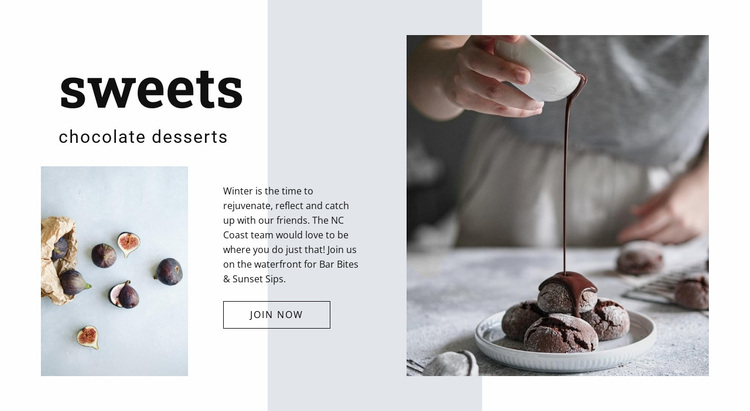
The block communicates its visual character through contrast between type, panel, and imagery. The large serif “sweets” heading is the dominant textual element, while the sans-serif subtitle and paragraph create a quieter supporting hierarchy. That pairing gives the section an editorial tone without relying on decorative typography throughout. Black text remains clear against the soft light gray background and the darker translucent vertical panel.
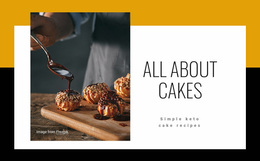
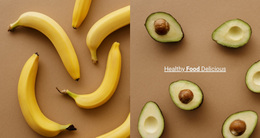
The image treatment reinforces the same language. Both food photographs use rectangular crops and generous surrounding whitespace, but their different scales create variation: the smaller image supports the text area, and the larger image provides a strong visual counterweight. The outlined “join now” button continues the restrained rectangular vocabulary rather than introducing a bright filled control that would compete with the dessert photography.
Within a broader website design, these relationships can become cues for related sections: a serif display style for prominent statements, a simpler sans-serif treatment for supporting copy, controlled dark accents, and image-led whitespace. One block does not define the complete site identity, but it can provide a clear reference for coordinating palette, type contrast, panel treatments, and action styling elsewhere. The visual system is therefore useful as a contribution to a wider design language, not as proof of a site-wide rule set.
Customize with Nicepage
Open this ready-made template in the Website Design Builder and customize it visually in the Nicepage editor. Replace demo content, edit page sections, and adapt the design to your project without rebuilding the template from scratch.
Edit Template Offline
2. Create a new page or select existing
3. Click Add new block, search for id 1056704 and click enter
Edit Template Online
Create Awesome Websites


Free Nicepage Builder
Keywords
Create a Consistent Design Across the Website
Define a Site-Wide Visual Style
Use Theme Settings to establish the visual foundation of the website across its pages and sections. Set global Colors, Fonts, and Typography so the site follows the same design direction instead of styling each page independently.
Coordinate Colors and Typography
Choose a color scheme and font combination that fit the character of the website, then fine-tune Headings H1-H6, regular Text, links, buttons, quotes, lists, and other typography styles. Consistent use of these settings helps create a clear visual hierarchy and keeps recurring design elements recognizable throughout the website.
Add Motion and Interaction
Use Animation Effects to make the website design more dynamic and interactive. Elements and Containers can use effects such as Run On Display, Animation On Hover, and Animation Sync With Scroll to introduce content as visitors move through the site or respond to user interaction. Animation Presets provide ready-made effects that can be adapted to the visual style of the website.
Keep the Website Visually Consistent
Apply the same design direction to shared website elements such as the Header, Menu, and Footer. The Theme Settings Panel brings common site-wide styling controls together, making it easier to maintain a coordinated look as the website expands across multiple pages.
This workflow makes the template a useful starting point for creating a website with a consistent visual identity, coordinated colors and typography, shared design rules, and interactive effects across its pages.