Promotions Plans CSS Template


Teal Headers and Red Actions Organize the Plan Comparison
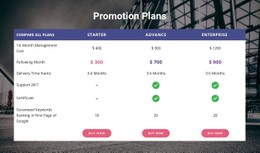
The centered heading introduces a compact pricing comparison whose visual system depends on repeated color roles. Teal identifies the Enterprise and Advance headers, yellow separates Starter, and light gray cells establish the criteria column at the left. The pale yellow Starter cells extend that distinction into the table body, while red prices and rectangular Choose plan buttons create a consistent emphasis for cost and selection actions.
For a CSS Template interpretation, these details are the useful styling structure of this particular block. The colors do not replace the comparison model: five criteria rows still align with three plan columns, and the first column remains responsible for explaining what is being compared. Typography, spacing, borders, cell padding, header fills, and button treatment can therefore be adjusted as coordinated groups rather than as unrelated decorations. The recurring colors also help users follow each plan vertically from its name to its price, delivery timeframe, service labels, and action.
The result is a styling reference for a pricing section that needs hierarchy without adding interaction. A visual revision can preserve the Enterprise, Advance, and Starter relationships while changing contrast, radius, spacing, or emphasis to match a broader design language. Because the block is static, the styling work centers on clarity, balance, and consistent state-like emphasis within the table itself.
Customize with Nicepage
Open this ready-made template in the CSS Template Builder and customize it visually in the Nicepage editor. Replace demo content, edit page sections, and adapt the design to your project without rebuilding the template from scratch.
Edit Template Offline
2. Create a new page or select existing
3. Click Add new block, search for id 85766 and click enter
Edit Template Online
Create Awesome Websites


Free Nicepage Builder
Keywords
Customize This Template With CSS
Control Page-Specific Styling
Customize the visual appearance of this ready-made template directly in the Nicepage editor. Adjust typography, spacing, backgrounds, borders, colors, positioning, and other style properties using visual controls while keeping the page layout easy to manage without writing CSS manually.
Add Custom CSS When Needed
For styling requirements that go beyond the standard editor options, use Custom CSS to add targeted rules. CSS can be applied to individual elements, specific pages, or the entire website depending on the scope of the customization, while CSS classes can be used to connect custom rules with selected elements.
Export Minimal CSS Per Page
For projects where CSS size and page performance matter, Nicepage can export minimal CSS for each page. Instead of relying on one larger common stylesheet, each page can use a separate CSS file containing only the style rules required for that particular page. According to Nicepage documentation, these page-specific CSS files can be about ten times more compact, helping reduce unnecessary CSS and improve page loading performance.
This workflow combines visual styling with optional custom CSS and optimized page-specific CSS output, giving you additional control when a project requires it without making manual CSS editing the primary way to customize the template.