Book online CSS Template


Dark Panels Give the Scheduler a Clear Visual System
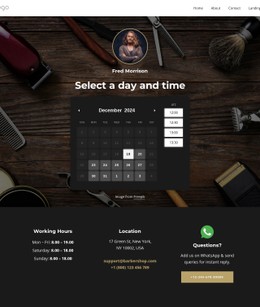
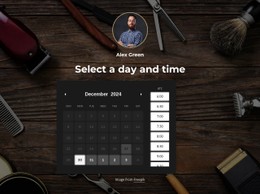
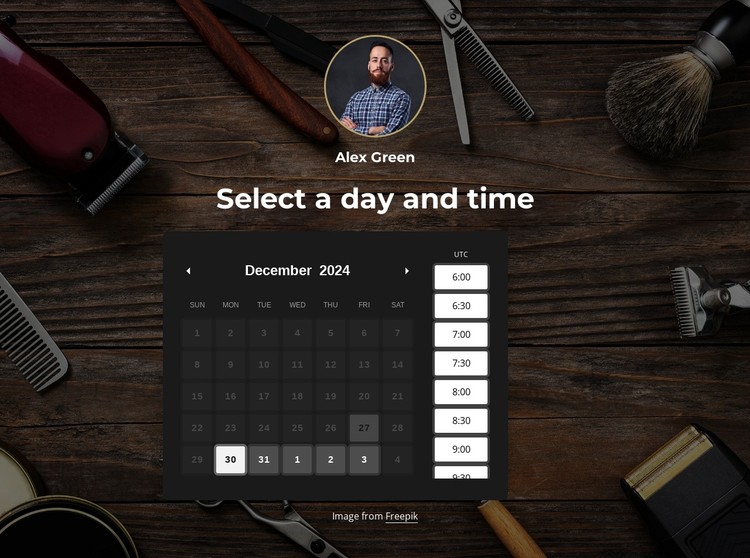
The dark background image establishes a grooming-related visual setting, while the translucent content area separates the scheduler from the wood-and-tool imagery behind it. White typography supplies the strongest contrast for the provider identity and the “Select a day and time” heading, so the visitor can locate the purpose of the section before reaching the calendar. A circular portrait with a contrasting border creates a distinct visual marker above the scheduling controls.
The calendar and time-slot panel continue that treatment through dark surfaces and light rectangular controls. This gives the date and time choices a consistent appearance without changing the block’s centered vertical structure. The visible December 2024 calendar and half-hour list from 6:00 through 9:30 provide concrete examples of how dates and times are presented, while the static interaction means the design should be understood as a visual section rather than evidence of a live booking process.
As a CSS Template, the block is useful for refining color contrast, panel opacity, typography, border treatment, portrait shape, control spacing, and background positioning. Those adjustments can preserve the appointment scheduler’s content relationships while adapting its appearance to the surrounding design language.
Customize with Nicepage
Open this ready-made template in the CSS Template Builder and customize it visually in the Nicepage editor. Replace demo content, edit page sections, and adapt the design to your project without rebuilding the template from scratch.
Edit Template Offline
2. Create a new page or select existing
3. Click Add new block, search for id 6415735 and click enter
Edit Template Online
Create Awesome Websites


Free Nicepage Builder
Keywords
Customize This Template With CSS
Control Page-Specific Styling
Customize the visual appearance of this ready-made template directly in the Nicepage editor. Adjust typography, spacing, backgrounds, borders, colors, positioning, and other style properties using visual controls while keeping the page layout easy to manage without writing CSS manually.
Add Custom CSS When Needed
For styling requirements that go beyond the standard editor options, use Custom CSS to add targeted rules. CSS can be applied to individual elements, specific pages, or the entire website depending on the scope of the customization, while CSS classes can be used to connect custom rules with selected elements.
Export Minimal CSS Per Page
For projects where CSS size and page performance matter, Nicepage can export minimal CSS for each page. Instead of relying on one larger common stylesheet, each page can use a separate CSS file containing only the style rules required for that particular page. According to Nicepage documentation, these page-specific CSS files can be about ten times more compact, helping reduce unnecessary CSS and improve page loading performance.
This workflow combines visual styling with optional custom CSS and optimized page-specific CSS output, giving you additional control when a project requires it without making manual CSS editing the primary way to customize the template.