Psychologist quote Web Page Design


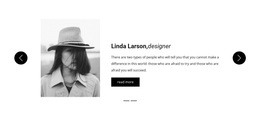
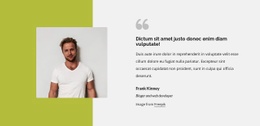
The Quote and Portrait Create a Strong Mid-Page Balance
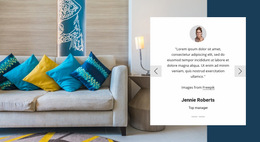
The oversized quotation gives the block an immediate left-side entry point, while the attribution and Read more button form a smaller hierarchy beneath it. On the opposite side, the tightly cropped portrait supplies a tall visual anchor. This unequal distribution of text and image creates an intentional split: the words carry the testimonial's meaning, and the portrait prevents the section from becoming a dense text-only pause in the page.
Within one webpage, the section can work as a mid-page testimonial composition between more explanatory or service-focused areas. Its lack of a heading means the quote must establish the context by itself, so the surrounding page can provide the broader transition before or after the block. The white background allows the section to remain visually open, while black text and the fine outline of the Read more button give the action a quiet secondary position.
The block's page-design value comes from how clearly it separates two visual weights without introducing unnecessary components. The left text region is readable as one group, and the portrait's tall rectangle defines the right edge of the composition. This makes the section suitable when a page needs a human voice and a strong visual pause, while later blocks can handle deeper information or the primary response.
Customize with Nicepage
Open this ready-made template in the Web Page Design Builder and customize it visually in the Nicepage editor. Replace demo content, edit page sections, and adapt the design to your project without rebuilding the template from scratch.
Edit Template Offline
2. Create a new page or select existing
3. Click Add new block, search for id 71331 and click enter
Edit Template Online
Create Awesome Websites


Free Nicepage Builder
Keywords
Design a Web Page Section by Section
Choose a Design for Each Section
Build the page from individual content sections instead of starting with a fixed full-page layout. Use Block Designs to browse ready-made sections for different purposes, including introductions, services, galleries, testimonials, contact forms, pricing, and other common parts of a web page. Search or filter the available designs to find a layout that fits the content you want to add.
Combine Blocks and Page Elements
Add selected Blocks to the page and arrange them in the order that supports the page's purpose. A hero section can introduce the main message, followed by services, benefits, portfolio content, testimonials, calls to action, or contact information.
Inside each section, use Web Page Elements such as Text, Image, Hyperlink, Grid, Gallery, and other elements to build and present the page content. Individual elements can be added and adjusted within the Blocks, giving you more control over the composition of each section without having to create the complete layout from scratch.
Refine the Page Layout and Flow
After assembling the main sections, adjust their content, spacing, backgrounds, images, typography, and element placement in the Nicepage editor. Reorder Blocks when necessary and refine the transition from one section to the next so the information hierarchy and visual flow remain clear throughout the page.
This workflow makes the template useful as a web page design that can be composed from ready-made sections, customized with individual page elements, rearranged, and adapted to the content and purpose of an individual page.