Play fun quizzes Web Page Design


Edit Template Offline
2. Create new page and search for id 6534796
Edit Template Online
Create Awesome Websites


Free Nicepage Builder
Keywords
The Page Alternates Discovery, Demonstration, and Response
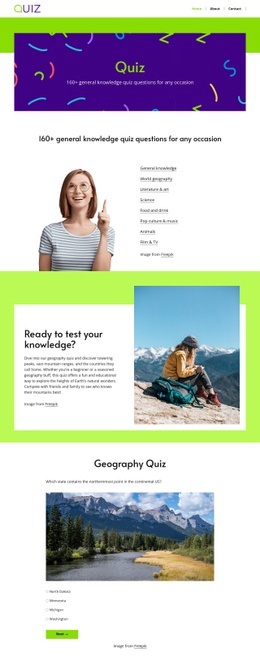
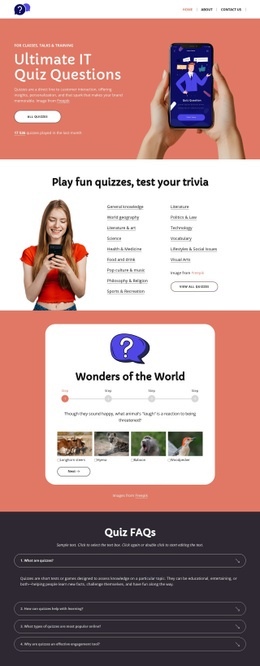
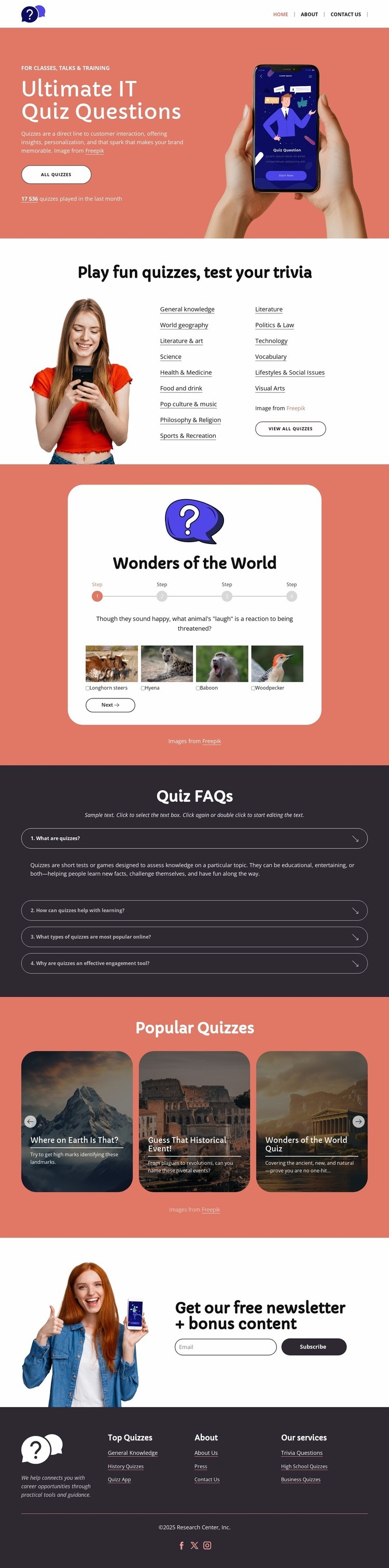
The opening composition uses a strong coral field, a large phone-and-hand image, and a compact text-and-action group to create an immediate entry point. That image-led start is followed by a centered subject section, where the two-column list of quiz categories changes the page rhythm from visual introduction to organized choice. Categories such as General Knowledge, World Geography, Literature, Science, Technology, and Visual Arts are presented as a navigable content group rather than scattered through the page.
The featured “Wonders of the World” section introduces a denser focal composition. Its illustration, progress indicators, question prompt, image answer choices, and “Next” button place several related elements inside one quiz card. The four-item FAQ then reduces visual density by using stacked question rows and answer text in a dark section. After that pause, three image-backed cards restore horizontal repetition in the “Popular Quizzes” area, creating a clear distinction between one featured activity and a broader set of choices.
The final newsletter block changes the page’s purpose again. The headline about free newsletter and bonus content, email entry control, “Subscribe” action, and person image create a focused response area before the footer. Grouped links and social icons provide a compact closing structure. This sequence gives the single page a controlled visual rhythm: image-led introduction, category organization, concentrated quiz demonstration, informational pause, repeated cards, subscription response, and footer navigation.
Customize with Nicepage
Open this ready-made template in the Web Page Design Builder and customize it visually in the Nicepage editor. Replace demo content, edit page sections, and adapt the design to your project without rebuilding the template from scratch.
Design a Web Page Section by Section
Choose a Design for Each Section
Build the page from individual content sections instead of starting with a fixed full-page layout. Use Block Designs to browse ready-made sections for different purposes, including introductions, services, galleries, testimonials, contact forms, pricing, and other common parts of a web page. Search or filter the available designs to find a layout that fits the content you want to add.
Combine Blocks and Page Elements
Add selected Blocks to the page and arrange them in the order that supports the page's purpose. A hero section can introduce the main message, followed by services, benefits, portfolio content, testimonials, calls to action, or contact information.
Inside each section, use Web Page Elements such as Text, Image, Hyperlink, Grid, Gallery, and other elements to build and present the page content. Individual elements can be added and adjusted within the Blocks, giving you more control over the composition of each section without having to create the complete layout from scratch.
Refine the Page Layout and Flow
After assembling the main sections, adjust their content, spacing, backgrounds, images, typography, and element placement in the Nicepage editor. Reorder Blocks when necessary and refine the transition from one section to the next so the information hierarchy and visual flow remain clear throughout the page.
This workflow makes the template useful as a web page design that can be composed from ready-made sections, customized with individual page elements, rearranged, and adapted to the content and purpose of an individual page.