How we support schools Web Page Design


A Centered Introduction Leads Into a Balanced Card Grid
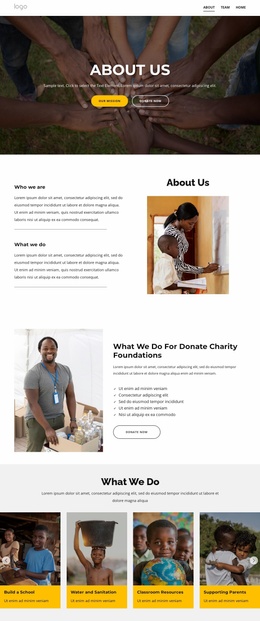
The block’s composition begins with a centered “What we do” heading and a compact supporting paragraph, creating a clear entry point before the denser content below. The four initiative cards are arranged in two columns and two rows, giving the section a stable rectangular rhythm within one webpage. Their subjects—Build a School, Helping Girls Stay in School, Water and Sanitation, and Classroom Resources—are different, but the shared structure keeps them visually connected.
Each card places a documentary-style photograph above a lower text panel. That image-to-text relationship creates a repeated vertical unit, while the bright yellow panels establish a consistent horizontal band across the lower portions of the cards. Strong dark typography keeps the titles legible against the panels, and the white background leaves space around the centered introduction and card grid.
As a page-composition unit, the section can provide a substantial mid-page transition from a broader introduction to more detailed organization-specific content. Its four-card density communicates several initiatives without requiring a long list, while the repeated two-column arrangement makes the information easy to scan. Neighboring blocks can provide the page’s opening context, proof, contact details, or next action; this section contributes the organized visual middle rather than carrying the entire page structure.
Customize with Nicepage
Open this ready-made template in the Web Page Design Builder and customize it visually in the Nicepage editor. Replace demo content, edit page sections, and adapt the design to your project without rebuilding the template from scratch.
Edit Template Offline
2. Create a new page or select existing
3. Click Add new block, search for id 6319065 and click enter
Edit Template Online
Create Awesome Websites


Free Nicepage Builder
Keywords
Design a Web Page With This Block as One Section
Place the Block in the Page Composition
Use Block Designs to combine individual sections into a complete page. The analyzed block contributes one part of that composition, while other sections can handle the introduction, services, proof, portfolio, pricing, contact, or other page-level needs.
Refine the Elements Inside the Block
Use Web Page Elements such as Text, Image, Hyperlink, Grid, Gallery, and other elements to refine the section's content. Adjust the existing elements without assuming that one block must carry the entire page structure.
Balance the Section With Neighboring Content
After the block is placed, refine its spacing, image scale, text density, alignment, and background treatment so the transition into and out of the section feels intentional. Reorder Blocks at the page level when necessary while keeping the internal composition of each section coherent.
This workflow treats the block as one compositional unit in a web page: internally designed, visually distinct, and coordinated with the sections around it.