Come or arrange delivery Web Page Design


Edit Template Offline
2. Create new page and search for id 6083112
Edit Template Online
Create Awesome Websites


Free Nicepage Builder
Keywords
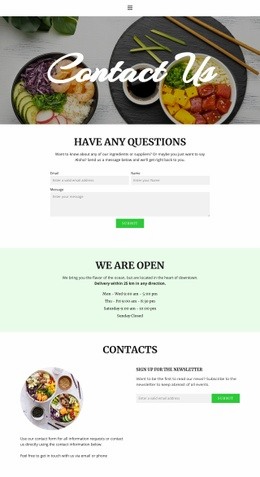
The image banner, green information band, and forms create visual rhythm
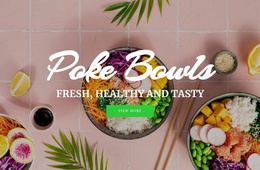
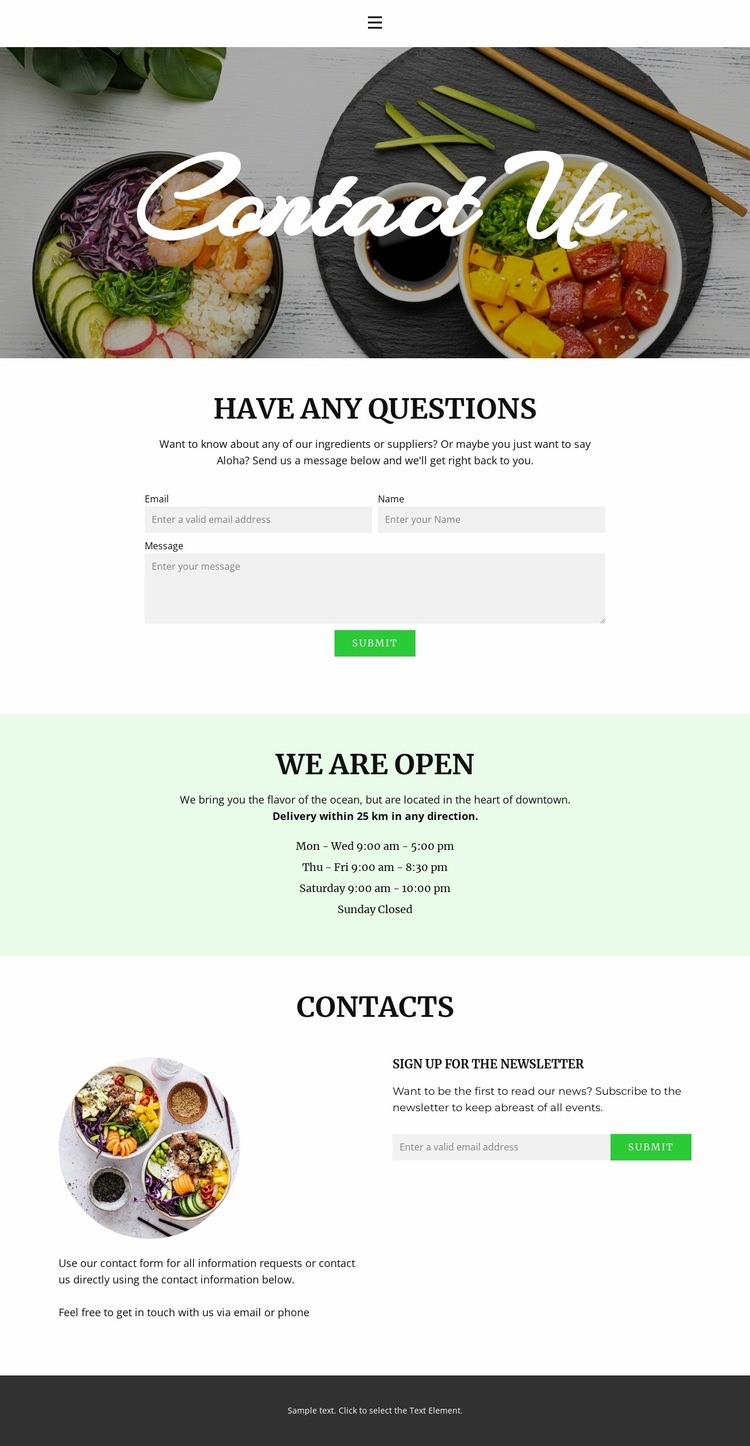
The page begins with a wide food photograph and a centered script heading, using image scale and alignment to establish the first information level. The following question section reduces the visual field to centered explanatory copy and a vertically arranged form. That change from broad photographic impact to compact interaction makes the inquiry area easy to distinguish as the page’s first practical content zone, while the ingredient and supplier wording gives the form a specific context.
A full-width pale-green band then changes the page’s visual rhythm again. Its centered “we are open” heading and weekly schedule create an information pause between the inquiry form and the final contact area. The schedule is dense enough to be useful, but the restrained arrangement keeps it separate from the form fields. In the contacts section, contact guidance sits beside a circular food image and a newsletter signup, creating a two-part composition that balances text, image, and compact interaction.
The sequence is effective as an individual web page because each transition has a clear purpose: visual introduction, question handling, operational information, then additional contact and subscription choices. The dark footer provides a strong closing contrast rather than competing with the main content. Together, these relationships make the page composition easier to scan than a single continuous form or a collection of unrelated contact details.
Customize with Nicepage
Open this ready-made template in the Web Page Design Builder and customize it visually in the Nicepage editor. Replace demo content, edit page sections, and adapt the design to your project without rebuilding the template from scratch.
Design a Web Page Section by Section
Choose a Design for Each Section
Build the page from individual content sections instead of starting with a fixed full-page layout. Use Block Designs to browse ready-made sections for different purposes, including introductions, services, galleries, testimonials, contact forms, pricing, and other common parts of a web page. Search or filter the available designs to find a layout that fits the content you want to add.
Combine Blocks and Page Elements
Add selected Blocks to the page and arrange them in the order that supports the page's purpose. A hero section can introduce the main message, followed by services, benefits, portfolio content, testimonials, calls to action, or contact information.
Inside each section, use Web Page Elements such as Text, Image, Hyperlink, Grid, Gallery, and other elements to build and present the page content. Individual elements can be added and adjusted within the Blocks, giving you more control over the composition of each section without having to create the complete layout from scratch.
Refine the Page Layout and Flow
After assembling the main sections, adjust their content, spacing, backgrounds, images, typography, and element placement in the Nicepage editor. Reorder Blocks when necessary and refine the transition from one section to the next so the information hierarchy and visual flow remain clear throughout the page.
This workflow makes the template useful as a web page design that can be composed from ready-made sections, customized with individual page elements, rearranged, and adapted to the content and purpose of an individual page.