Interior art studio Web Page Design


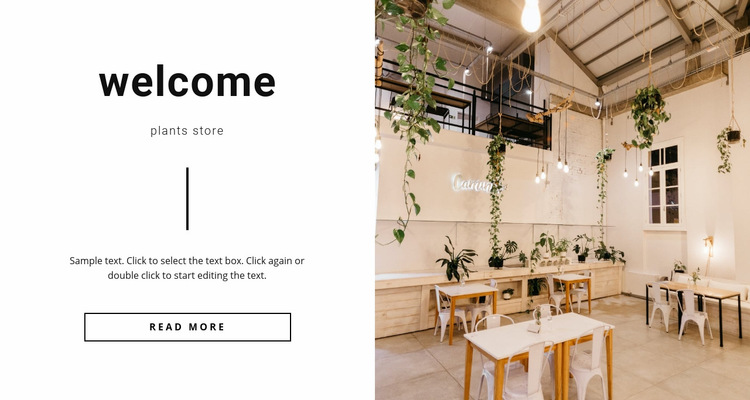
Centered text and a plant-filled image establish page rhythm
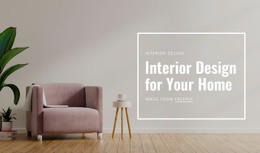
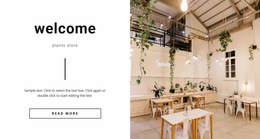
The composition begins with a strong visual division between the white text panel and the detailed interior photograph. On the left, centered alignment gathers the “welcome” heading, “plants store” subtitle, vertical divider, paragraph, and “read more” button into one compact information column. This concentration creates a clear reading path: the large heading attracts attention, the subtitle identifies the subject, the divider introduces explanation, and the outlined button closes the group with a distinct action.
The right half carries the image relationship that gives the block its page presence. A plant-filled retail interior photograph occupies an equal-width panel, so it acts as a full visual counterpart rather than a small illustration beside the text. The warm detail of the photograph contrasts with the white field, black typography, and thin black rules. That contrast creates visual balance without requiring multiple decorative components or additional page chrome.
Within one webpage, the section can operate as a strong introductory or transitional composition. Its two equal panels make the content easy to distinguish from neighboring sections, while the centered text preserves a controlled density against the image’s richer detail. The layout’s value comes from the relationship between message and setting: the left side explains what the visitor is seeing, and the right side gives that subject a visible environment.
Customize with Nicepage
Open this ready-made template in the Web Page Design Builder and customize it visually in the Nicepage editor. Replace demo content, edit page sections, and adapt the design to your project without rebuilding the template from scratch.
Edit Template Offline
2. Create a new page or select existing
3. Click Add new block, search for id 127720 and click enter
Edit Template Online
Create Awesome Websites


Free Nicepage Builder
Keywords
Design a Web Page Section by Section
Choose a Design for Each Section
Build the page from individual content sections instead of starting with a fixed full-page layout. Use Block Designs to browse ready-made sections for different purposes, including introductions, services, galleries, testimonials, contact forms, pricing, and other common parts of a web page. Search or filter the available designs to find a layout that fits the content you want to add.
Combine Blocks and Page Elements
Add selected Blocks to the page and arrange them in the order that supports the page's purpose. A hero section can introduce the main message, followed by services, benefits, portfolio content, testimonials, calls to action, or contact information.
Inside each section, use Web Page Elements such as Text, Image, Hyperlink, Grid, Gallery, and other elements to build and present the page content. Individual elements can be added and adjusted within the Blocks, giving you more control over the composition of each section without having to create the complete layout from scratch.
Refine the Page Layout and Flow
After assembling the main sections, adjust their content, spacing, backgrounds, images, typography, and element placement in the Nicepage editor. Reorder Blocks when necessary and refine the transition from one section to the next so the information hierarchy and visual flow remain clear throughout the page.
This workflow makes the template useful as a web page design that can be composed from ready-made sections, customized with individual page elements, rearranged, and adapted to the content and purpose of an individual page.