Outstanding quality of music Landing Page


Edit Template Offline
2. Create new page and search for id 17189
Edit Template Online
Create Awesome Websites


Free Nicepage Builder
Keywords
Battery proof and product choice lead toward purchase
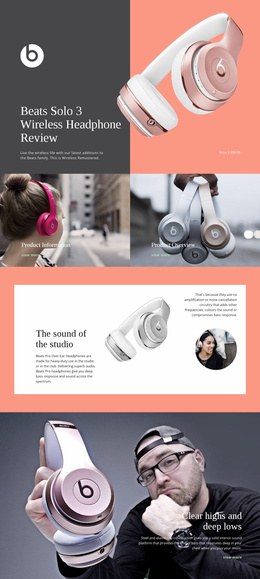
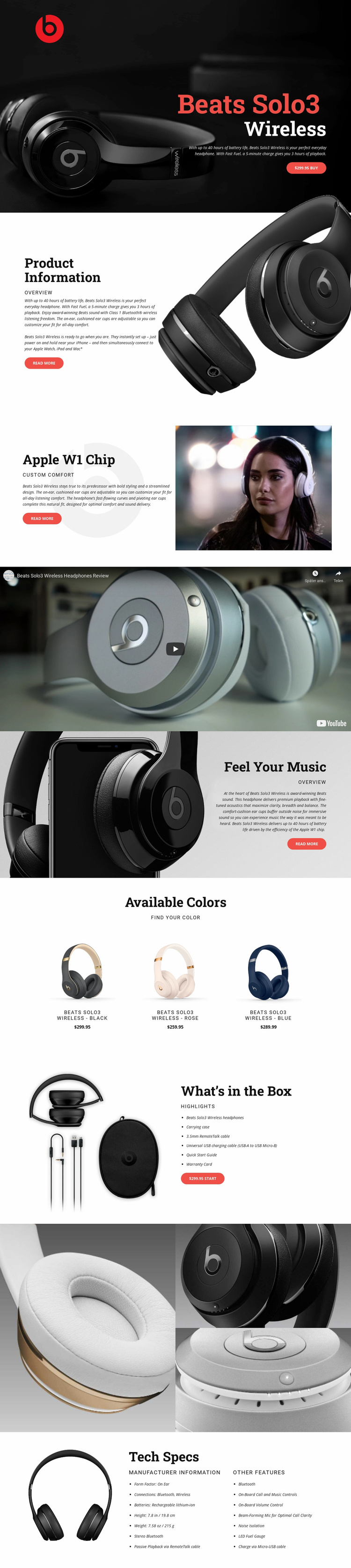
The hero gives the page a clear starting response: Beats Solo3 Wireless headphones are shown at large scale beside the product name, a 40-hour battery claim, and a $299.95 Buy button. The surrounding charcoal background and red product treatment make that action visually distinct, while the supporting sections provide reasons to continue rather than forcing an immediate decision without context.
The sequence then builds product confidence in stages. Product Information introduces the item, followed by Apple W1 Chip and custom comfort content that gives the feature story a more specific focus. The full-width video creates an opportunity to demonstrate the product visually, and the Feel Your Music section returns to sound, comfort, and battery messaging. Together, these areas move from recognition to explanation and demonstration.
The later sections address selection and practical purchase questions. The Available Colors grid presents black, rose, and blue variants with names and prices, giving the visitor a concrete choice set. What’s in the Box lists the headphones, carrying case, charging cable, Quick Start Guide, and Warranty Card beside another purchase button. The close-up gallery and Tech Specs section then provide physical and technical reference points. For this product landing page, those details support the same buying response instead of creating unrelated navigation paths; a Contact Form Element would be relevant only if the final campaign replaces direct purchase with an inquiry action.
Customize with Nicepage
Open this ready-made template in the Landing Page Builder and customize it visually in the Nicepage editor. Replace demo content, edit page sections, and adapt the design to your project without rebuilding the template from scratch.
Build a Landing Page Around One Conversion Goal
Focus on One Primary Action
Use the landing page to guide visitors toward one measurable response, such as requesting a quote, registering, subscribing, booking a consultation, applying for a service, or submitting an inquiry. Keep the primary call-to-action consistent across the important sections so the headline, supporting content, form, and CTA buttons work toward the same campaign goal instead of competing for attention.
Capture Leads With a Form
Use the Contact Form Element to add a contact, subscription, application, or other conversion form directly to the landing page. Customize the form fields, layout, labels, inputs, and button to collect the information required for your campaign while keeping the form focused on the action you want visitors to complete.
Nicepage also provides several form submission options. Form submissions can be sent to Email, stored as Leads, added to Google Sheets, passed to a custom URL or server endpoint, or used to populate a MailChimp mailing list. This provides practical options for collecting inquiries, registrations, subscriptions, applications, and other campaign responses.
Manage Leads and Campaign Responses
When submissions are stored as Leads, you can use Contact Form Leads to review the information collected through the landing page and use it for follow-up. Keep the form connected to the same offer and primary CTA presented throughout the page so visitors move from the campaign message to a clear conversion action.
This workflow makes the template suitable for landing pages where the offer, content, call-to-action, form, and lead collection process work together toward one defined conversion goal.

More from Technology Landing Pages
-
Free Website Builder SoftwareDownload