Two rules for a successful business Joomla Template


Two Numbered Panels Form a Structured Joomla Content Area
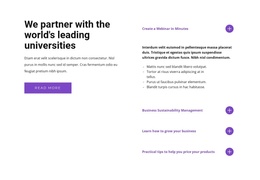
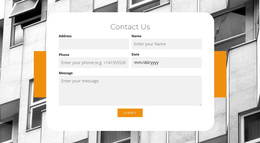
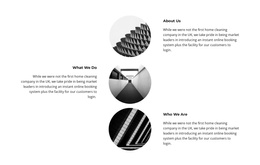
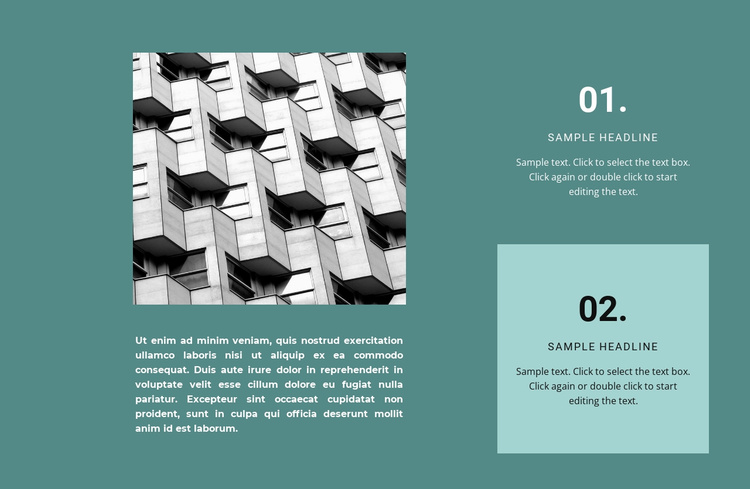
The monochrome architectural photograph and supporting paragraph create a visual and explanatory entry point on the left, while the two numbered panels organize the main information on the right. Their vertical arrangement gives the section a readable sequence: the large numeric labels establish order, then the smaller headings and descriptions provide detail. Because the image sits above the paragraph, the left column has its own internal progression rather than functioning as a decorative image beside unrelated text.
In a Joomla-managed project, this structure can serve as a stable informational region within a broader page. The numbered items may present two principles, stages, or related explanations while surrounding site content handles navigation and other page functions. The lighter teal background on the second panel creates a clear distinction between the two content units without changing their shared role. Muted teal, white text, and the monochrome image also give the section a consistent visual container for structured information. This makes the block suitable for a Joomla content area where related material needs to remain visually grouped and easy to scan. This framing supports orderly reading across the section.
Customize with Nicepage
Open this ready-made template in the Joomla Page Builder and customize it visually in the Nicepage editor. Replace demo content, edit page sections, and adapt the design to your project without rebuilding the template from scratch.
Edit Template Offline
2. Create a new page or select existing
3. Click Add new block, search for id 927641 and click enter
Edit Template Online
Create Awesome Websites


Free Nicepage Builder
Keywords
Work With This Template in Joomla
Customize and Install the Joomla Template
Start with this ready-made template instead of building the Joomla design from scratch. Customize its layout, content, typography, images, sections, and other design elements visually in the Nicepage application, then export and install the Joomla Template, Nicepage Extension, and supported content on your Joomla website.
Edit the Template Directly in Joomla
After installation, you can edit the Joomla Template directly in Joomla with the Nicepage Joomla Extension. Customize the Header, Footer, Colors, Fonts, typography, and Page Templates from the Joomla workflow while keeping the site design connected with your CMS content.
Edit Joomla Articles Visually
Use the Nicepage Joomla Extension to open and edit Joomla Articles visually from the Joomla Administrator. Change text, images, sections, layouts, and other page content in the Nicepage editor while continuing to manage the Articles through Joomla.
Joomla Content and Template Integration
Use the customized template together with Joomla Articles, module Positions, menus, forms, Blog Pages, and other supported CMS elements. With the Nicepage Extension used as the Site Style Source, shared design settings can be applied across Joomla Articles while Joomla continues to provide the CMS environment for managing site content.
This workflow combines a ready-made Joomla Template with visual customization, direct template editing in Joomla, and continued content management through the Nicepage Joomla Extension.