Make an order Joomla Template


Structured reservation information fits a Joomla content region
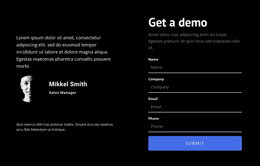
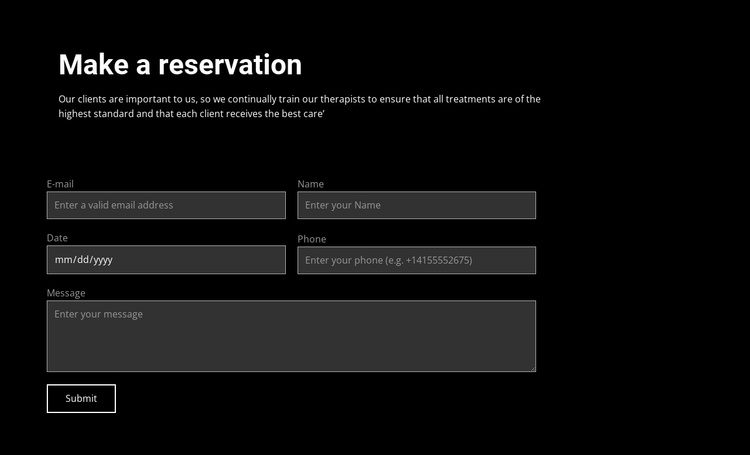
The heading and supporting paragraph create a compact informational unit before the form begins. “Make a reservation” names the purpose directly, while the text about therapist training, treatment standards, and client care gives the request a clear surrounding context. In a Joomla-managed page, this kind of section can remain a stable visual content region while related site information is maintained elsewhere in the broader CMS project.
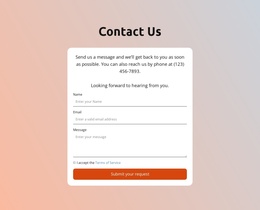
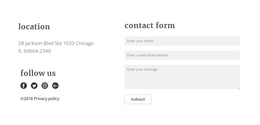
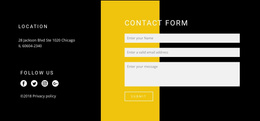
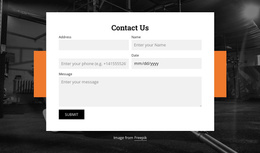
The form divides the reservation request into practical data groups. Email, name, date, and phone fields are arranged in paired columns, keeping short responses together. A wider message area follows for additional details, and the Submit control completes the visible request. Because the inputs are required, the section presents a defined information set rather than an open-ended contact invitation. The dark field surfaces and thin light borders make each area readable against the black background, while the white heading and outlined button provide emphasis.
The Joomla Template angle concerns how this structured information can participate in a CMS-managed page, not the creation of a complete CMS template from one section. The block can serve as a reservation or appointment-request area within a service-focused article or page, retaining its own heading, explanatory copy, form fields, and action. Its content role remains distinct from broader Joomla navigation and other site regions.
Customize with Nicepage
Open this ready-made template in the Joomla Page Builder and customize it visually in the Nicepage editor. Replace demo content, edit page sections, and adapt the design to your project without rebuilding the template from scratch.
Edit Template Offline
2. Create a new page or select existing
3. Click Add new block, search for id 92067 and click enter
Edit Template Online
Create Awesome Websites


Free Nicepage Builder
Keywords
Work With This Template in Joomla
Customize and Install the Joomla Template
Start with this ready-made template instead of building the Joomla design from scratch. Customize its layout, content, typography, images, sections, and other design elements visually in the Nicepage application, then export and install the Joomla Template, Nicepage Extension, and supported content on your Joomla website.
Edit the Template Directly in Joomla
After installation, you can edit the Joomla Template directly in Joomla with the Nicepage Joomla Extension. Customize the Header, Footer, Colors, Fonts, typography, and Page Templates from the Joomla workflow while keeping the site design connected with your CMS content.
Edit Joomla Articles Visually
Use the Nicepage Joomla Extension to open and edit Joomla Articles visually from the Joomla Administrator. Change text, images, sections, layouts, and other page content in the Nicepage editor while continuing to manage the Articles through Joomla.
Joomla Content and Template Integration
Use the customized template together with Joomla Articles, module Positions, menus, forms, Blog Pages, and other supported CMS elements. With the Nicepage Extension used as the Site Style Source, shared design settings can be applied across Joomla Articles while Joomla continues to provide the CMS environment for managing site content.
This workflow combines a ready-made Joomla Template with visual customization, direct template editing in Joomla, and continued content management through the Nicepage Joomla Extension.