We lost this page block WordPress Theme


The Illustration and Button Organize Stable 404 Page Content
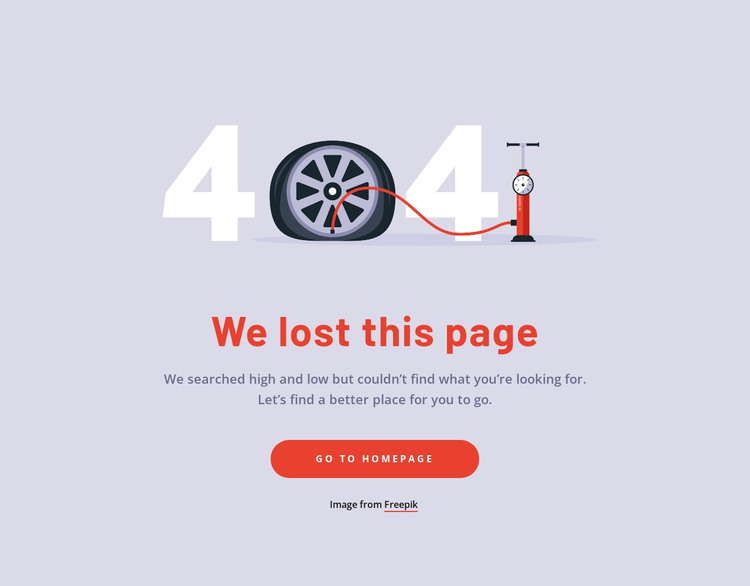
The 404 illustration gives the section an immediate visual marker, while the “We lost this page” heading states the error condition in direct language. A supporting paragraph adds context, and the single “Go to Homepage” button turns that explanation into a practical next step. Together, these elements form stable page content for a missing-route situation: visitors understand what happened and receive one obvious way to continue.
The block’s centered vertical stack is particularly suited to this role because it keeps the error message independent from the surrounding content model. The illustration, text, and button are grouped into one focused section rather than distributed across a complex grid. Its soft lavender background establishes separation from neighboring page content, while red-orange accents help the recovery action remain visible. The generous spacing allows the error state to feel intentional instead of appearing as a crowded interruption.
Within a WordPress-managed page or site, this block can provide a consistent visual section for a 404 context while the wider project manages its pages, theme styling, and other content separately. The section can be coordinated with the site’s typography and color direction, but it does not itself become a WordPress Theme. Its value lies in preserving a clear, reusable page-content pattern for visitors who reach an unavailable destination.
Customize with Nicepage
Open this ready-made template in the WordPress Website Builder and customize it visually in the Nicepage editor. Replace demo content, edit page sections, and adapt the design to your project without rebuilding the template from scratch.
Edit Template Offline
2. Create a new page or select existing
3. Click Add new block, search for id 726077 and click enter
Edit Template Online
Create Awesome Websites


Free Nicepage Builder
Keywords
Manage and Edit This Theme in WordPress
Customize and Install the WordPress Theme
Start with this ready-made theme instead of building the WordPress design from scratch. Customize its layout, content, typography, images, sections, and other design elements visually in Nicepage editor, then export and install the WordPress Theme, Plugin, and Pages on your WordPress site. The Nicepage WordPress Plugin lets you continue working with the site after installation.
Edit the Theme Directly in WordPress
After installation, you can edit the WordPress Theme directly in WordPress with the Nicepage WordPress Plugin. Use Site Style to customize site Colors, Fonts, Header, Footer, Blog, and Post Page Templates while working within your WordPress website.
Edit WordPress Pages Visually
Use the Nicepage WordPress Plugin to edit page content directly from the WordPress admin area. Open a WordPress Page with Nicepage and visually change its text, images, sections, and other page elements while continuing to manage the Page through WordPress.
WordPress Content and Theme Integration
Use the customized theme with WordPress Pages, Posts, Blog and Post Templates, menus, widgets, and other CMS-managed content. Shared theme elements such as Colors, Fonts, Header, Footer, Blog, and Post Page Templates can be managed as part of the overall site design, while WordPress provides the CMS environment for managing site content.
This workflow combines a ready-made WordPress Theme with visual customization, direct theme editing in WordPress, and continued content management through the Nicepage WordPress Plugin.