Business project WordPress Theme


Stable Contact Content Meets Expandable WordPress Page Information
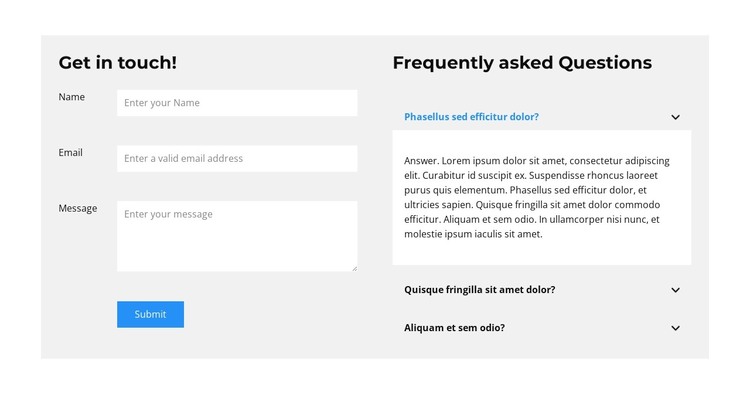
The left column gives this section a clear page-content role: “Get in touch!” introduces Name, Email, and Message inputs, followed by one Submit action. These fields create a stable place for visitors to send a written request rather than presenting a temporary promotional message. The right column adds a separate information layer through “Frequently asked Questions,” where three questions are stacked vertically in an accordion. The first answer is expanded in the preview, showing how one explanation can remain visible while the other two stay compact.
Within a WordPress-managed page, the combination can support a dependable contact area alongside practical answers. The form keeps personal communication in one bounded region, while the FAQ reduces the need to repeat common explanations around the page. This content relationship suits a permanent services, support, or contact section without turning the block into a complete theme or site. The two-column alignment makes the form and FAQ easy to compare, and the shared light gray treatment keeps them visually connected. White fields and answer surfaces separate usable content from the background; dark headings mark the two page-content groups; and blue accents identify the current accordion state and the Submit action. The broader WordPress project can place this section among other page content while preserving its own contact-and-support structure.
Customize with Nicepage
Open this ready-made template in the WordPress Website Builder and customize it visually in the Nicepage editor. Replace demo content, edit page sections, and adapt the design to your project without rebuilding the template from scratch.
Edit Template Offline
2. Create a new page or select existing
3. Click Add new block, search for id 2908133 and click enter
Edit Template Online
Create Awesome Websites


Free Nicepage Builder
Keywords
Manage and Edit This Theme in WordPress
Customize and Install the WordPress Theme
Start with this ready-made theme instead of building the WordPress design from scratch. Customize its layout, content, typography, images, sections, and other design elements visually in Nicepage editor, then export and install the WordPress Theme, Plugin, and Pages on your WordPress site. The Nicepage WordPress Plugin lets you continue working with the site after installation.
Edit the Theme Directly in WordPress
After installation, you can edit the WordPress Theme directly in WordPress with the Nicepage WordPress Plugin. Use Site Style to customize site Colors, Fonts, Header, Footer, Blog, and Post Page Templates while working within your WordPress website.
Edit WordPress Pages Visually
Use the Nicepage WordPress Plugin to edit page content directly from the WordPress admin area. Open a WordPress Page with Nicepage and visually change its text, images, sections, and other page elements while continuing to manage the Page through WordPress.
WordPress Content and Theme Integration
Use the customized theme with WordPress Pages, Posts, Blog and Post Templates, menus, widgets, and other CMS-managed content. Shared theme elements such as Colors, Fonts, Header, Footer, Blog, and Post Page Templates can be managed as part of the overall site design, while WordPress provides the CMS environment for managing site content.
This workflow combines a ready-made WordPress Theme with visual customization, direct theme editing in WordPress, and continued content management through the Nicepage WordPress Plugin.