Competitive pricing Template


Three Plan Options Turn Pricing Details Into One Scannable Choice
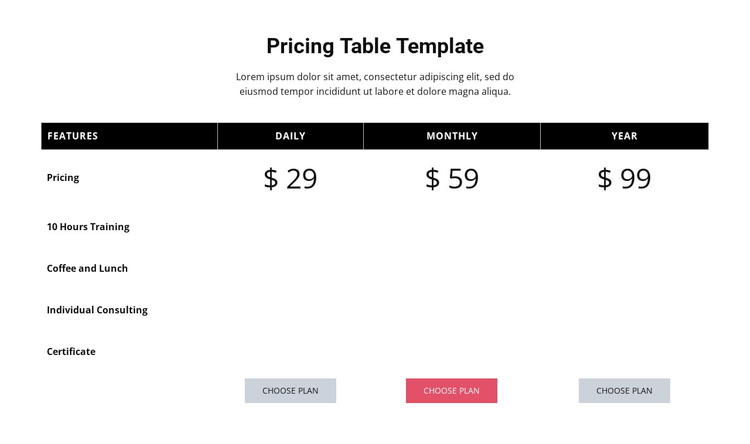
The section combines a centered introduction with a comparison structure that keeps three pricing options visible at the same time. Daily, Monthly, and Year are arranged as parallel columns rather than separated into unrelated cards. The four shared rows—10 Hours Training, Coffee and Lunch, Individual Consulting, and Certificate—give visitors a consistent basis for comparing what each option includes. Large centered prices make the main difference between columns easy to locate, while the Choose plan buttons provide a practical endpoint for each plan.
This design is worth choosing when the content needs comparison more than extended explanation. The left-aligned feature labels support quick scanning, the black header row gives the table a firm top boundary, and thin dividers preserve order without overwhelming the page. The middle button's pink-red accent supplies a selective point of emphasis, while the muted gray styling of the other buttons keeps the set visually coordinated.
As a ready-made block, its strength comes from the relationship between content coverage and layout: one short introduction, four concrete criteria, three plan columns, three prices, and three actions. That combination can suit a pricing area where visitors should evaluate alternatives without moving through multiple panels. The surrounding page can provide the broader story, but this section already gives the pricing decision a focused and identifiable design option.
Customize with Nicepage
Open this ready-made template in the Template Builder and customize it visually in the Nicepage editor. Replace demo content, edit page sections, and adapt the design to your project without rebuilding the template from scratch.
Edit Template Offline
2. Create a new page or select existing
3. Click Add new block, search for id 87810 and click enter
Edit Template Online
Create Awesome Websites


Free Nicepage Builder
Keywords
Start With a Ready-Made Template
Choose a Design for a New Page
Use a ready-made template as a starting point instead of creating every page from a blank canvas. When adding a new page in Nicepage, browse available designs, compare different layouts, and choose an option that already fits the general purpose and visual direction of your project.
Browse Different Page Designs
Explore Page Designs using search, thematic categories, Design Sets, and full-page previews. The collection includes layouts for different subjects and page purposes, making it easier to compare alternatives before selecting a design to customize.
Customize the Selected Template
After choosing a design, create the page and continue editing it visually in Nicepage. Replace the demo content, adjust images, typography, colors, sections, and other elements, and adapt the ready-made layout to your own content instead of rebuilding the design from the beginning.
Explore More Design Directions
If the first option does not match your project closely enough, return to the design collection and compare other templates before committing to a layout. This makes the template library useful not only for faster page creation, but also for exploring different visual approaches and finding a suitable starting point for a new project.
This workflow gives you access to a broad collection of ready-made designs that can be selected, compared, and customized according to the needs of each new page or project.