Virtual assistant for your business Template


Edit Template Offline
2. Create new page and search for id 6453262
Edit Template Online
Create Awesome Websites


Free Nicepage Builder
Keywords
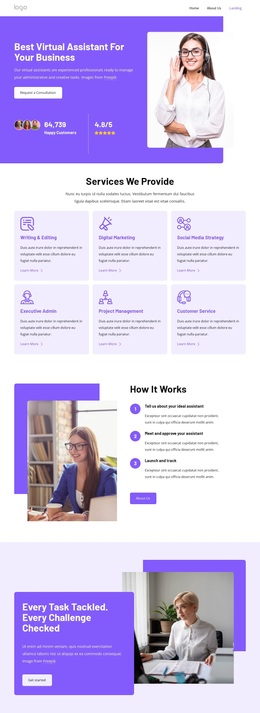
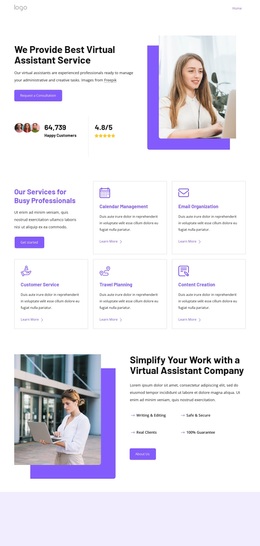
Five Practical Services Give This Design a Clear Starting Direction
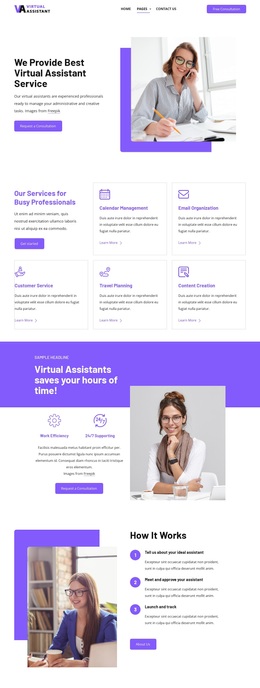
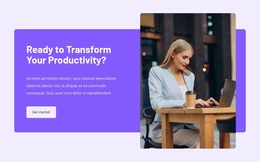
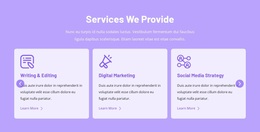
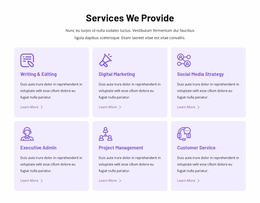
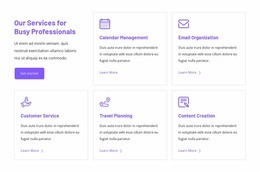
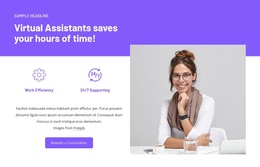
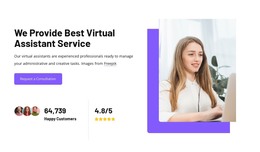
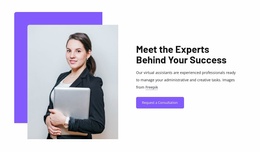
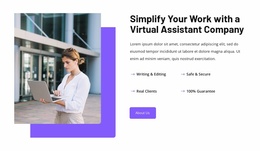
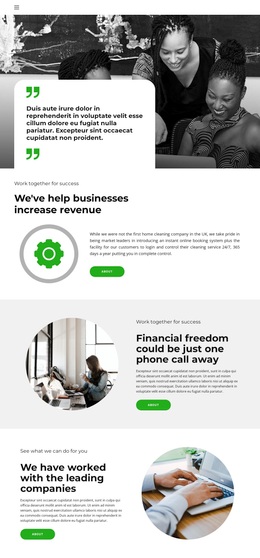
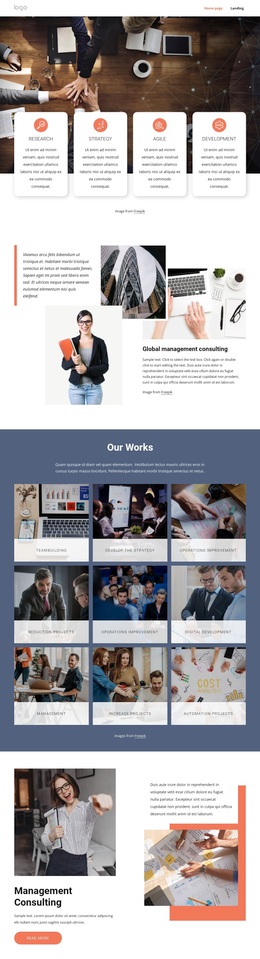
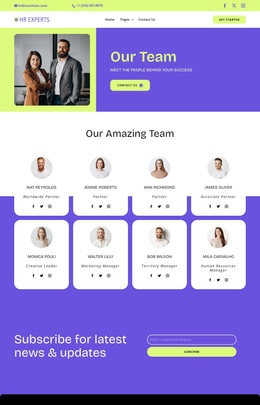
Calendar Management, Email Organization, Customer Service, Travel Planning, and Content Creation give this design a more specific identity than a generic business layout. The five services are presented as peer cards, making the page a useful choice for projects that need to explain several forms of administrative or creative support without relying on dense paragraphs. The portrait-led hero adds a human service context, while the consultation button makes the intended relationship clear from the beginning.
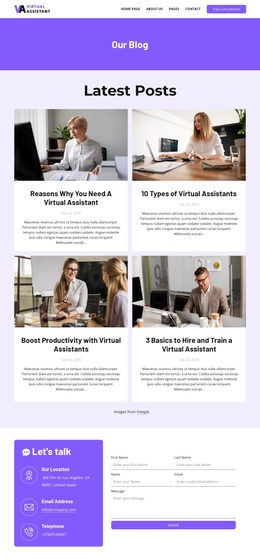
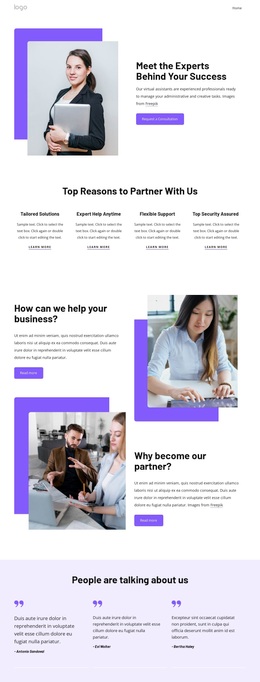
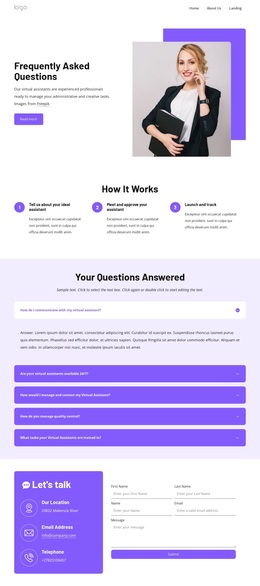
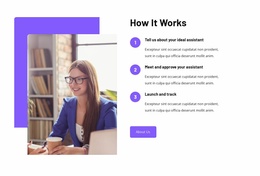
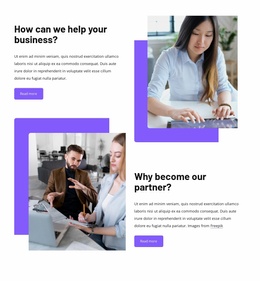
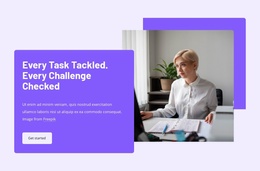
The design also covers the questions that commonly follow an initial service introduction. A purple promotional band frames the offer through Work Efficiency and 24/7 Supporting labels, and the How It Works section translates the service into three stages: identifying an ideal assistant, meeting and approving that assistant, and launching and tracking the engagement. This combination of coverage and process explanation makes the layout suitable for a business that needs to communicate both its capabilities and its working model. The dark footer adds practical completion through client-oriented navigation, Quick Links, email and telephone channels, and a Get started action. Together, these elements make the page a focused option for virtual assistant services rather than a broadly interchangeable corporate template.
Customize with Nicepage
Open this ready-made template in the Template Builder and customize it visually in the Nicepage editor. Replace demo content, edit page sections, and adapt the design to your project without rebuilding the template from scratch.
Start With a Ready-Made Template
Choose a Design for a New Page
Use a ready-made template as a starting point instead of creating every page from a blank canvas. When adding a new page in Nicepage, browse available designs, compare different layouts, and choose an option that already fits the general purpose and visual direction of your project.
Browse Different Page Designs
Explore Page Designs using search, thematic categories, Design Sets, and full-page previews. The collection includes layouts for different subjects and page purposes, making it easier to compare alternatives before selecting a design to customize.
Customize the Selected Template
After choosing a design, create the page and continue editing it visually in Nicepage. Replace the demo content, adjust images, typography, colors, sections, and other elements, and adapt the ready-made layout to your own content instead of rebuilding the design from the beginning.
Explore More Design Directions
If the first option does not match your project closely enough, return to the design collection and compare other templates before committing to a layout. This makes the template library useful not only for faster page creation, but also for exploring different visual approaches and finding a suitable starting point for a new project.
This workflow gives you access to a broad collection of ready-made designs that can be selected, compared, and customized according to the needs of each new page or project.

Design Set (23)
-

-
-
-
-
-
-
-
-
-
-
-
-
Free Website Builder SoftwareDownload
-
-
-