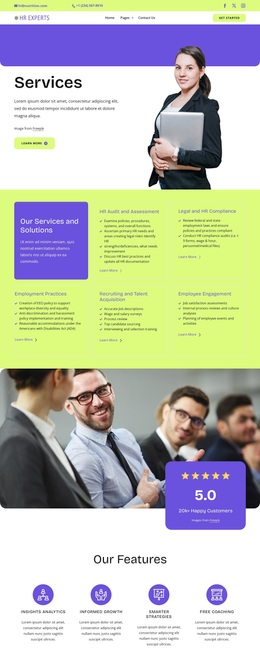
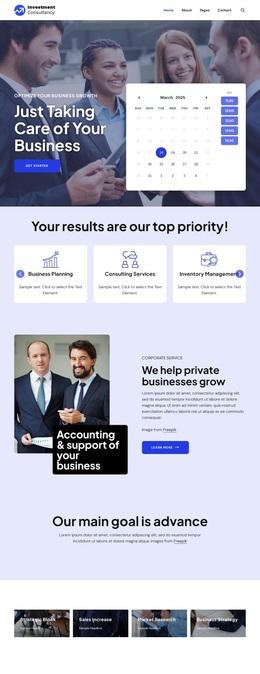
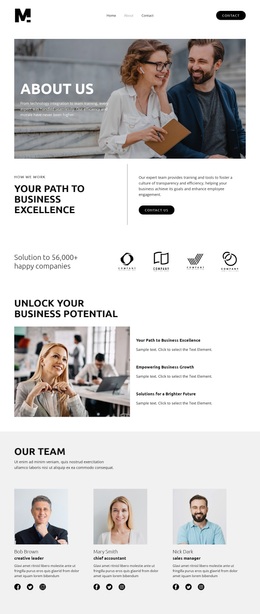
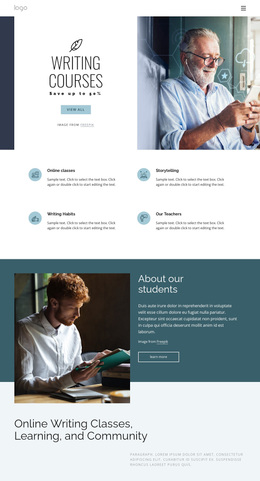
Learn more about our consulting agency Template



Edit Template Offline
2. Create new page and search for id 6208011
Edit Template Online
Create Awesome Websites


Free Nicepage Builder
Keywords
Case studies and six profile cards give the consulting story visible depth
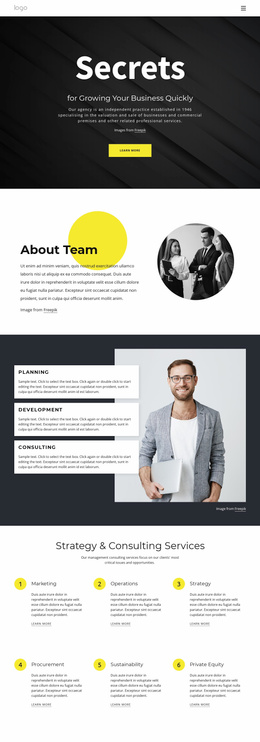
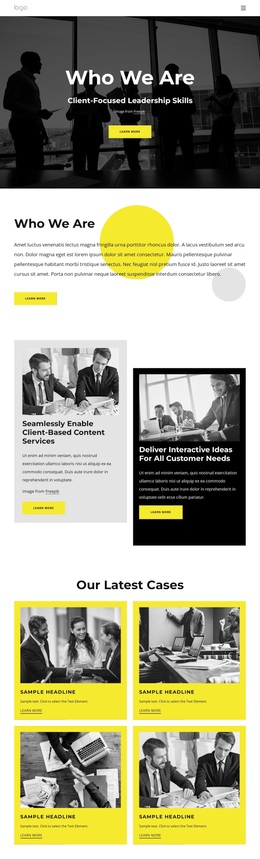
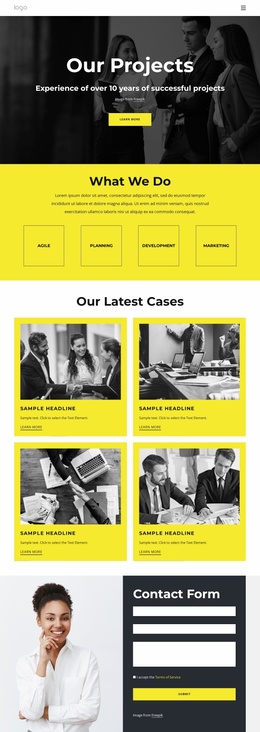
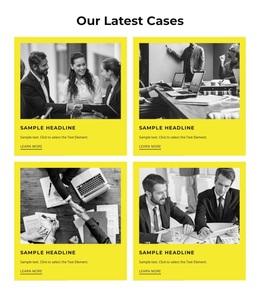
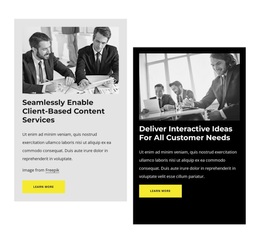
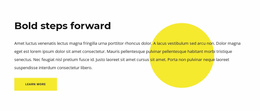
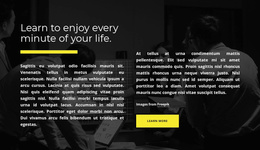
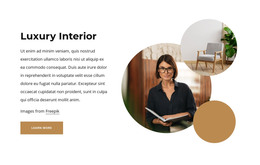
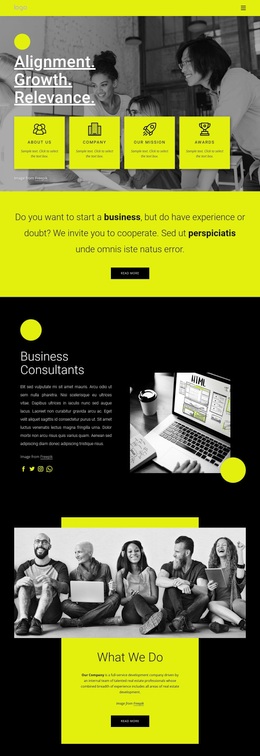
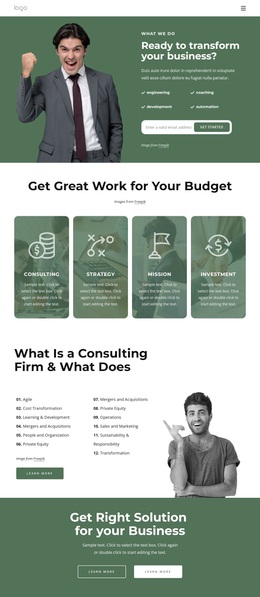
The strongest reason to choose this design is the range of evidence it places around the central consulting message. The opening hero establishes a company-focused introduction, but the page quickly adds two capability cards and a four-item “Our Latest Cases” grid. That combination lets the design move from what the agency says it does to visual examples of the work it wants visitors to explore. A separate consultant explanation then gives the subject a more direct educational context.
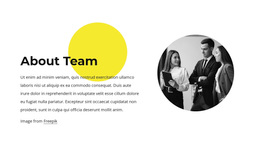
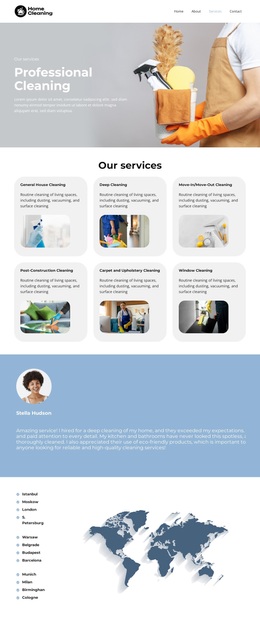
The page also covers the people and relationships behind the company. Six team profile cards introduce named roles as structural content, while four testimonial items add customer-perspective content without relying on the team section alone. Company news posts and a five-item FAQ accordion broaden the page for visitors who need updates or answers before making contact. At the end, a subscription form, office listings for Sydney, Melbourne, Los Angeles, and London, a map, and a contact form create several practical information points. The alternating dark and yellow sections, white cards, circular portrait treatments, and strong photography make those varied sections feel like parts of one deliberate consulting presentation. This is a useful choice when a business needs its expertise, proof, people, and contact routes shown together.
Customize with Nicepage
Open this ready-made template in the Template Builder and customize it visually in the Nicepage editor. Replace demo content, edit page sections, and adapt the design to your project without rebuilding the template from scratch.
Start With a Ready-Made Template
Choose a Design for a New Page
Use a ready-made template as a starting point instead of creating every page from a blank canvas. When adding a new page in Nicepage, browse available designs, compare different layouts, and choose an option that already fits the general purpose and visual direction of your project.
Browse Different Page Designs
Explore Page Designs using search, thematic categories, Design Sets, and full-page previews. The collection includes layouts for different subjects and page purposes, making it easier to compare alternatives before selecting a design to customize.
Customize the Selected Template
After choosing a design, create the page and continue editing it visually in Nicepage. Replace the demo content, adjust images, typography, colors, sections, and other elements, and adapt the ready-made layout to your own content instead of rebuilding the design from the beginning.
Explore More Design Directions
If the first option does not match your project closely enough, return to the design collection and compare other templates before committing to a layout. This makes the template library useful not only for faster page creation, but also for exploring different visual approaches and finding a suitable starting point for a new project.
This workflow gives you access to a broad collection of ready-made designs that can be selected, compared, and customized according to the needs of each new page or project.