Corporate identity, branding and design Template


An Overlapping Image-and-Panel Direction for Creative Introductions
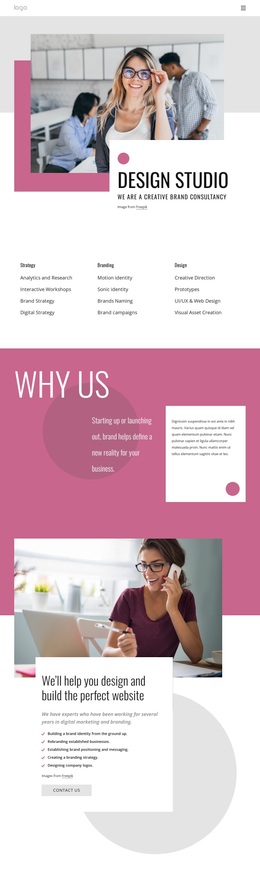
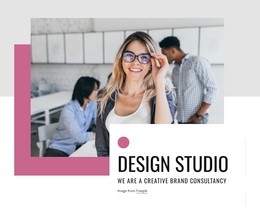
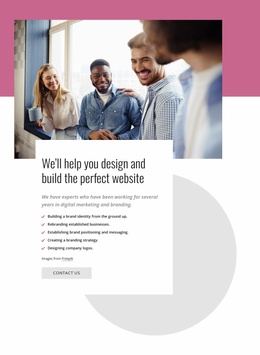
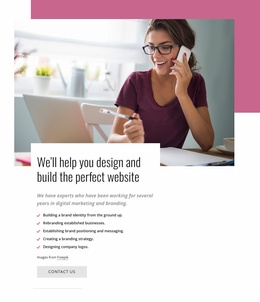
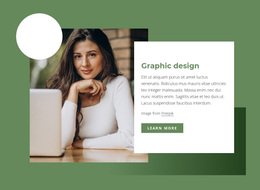
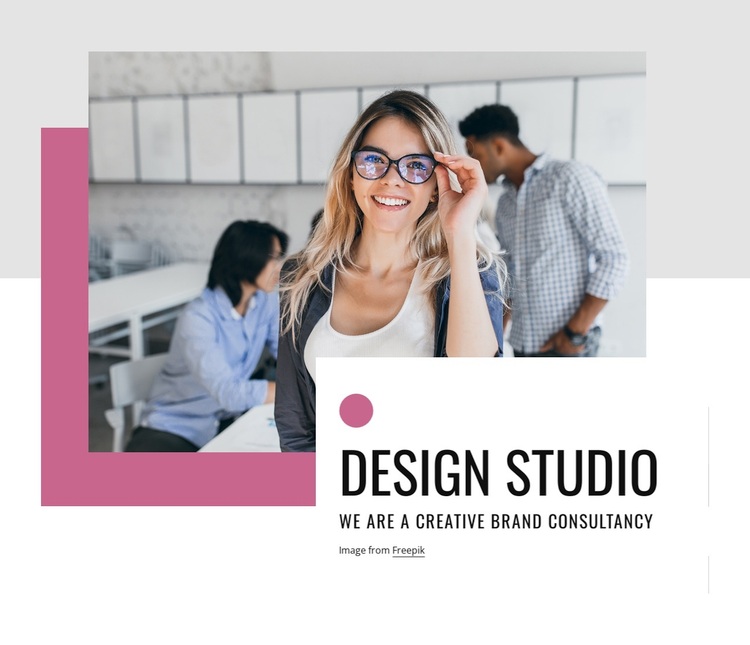
The main distinction of this ready-made section is the way its message and image share the same visual field. Instead of placing text beside a photograph in a conventional two-column row, the block lets a white panel overlap the lower-right area of the large studio image. That arrangement gives the heading “Design Studio” a strong visual anchor while keeping “We are a creative brand consultancy” close to the photographic context.
The supporting shapes reinforce that choice. A pink rectangular form sits behind the image, a pink circle appears inside the text panel, and light gray and muted pink geometric blocks extend the background treatment. These accents make the block recognizable among simpler hero alternatives without adding interaction or extra content objects. The result is a compact introductory section with one main photograph, one heading, one supporting statement, and a deliberate balance between open white space and layered color.
This option is especially suited to a project that needs a creative consultancy introduction with a more editorial composition than a standard centered hero. The people-focused studio photograph supplies human context, while the overlapping panel keeps the brand message readable. Because the block remains one section, surrounding content can handle services, case studies, proof, or contact information. The Freepik attribution identifies the image source and remains part of the section’s practical content context.
Customize with Nicepage
Open this ready-made template in the Template Builder and customize it visually in the Nicepage editor. Replace demo content, edit page sections, and adapt the design to your project without rebuilding the template from scratch.
Edit Template Offline
2. Create a new page or select existing
3. Click Add new block, search for id 5925161 and click enter
Edit Template Online
Create Awesome Websites


Free Nicepage Builder
Keywords
Start With a Ready-Made Template
Choose a Design for a New Page
Use a ready-made template as a starting point instead of creating every page from a blank canvas. When adding a new page in Nicepage, browse available designs, compare different layouts, and choose an option that already fits the general purpose and visual direction of your project.
Browse Different Page Designs
Explore Page Designs using search, thematic categories, Design Sets, and full-page previews. The collection includes layouts for different subjects and page purposes, making it easier to compare alternatives before selecting a design to customize.
Customize the Selected Template
After choosing a design, create the page and continue editing it visually in Nicepage. Replace the demo content, adjust images, typography, colors, sections, and other elements, and adapt the ready-made layout to your own content instead of rebuilding the design from the beginning.
Explore More Design Directions
If the first option does not match your project closely enough, return to the design collection and compare other templates before committing to a layout. This makes the template library useful not only for faster page creation, but also for exploring different visual approaches and finding a suitable starting point for a new project.
This workflow gives you access to a broad collection of ready-made designs that can be selected, compared, and customized according to the needs of each new page or project.